1.Getting started
The club admin runs in your browser. Nothing to install, and it works from a computer, a tablet or a phone. This chapter is the tour of the frame around everything else: signing in, finding your way, and what to set up in the first week.
Signing in
Sign in with the email address your club registered for you. The admin and the member app share one account, so if you also play in the club, it is the same login. If you never received a password, or you forgot it, use the forgot-password link on the login page and you will get a reset email within a minute.
- Open admin.racketr.app in your browser.
- Enter your email and password, then press Sign in.
- If your club uses two-factor, enter the six-digit code from your authenticator app.
- Bookmark the page once you are in, so you skip the address bar next time.
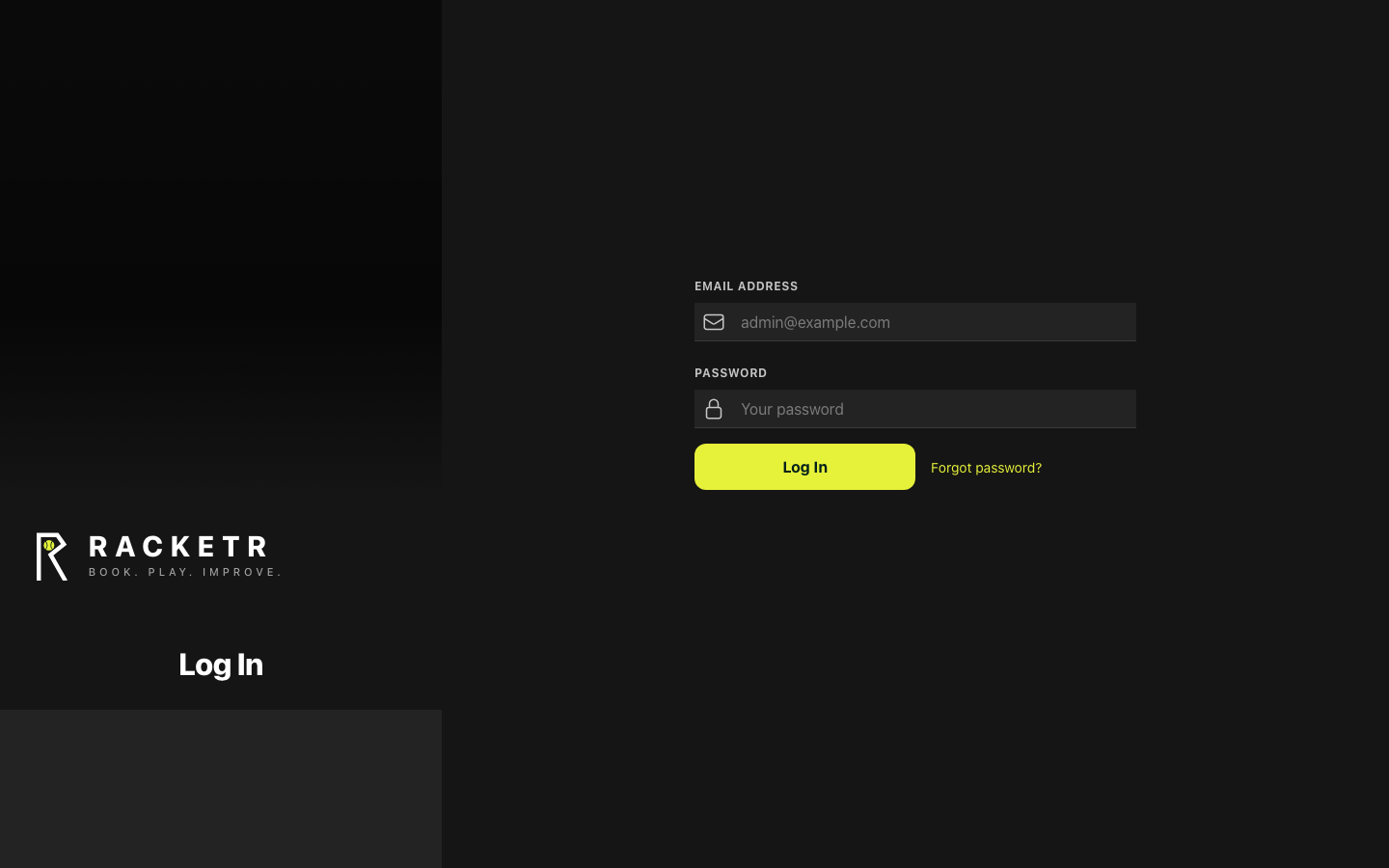
If you hold a role in several clubs, you pick the club after signing in. The club name always sits at the top of the screen, so you can see which club you are about to change.
How the screen is laid out
Three areas, and they never move. The menu on the left is grouped by topic. The middle is the page you are on. The top right holds help, search, notifications, light or dark mode, and your own profile, where you also switch language. Every page follows the same rhythm: a title with a short explanation, then the tools, then the data.
- Look at the top left to confirm which club you are in.
- Use the menu on the left to move between areas.
- Use the top right for help, search and your profile.
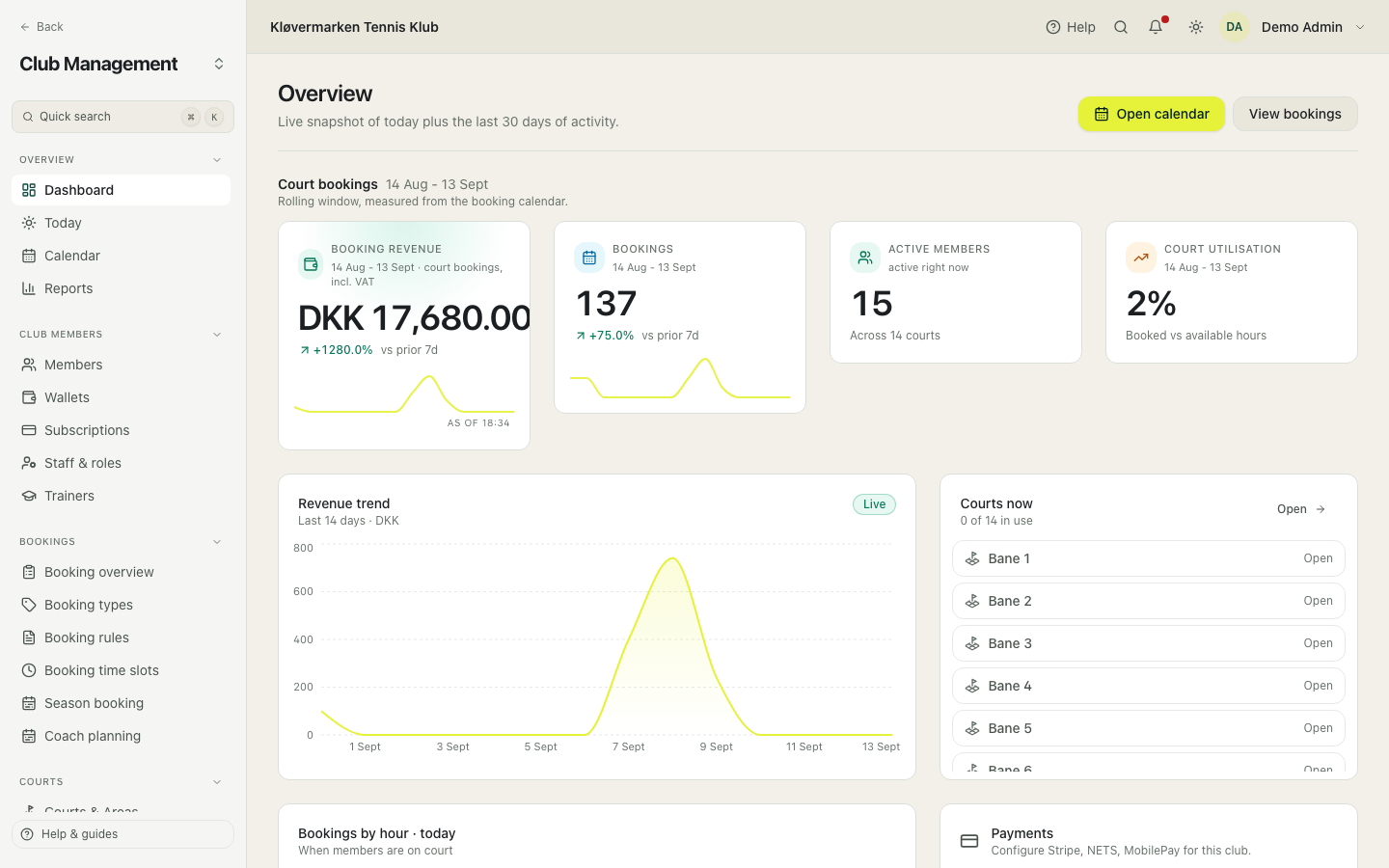
Change language under your profile in the top right. It only changes what you see. Members get emails and notifications in their own language regardless.
The menu
The menu follows the club's day rather than the database: OVERVIEW (dashboard, today, calendar, reports), CLUB MEMBERS, BOOKINGS, COURTS, OPERATIONS, PAYMENTS & PRICING, FINANCE and SETTINGS & AUDIT. Finance has its own sub-headings: BOOKKEEPING, REPORTS, CATALOGS and YEAR-END. Click a heading to collapse a group you do not use.
- Click a group heading to open or close it.
- Click an entry to open that page.
- A padlock means the module is not part of your club's plan.
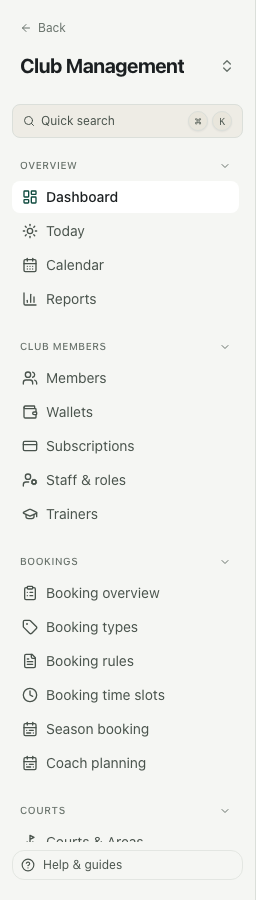
A padlocked entry is not broken. It is a module your club has not bought or not switched on. Get in touch if you want it opened, and it appears without any other change to your data.
Quick search
The fastest way around the whole admin, and the one shortcut worth learning. Press Cmd+K on a Mac or Ctrl+K on Windows, type the name of a page or a question for this handbook, and jump straight there. Members are found with the search on the Members page.
- Press Cmd+K or Ctrl+K anywhere in the admin.
- Type what you are looking for, for example 'invoices' or 'card on file'.
- Pick the result with the arrow keys and press Enter. A handbook section opens in a new tab.
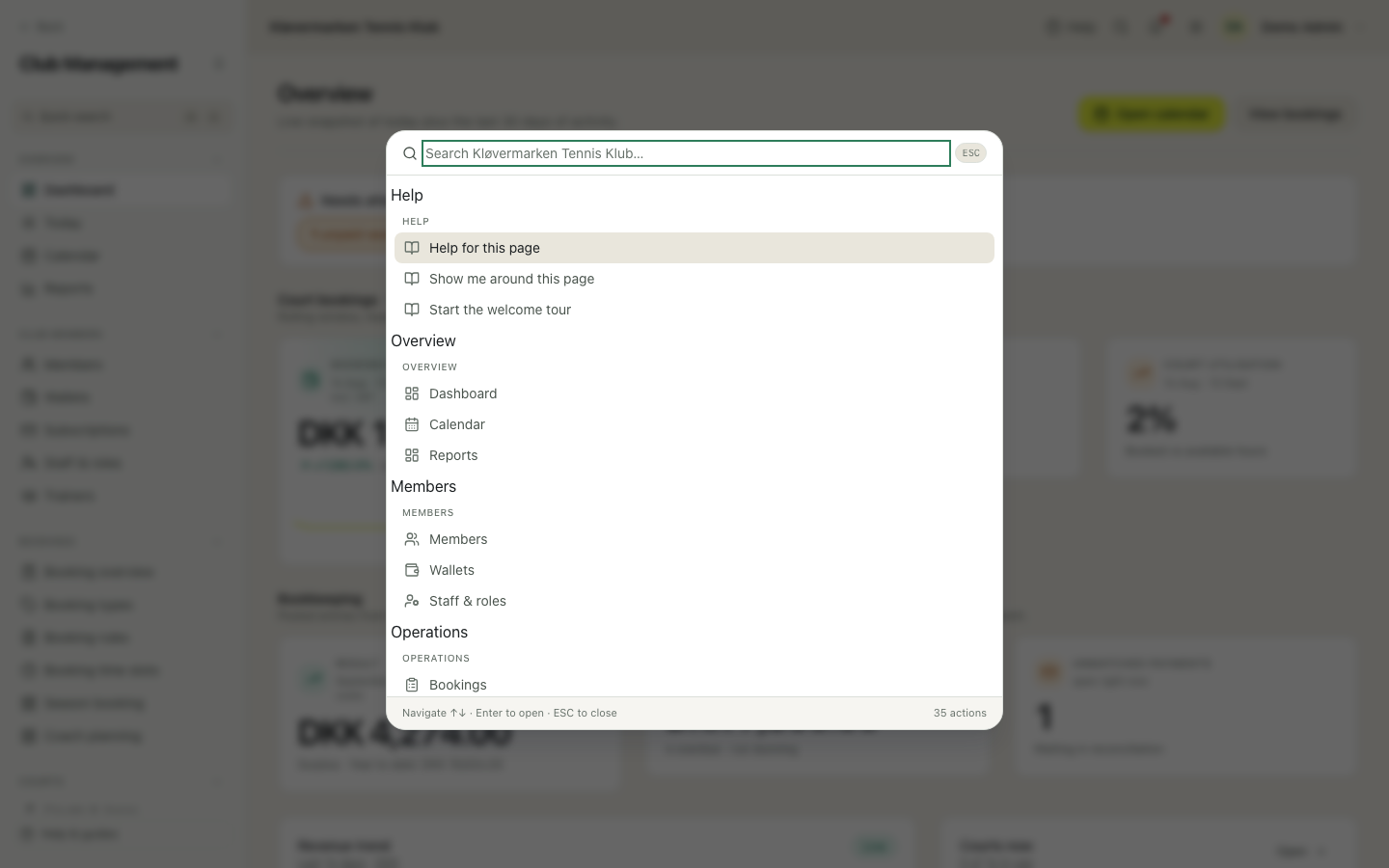
Search knows the names of the screens and every section of this handbook, so you never have to remember which group a page lives in.
Help on the page
The Help button in the top right opens help for the page you are standing on: short step-by-step recipes for the usual jobs, and a guided tour that points at the actual buttons on that screen.
- Open the page you need help with.
- Click Help in the top right.
- Pick a recipe, or start the tour to have the controls pointed out.
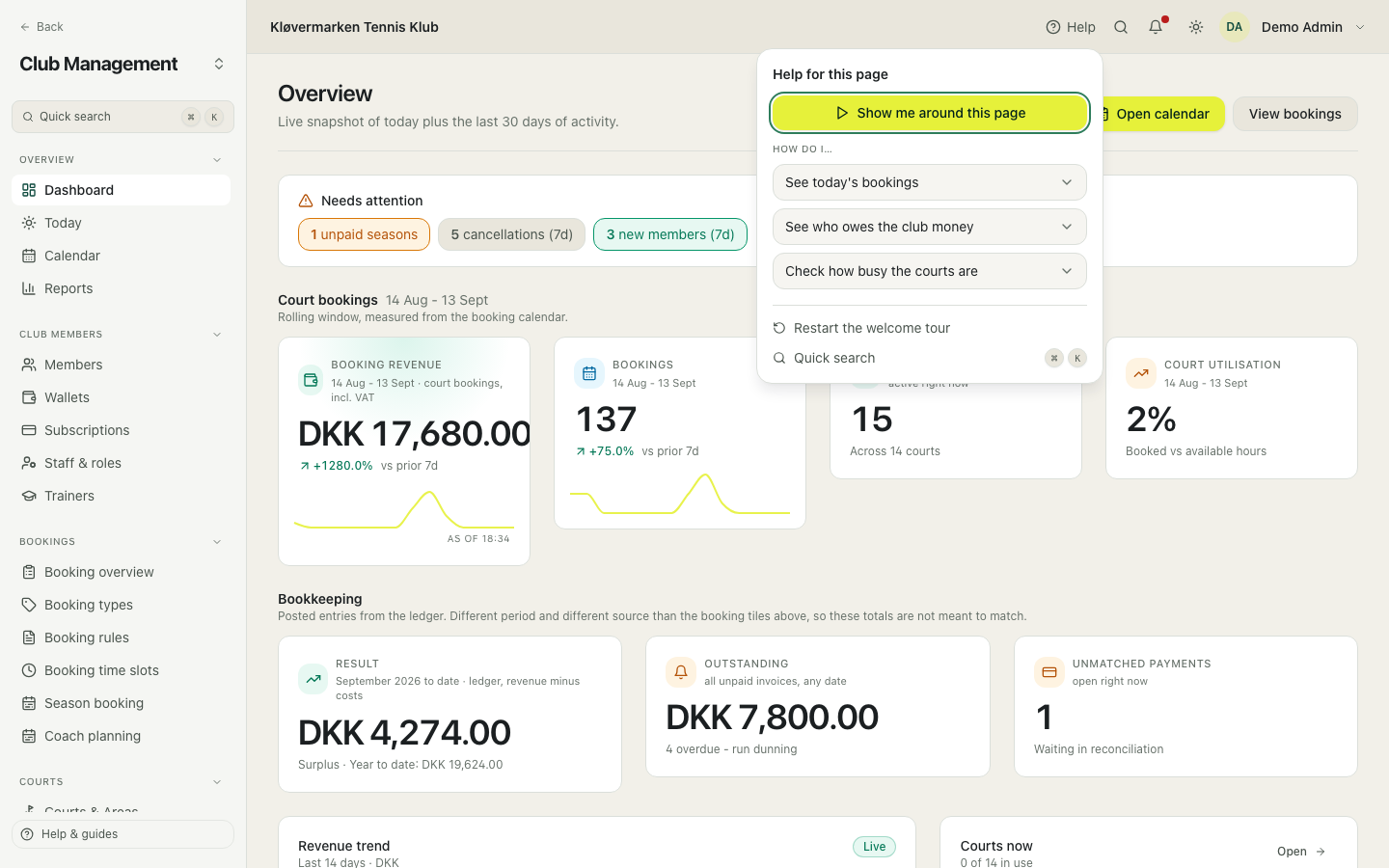
The tour changes nothing and books nothing. It is safe to run on a live club in the middle of the day.
Turning on court booking
A brand new club starts as a plain community: members and messages, no courts. Activation turns it into a booking club, and it is done once, by the club owner. It creates a starting point rather than an empty screen: a default area, a default booking type, the Danish VAT catalog and standard opening hours. Everything it creates can be changed afterwards, and activation can be reversed from Settings without losing data.
- Sign in as the club owner and open Club settings.
- Start the activation and fill in the club details: currency, VAT number for invoices, and the cancellation deadline.
- Read the summary of what will be created, then confirm.
- Go through Courts, Opening hours and Pricing before you let members book.
Only the owner sees this. If the page tells you it is owner-only, you are signed in as staff and need the owner to do this one step.
The first week, in order
Set the club up in the order the system depends on. Each step below builds on the one before it, and doing them out of order is the usual reason something looks wrong later. Ten minutes per step is normal, except pricing and members.
- Courts and areas: the physical courts members can book.
- Opening hours: the frame of the booking grid.
- Court seasons: when outdoor courts are open at all.
- Booking types and time windows: the labels and the named periods prices refer to.
- Pricing: the hourly rates, per court, period and membership.
- Booking rules: how much and how far ahead a member may book.
- Membership types and members: who the club consists of.
- Payment gateway: the account the money lands in.
- Finance: fiscal year, chart of accounts and account mapping.
- Announce to members, then take the first booking yourself as a test.
Do the test booking from the member app, with a real card if the club takes card payments. It is the only way to see the whole chain work: the slot disappears from the grid, the invoice is issued, the payment lands, and the revenue is posted to the books.
2.Dashboard and reports
The dashboard is the club's morning coffee: what came in, how much play there is, and what is waiting on a decision. Reports are the same numbers, but for a period you choose.
Dashboard
Anything needing a decision sits at the top: unpaid seasons, memberships past due, new members, payments nobody matched. Below that come revenue, bookings, active members and court utilisation for the last 30 days, and a small finance strip from the ledger. Every figure is clickable and takes you to the page where you act on it, so you rarely need the menu in the morning.
- Read the attention cards at the top and clear what you can.
- Click any number to open the list behind it.
- Use the finance strip to see whether anything is unmatched or overdue.
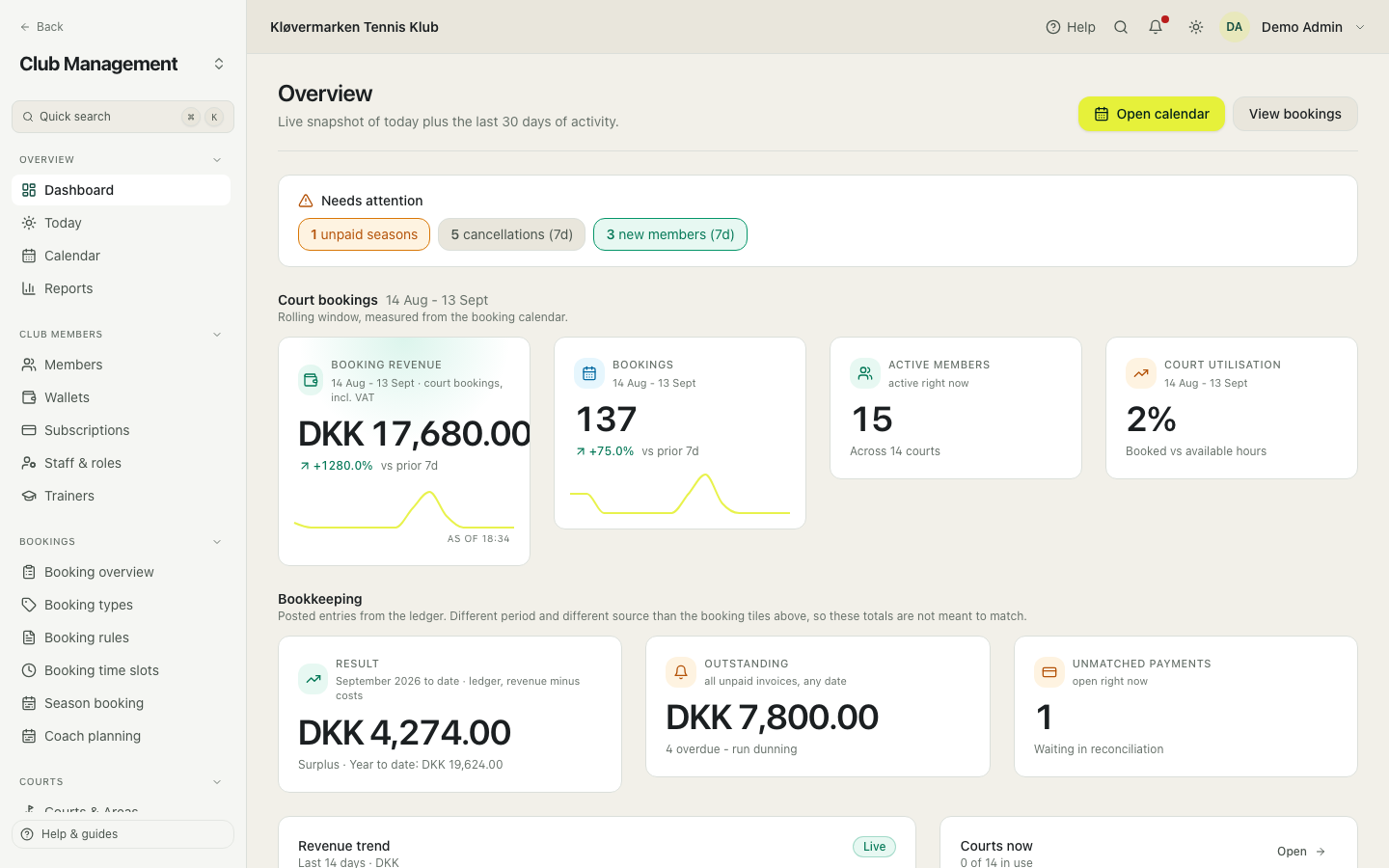
The booking numbers and the finance numbers cover different periods and come from different places, so they are not meant to add up to each other. An empty attention card means there is genuinely nothing to deal with.
Reports
Ready-made reports: court utilisation by weekday and hour, revenue per day, online payments, top bookers, and the members with the most no-shows. You can also build your own report over a range of accounts and a date range, save it, and come back to it later. Everything exports to a spreadsheet.
- Pick a report in the list on the left.
- Set the period and any filters, then read the result.
- Click a column heading to sort, or export to CSV for a spreadsheet.
- To build your own: choose the account range, name it and save it.
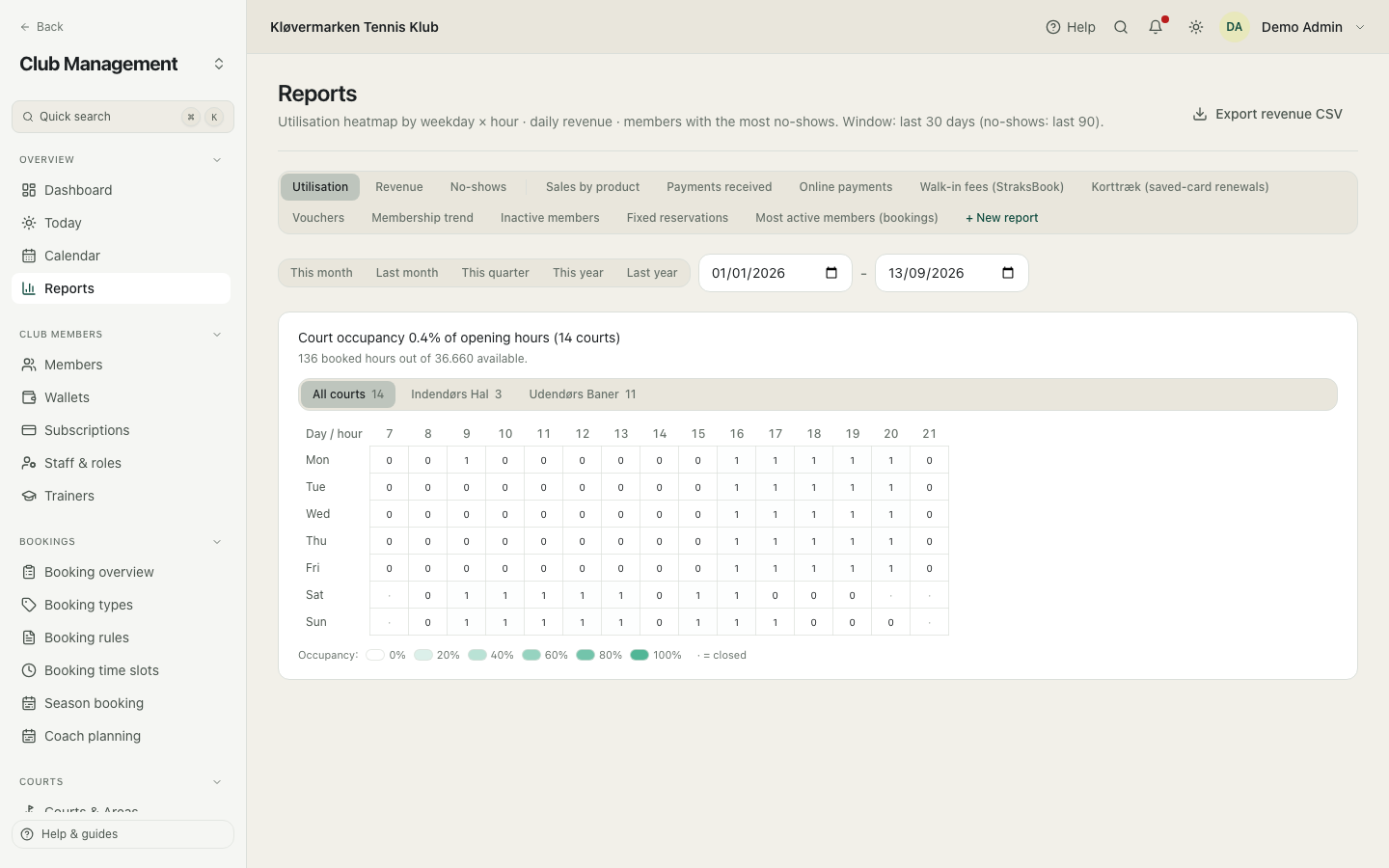
Utilisation is measured against the hours courts are actually open. If outdoor courts are closed for the winter, say so under Court seasons, otherwise the club looks half empty in January.
3.Courts, areas and lighting
Courts are the foundation of everything else. Pricing, rules, the calendar and utilisation all build on the list you set up here, so it is worth getting right before members arrive.
Courts and areas
A court is one physical playing surface members can book. An area is a group of courts, for example indoor hall, outdoor courts or padel, and areas are used in calendar filters, prices and rules. Every court belongs to one sport, and only sports the club has switched on in Settings can be picked.
- Click Add court and give it the name members will recognise, for example 'Court 1' or 'Indoor 3'.
- Pick the area, the sport and the surface.
- Save. The court appears in the calendar immediately.
- Create the areas you need first if the club has more than one kind of court.
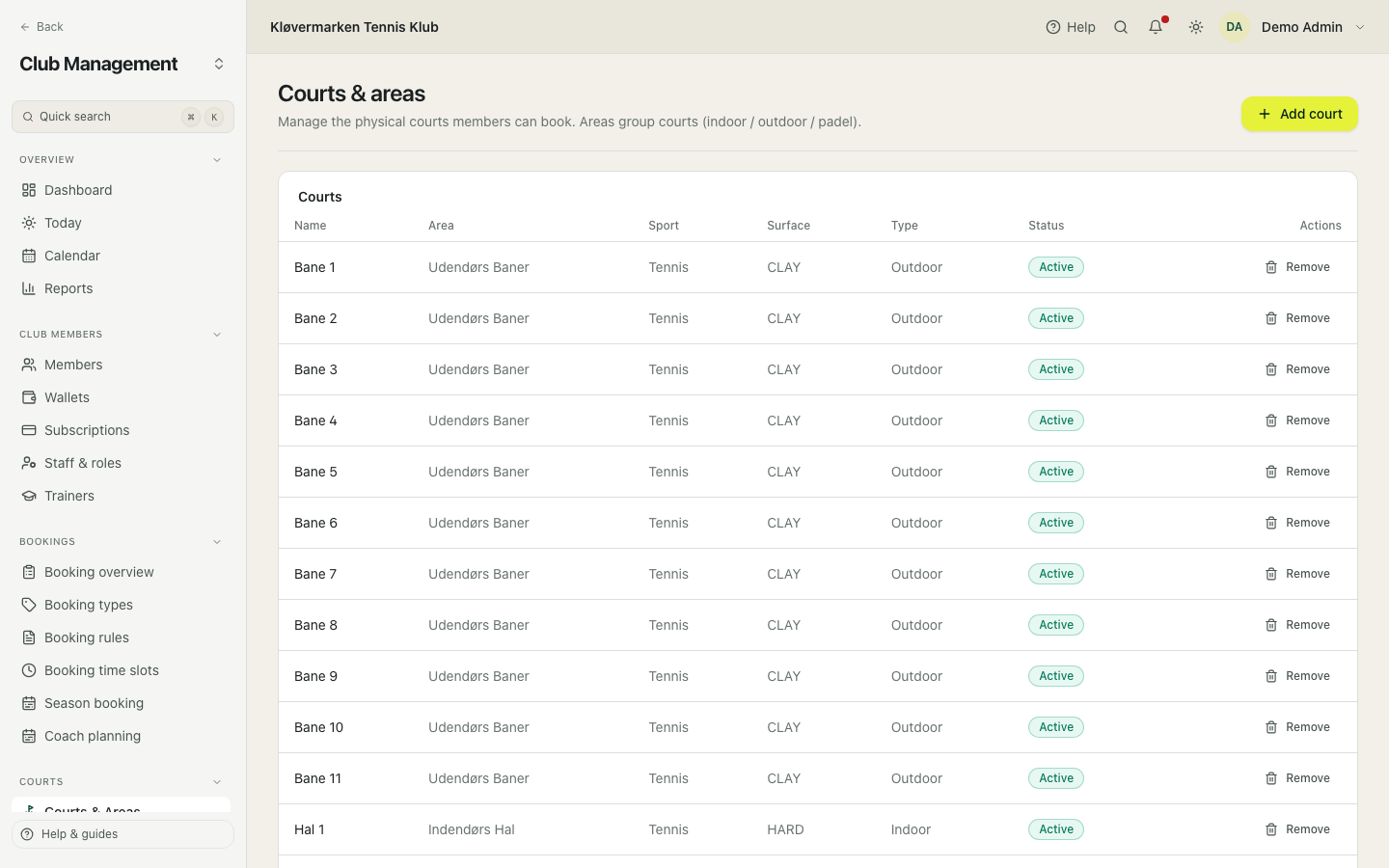
Deleting a court is not the way to take it out of use for a while. Deleting hides it from booking and leaves any future bookings stranded. For a repair or bad weather, use a closure in the calendar. For a whole season, use Court seasons.
Court seasons
A court season says when a court is available at all, over months rather than hours. Outdoor courts that close for the winter belong here. A season can repeat every year, in which case only the month and day matter, so a window running across new year works too.
- Click Add season and name it, for example 'Outdoor summer'.
- Choose whether it covers the whole club, an area or single courts.
- Set the from and to dates, and tick repeats annually if it is the same every year.
- Review the preview of what changes, then save.
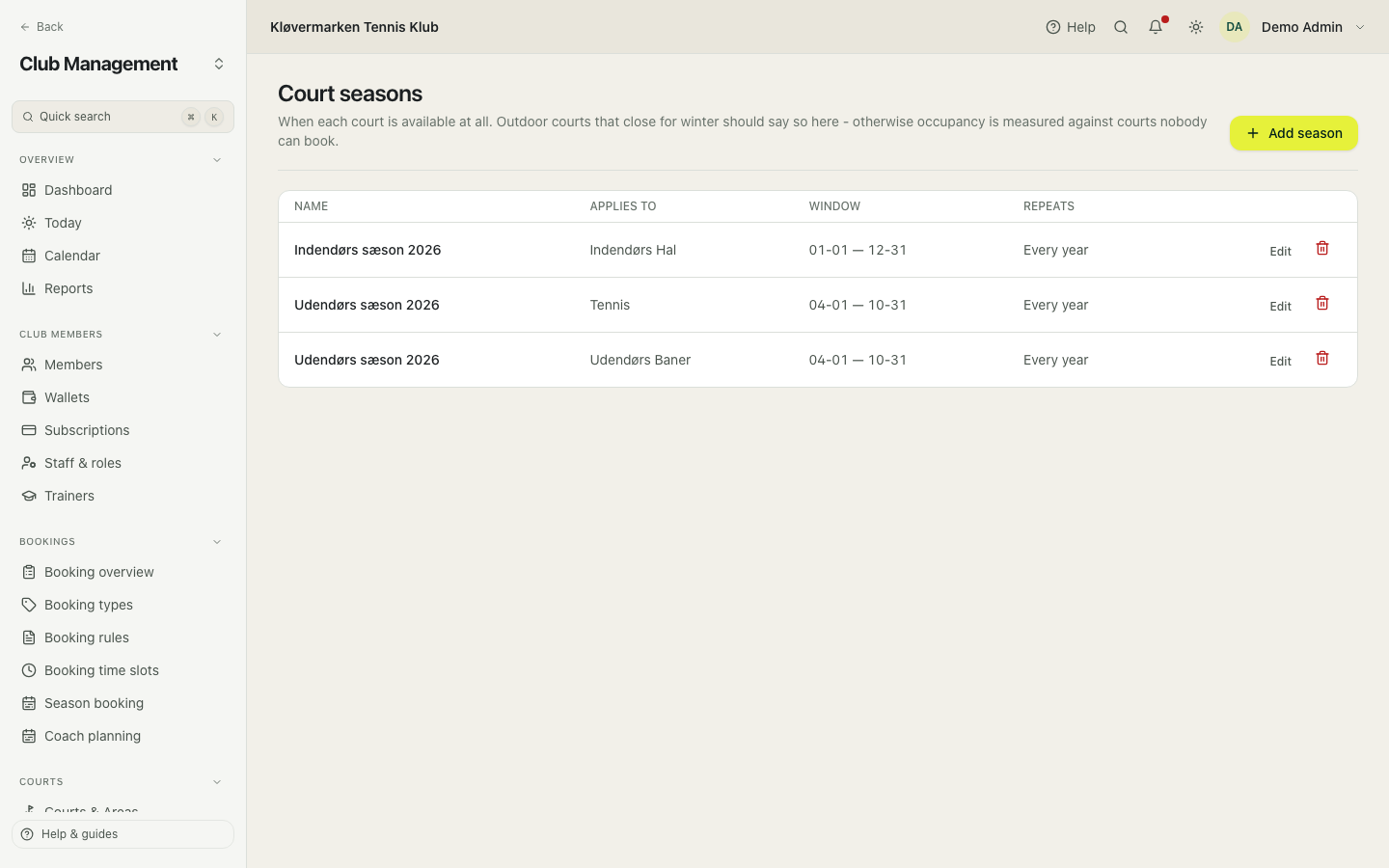
This is also what makes utilisation honest. Without it, occupancy is measured against courts nobody could book, and the club looks worse than it is.
Lighting
If the club has the lighting module, the lights follow the booking calendar: on five minutes before a booking, off five minutes after. The page shows the hub in the club, the circuits it switches, and which courts belong to which circuit. You can also switch a circuit on or off by hand, for example for a club event.
- Check the hub at the top: green means it answered, with the time of the last contact.
- Set up one circuit per group of lights, and a safe closing time for the club.
- Connect each court to its circuit and choose whether it follows daylight.
- Use the next switch-ons list to see what will happen over the next 24 hours.
The plan is stored on the hub in the club, not only on our server, so tonight's lights still work if the internet drops. The manual switch in the electrical cabinet always overrules everything.
4.Opening hours
Opening hours draw the frame of the booking grid. Everything else layers on top of them.
Opening hours
The club's normal week: when the first slot starts and the last one ends, per weekday. Members can only book inside these hours, and the calendar only draws rows inside them. A day marked closed has no bookable slots at all.
- Set the opening and closing time for each weekday.
- Tick closed for days the club does not open.
- Save. Changes apply to new bookings, never to bookings already made.
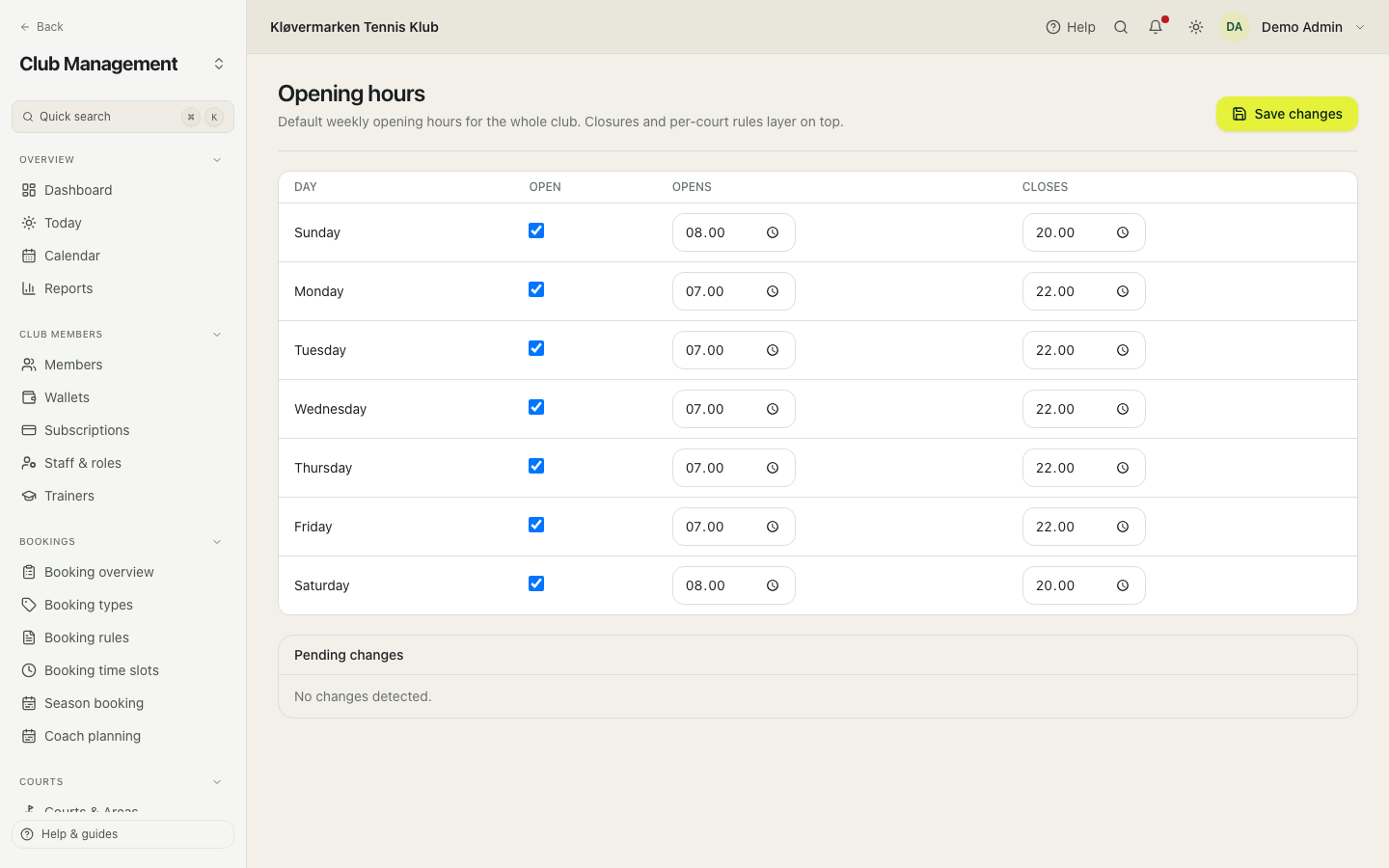
Opening hours are the club's normal week, not exceptions. A single closed day for a tournament or maintenance belongs in the calendar as a closure, and a whole season belongs in Court seasons.
5.Time windows
A time window is a named period, for example prime time or off-peak. You define it once and refer to it from prices and rules, instead of repeating clock times in a dozen places.
Time windows
A window is a name plus a list of day and from-to slots, for example Prime time = Mon-Fri 16:00-21:00. Price rules and booking rules point at the window, so when the club changes what counts as prime time, you change it here once and every price follows.
- Click New window and name it in plain words: Prime time, Off-peak, Weekend.
- Add the day and time slots that make up the window.
- Save. The window can now be picked in price rules and booking rules.
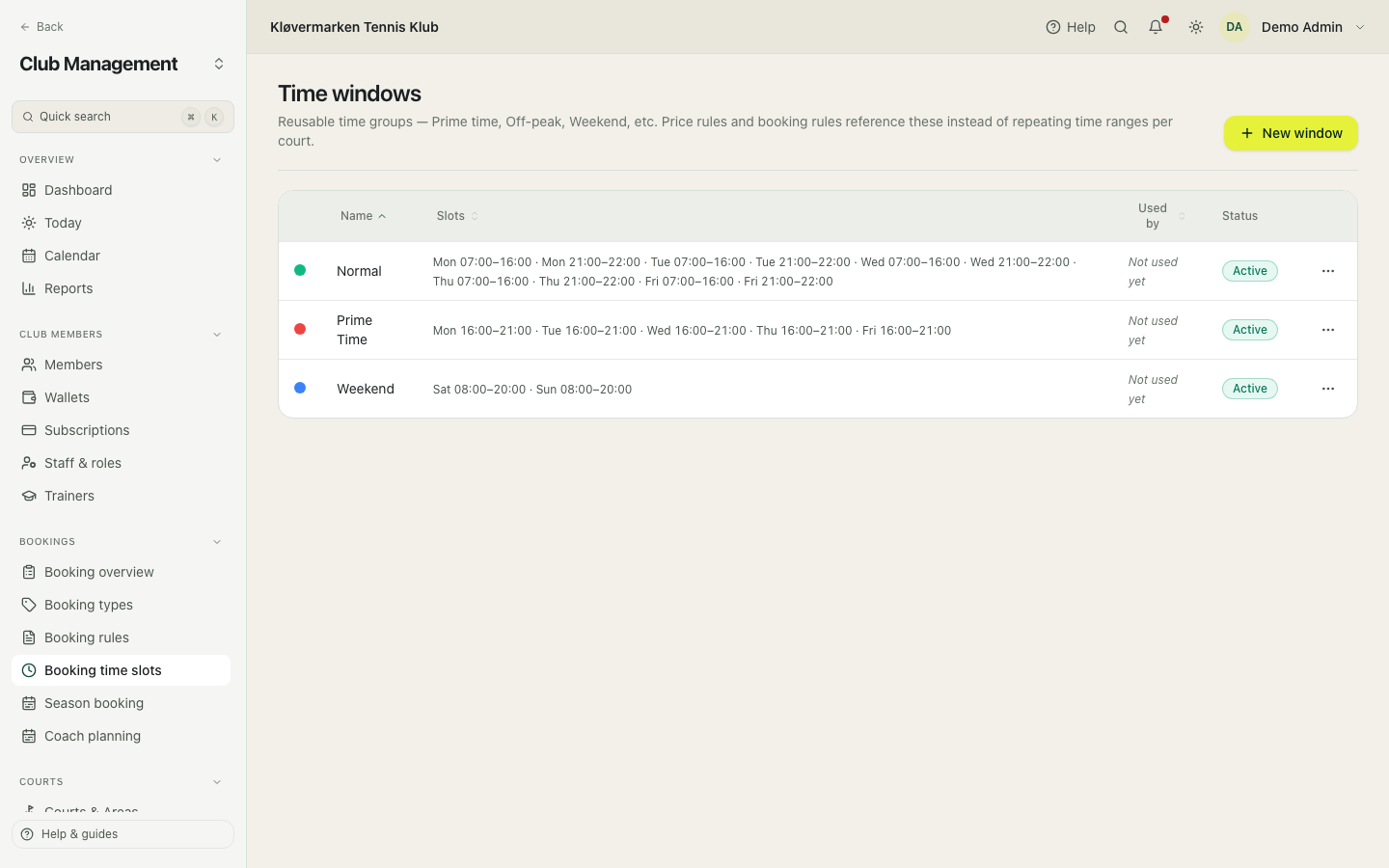
The used-by column tells you how many prices and rules depend on a window. A window in use is never deleted outright: it is marked inactive so old prices still make sense.
6.Pricing
Pricing answers one question: what does this hour on this court cost this person. You set it up as rules, and at booking time the most specific rule wins.
The price designer
The visual way to set prices: a grid with time windows down the side and membership types across the top. Type the hourly rate into a cell and the rule behind it is written for you. Base is what anyone without a pinned membership pays, and a membership column overrides Base for that membership's members. An empty cell means fall through to the next matching rule, or the court's base price.
- Choose the scope at the top: whole club, one area or one court.
- Type the hourly rate into the cells you want to set.
- Press Preview to see the week as members will see it.
- Apply when it looks right, or discard to start over.
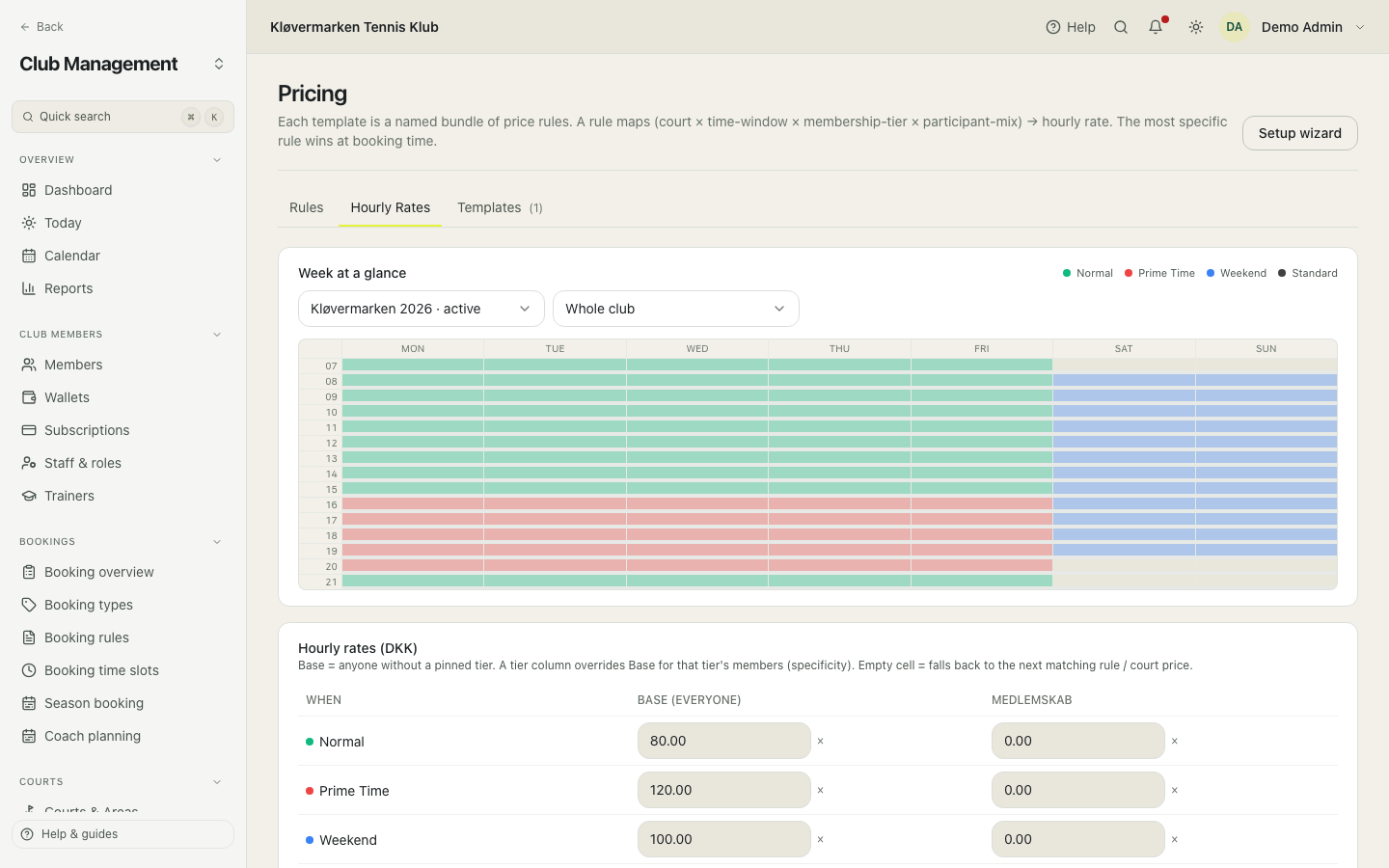
If a cell says mixed, the courts in that scope currently have different rates. Type a value to make them the same, or narrow the scope to one court and set them individually.
Price rules
A price rule maps court, time window, membership type and player mix to an hourly rate. Leave a field empty to mean 'any'. When several rules could apply to one booking, the most specific one wins: a rule pinned to a court beats an area-wide one, a time-window rule beats an all-day one, and a membership-specific rule beats a general one. The match score is shown so you can see why a price was chosen.
- Open the Rules tab and click New rule.
- Pick the court, window, membership and mix. Empty means any.
- Enter the hourly rate and save.
- Check the result by making a test booking in the calendar.
Always keep one rule with everything empty. That is the club's catch-all price, and it is what saves you when a member books something no other rule covers.
Price templates
A template is a named bundle of price rules, for example '2026 standard' or 'Summer 2026'. Only one template is active at a time, and bookings use the active one. Templates let you prepare next season's prices without touching today's.
- Open the Templates tab and click New template.
- Name it after the period it covers.
- Add the rules inside the template.
- Set it as the active template when the period starts.
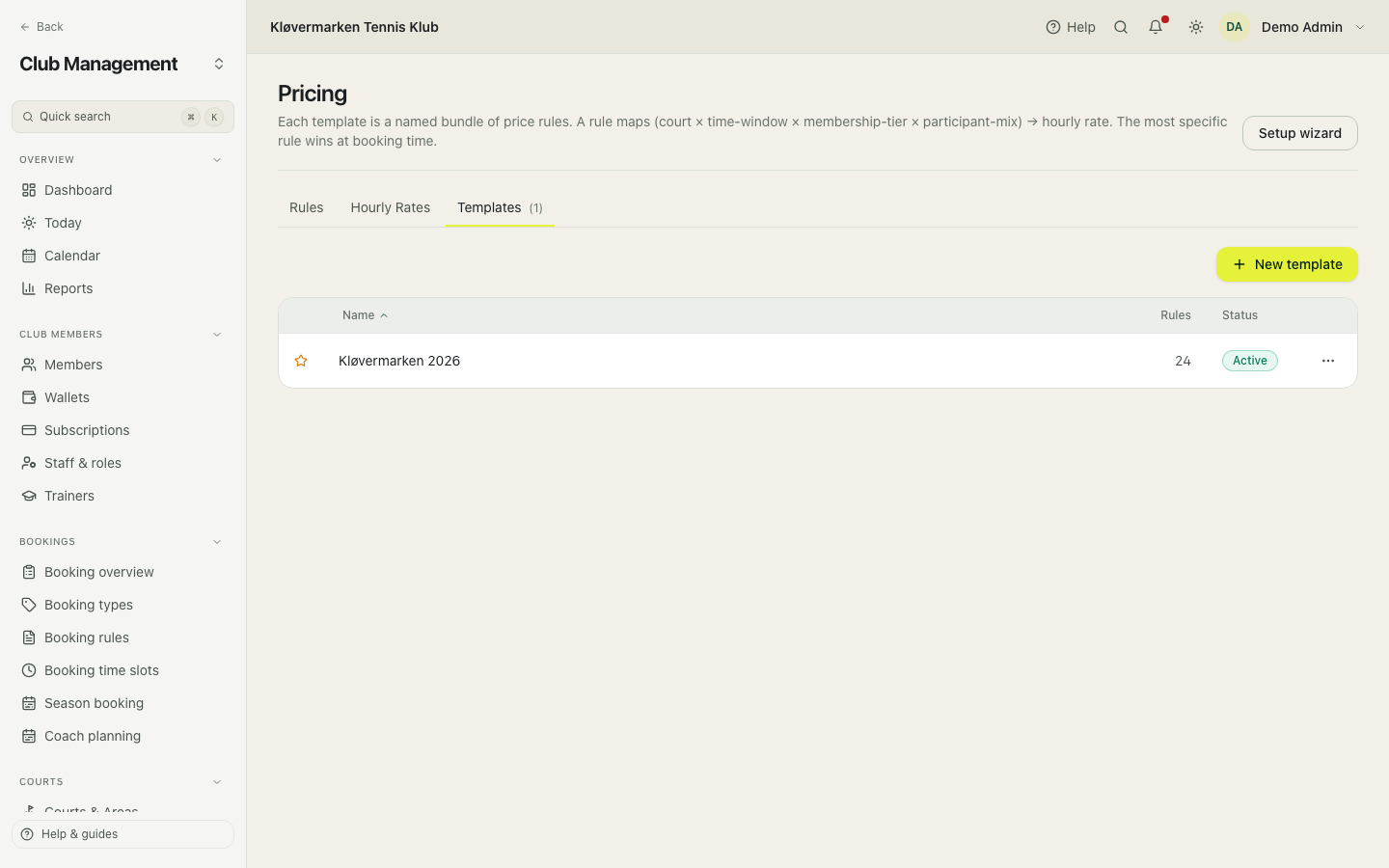
Deleting a template deletes its rules with it, and bookings fall back to the active template. Copy first if you might want it back.
Guided pricing setup
A three-step wizard for a club that is starting from nothing: it proposes the usual time windows, lets you fill in the hourly rates per window and membership, and finishes with two sensible booking rules. Ten minutes, and the club can take its first booking.
- Step 1: adjust or untick the suggested time windows.
- Step 2: fill in the hourly rate per window and membership. Empty cells use the club default price.
- Step 3: accept the two baseline booking rules, then finish.
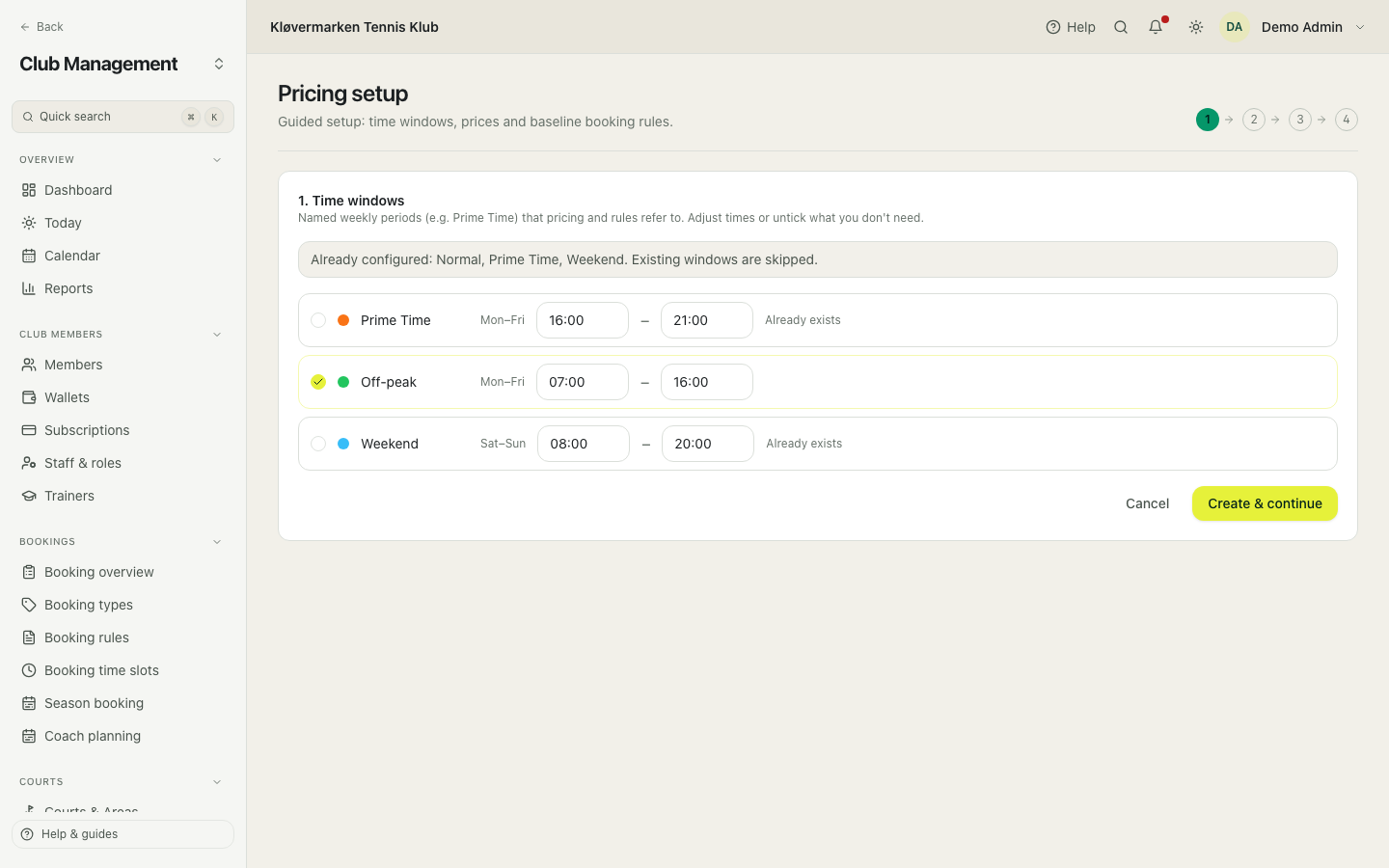
Everything the wizard creates is normal windows, prices and rules. You can change any of it afterwards, and nothing is locked.
7.Booking types and rules
Types are the labels on a booking. Rules are the limits on who may book what, when and how often.
Booking types
A booking type is the category of a booking: singles, doubles, lesson, tournament or closure. It gives the booking its colour in the calendar, decides whether it is charged, and is what booking rules and season bookings point at. The calendar cannot create a booking without at least one type.
- Click Add type and name it.
- Pick a colour and what it is used for: court booking, season, class, tournament or closure.
- Choose whether bookings of this type are charged.
- Save.
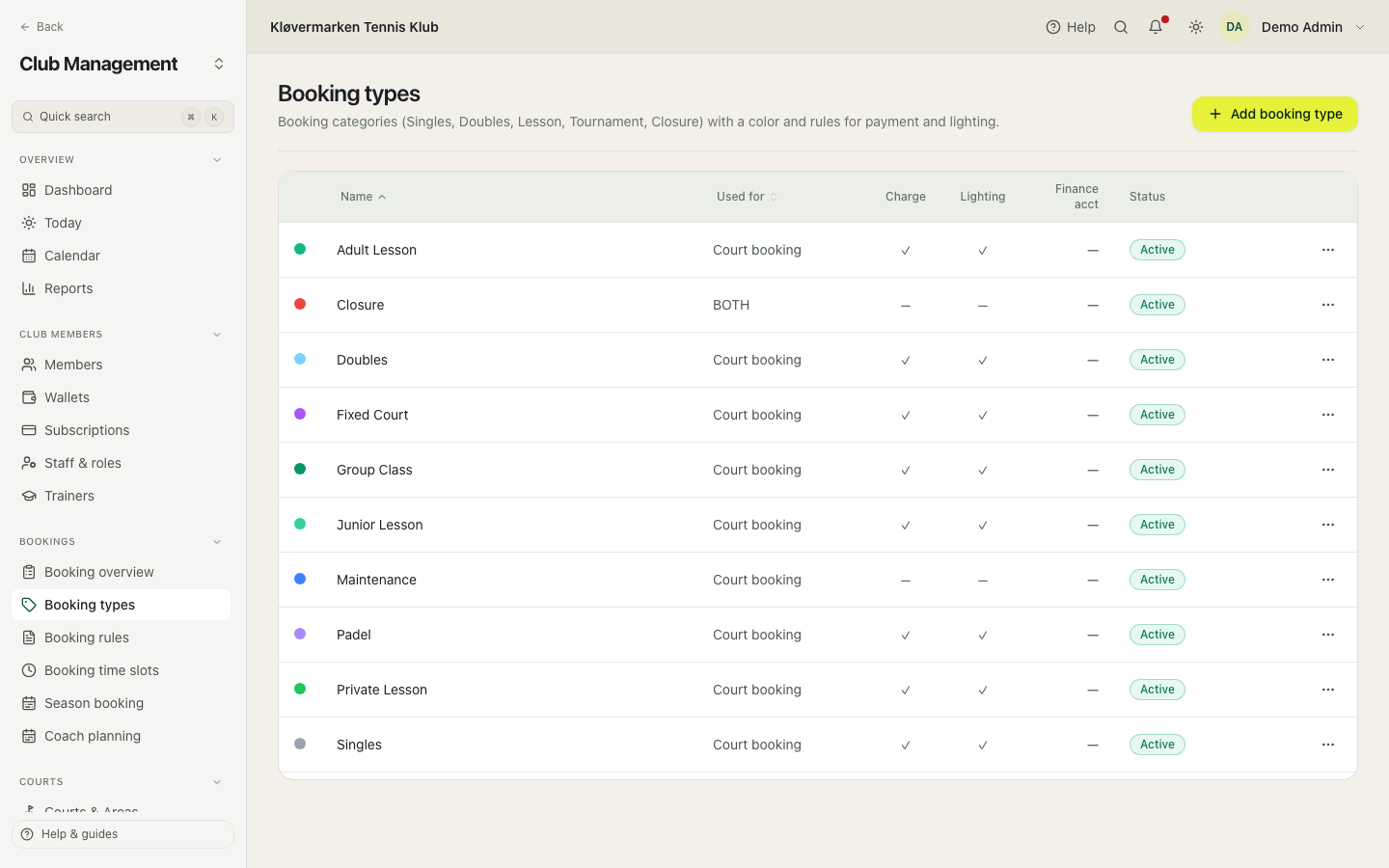
A type that is already used by bookings is never deleted outright: it is marked inactive so the history keeps its labels.
Booking rules
Rules constrain court bookings: how many a member may have at once, how far ahead they may book, how close to the start, how long a booking may be, and which courts they may use. A quota can block outright, or allow extra bookings for a fee, which is how most clubs run it. Rules apply to whoever books, and a rule with no area or court set applies everywhere.
- Click New rule and pick the type of limit.
- Fill in the numbers: allowance, free allowance, extra fee, hours or days.
- Narrow it to an area, court or membership if it should not apply to everyone.
- Press Preview impact to see how many current bookings the rule would have blocked.
- Save when the preview looks right.
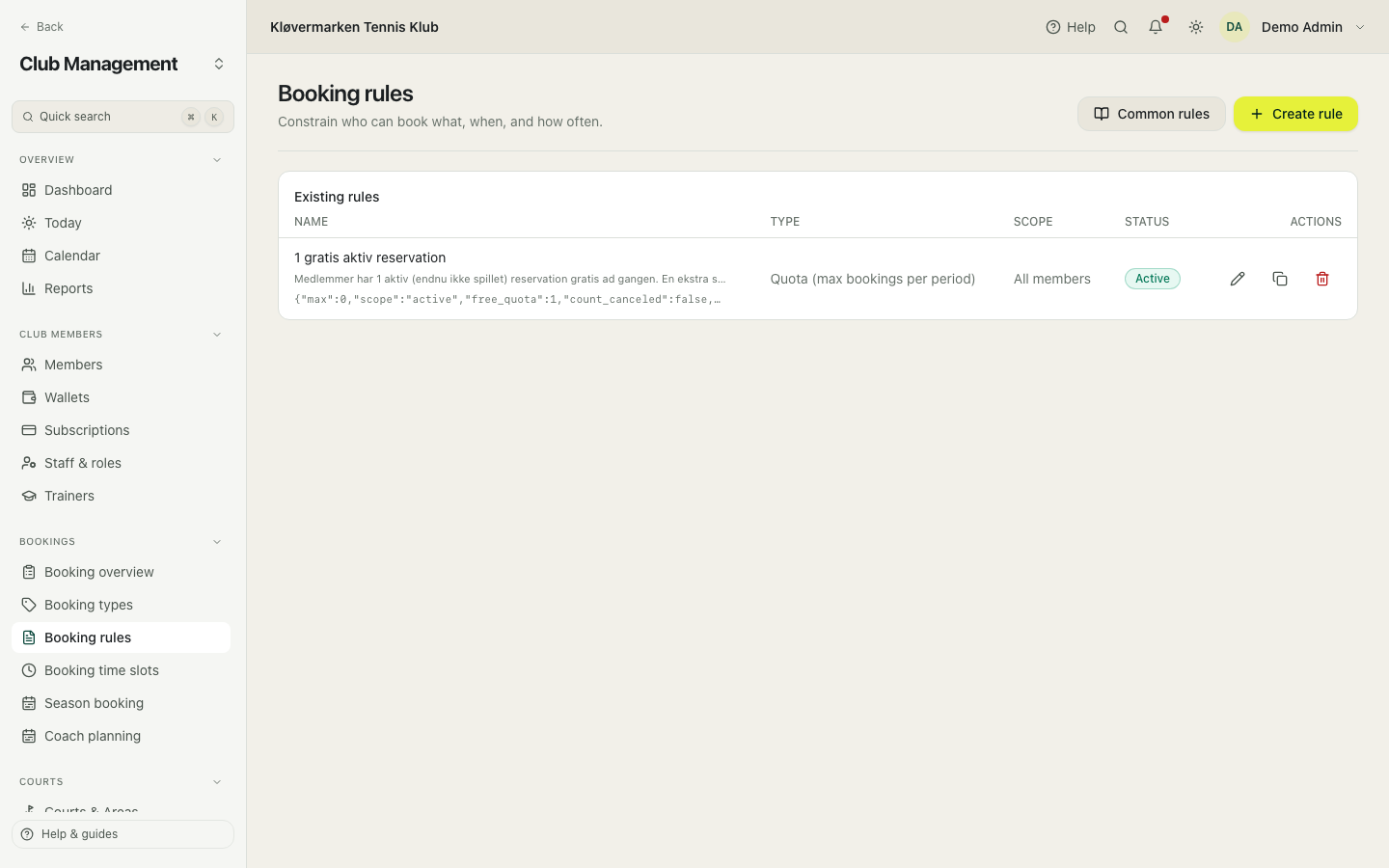
Use the templates button. It fills the form for you with the rules clubs most often need, for example three active bookings at a time, or no booking more than seven days ahead.
8.Calendar and front desk
The calendar is where the club's day happens: who is on which court, who is missing, and where there is room. This is the screen the desk lives in.
The day view
Each row is a court and time runs left to right, so every court is on screen at once. Click an empty slot to book it, click a booking to see the details, drag it to move it, drag its right edge to make it longer or shorter. Rest the pointer on a booking and a card shows the players, the price, the payment and the notes, with check-in and no-show one click away. The fill colour is the booking type; a booking that needs something changes colour as a whole (amber while it awaits payment, red for a no-show, faded once played), and the Legend button above the grid explains both, and the thin strip under the hours marks the time windows. The two layout buttons above the grid switch to courts as columns (time running down the page, the bottom edge resizes, the time windows as a stripe down the time column), and the two row-height buttons beside them switch between comfortable and compact rows. Both choices are remembered for you. The Agenda button opens the same day as a list beside the grid: time, court, who is playing, price and status, with a search box, a sort order that puts what needs action first, and the quick actions on every row.
- Click an empty slot on the court and time you want.
- Pick the member, or type a name for a guest.
- Pick the booking type and check the price the system calculated.
- Confirm. The member gets a confirmation straight away.
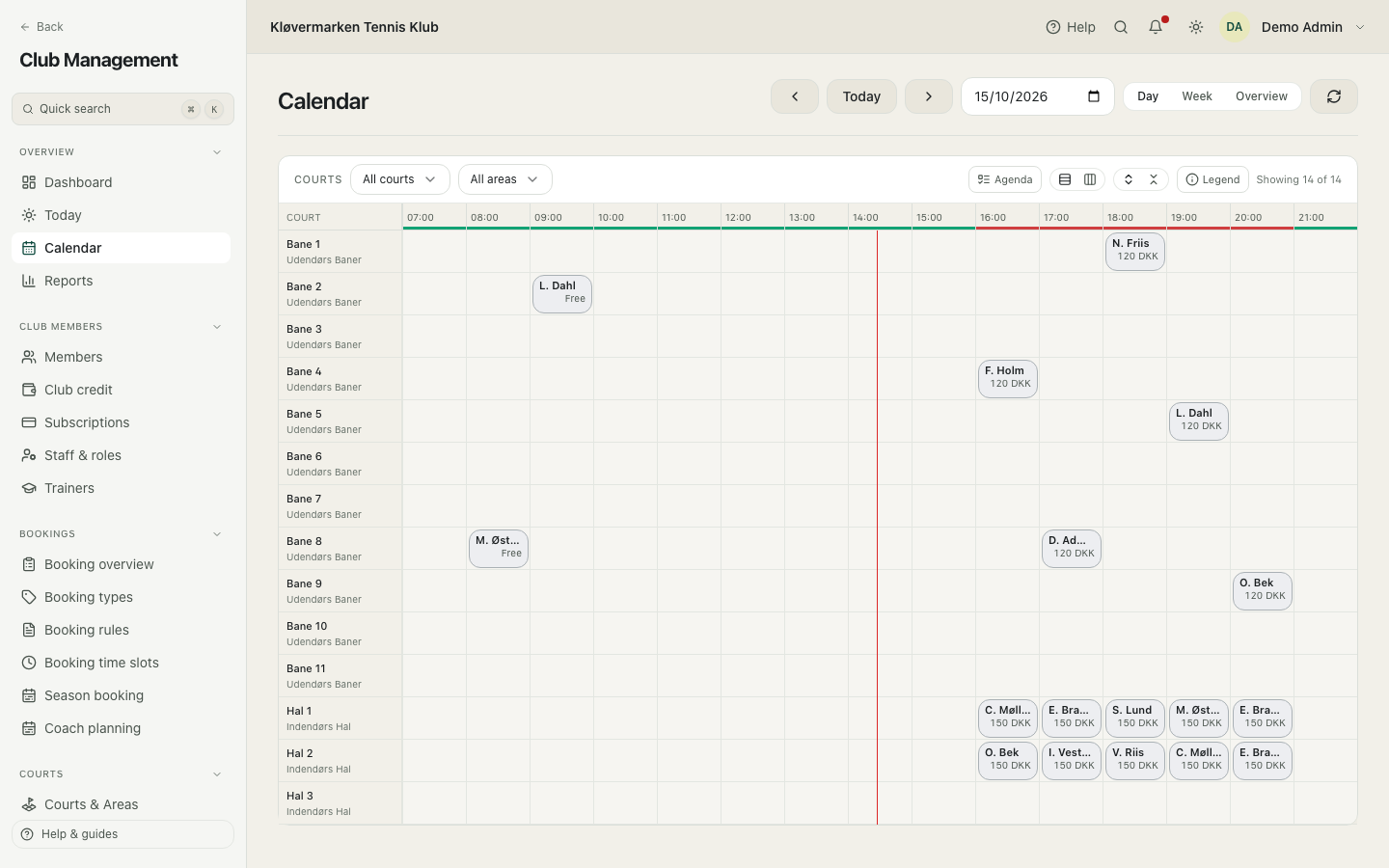
Booking for someone with no Racketr account is fine: type their name as a guest. They are charged guest pricing, which is usually what the club wants.
The week view
The same grid over seven days, for planning rather than for the desk. Use it to spot the empty hours, to see how a season booking falls through the week, and to move a series of bookings after a change. With courts as rows, each day is a band you can fold away by its header. With courts as columns, court names are shortened to fit (Hal 1 becomes H1; the full name shows when you rest the pointer on it), and the thin strip under each day shows that day's time windows from left to right.
- Switch to the week view at the top.
- Use the filters to show one area or one sport at a time.
- Click any booking to open it, exactly as in the day view.
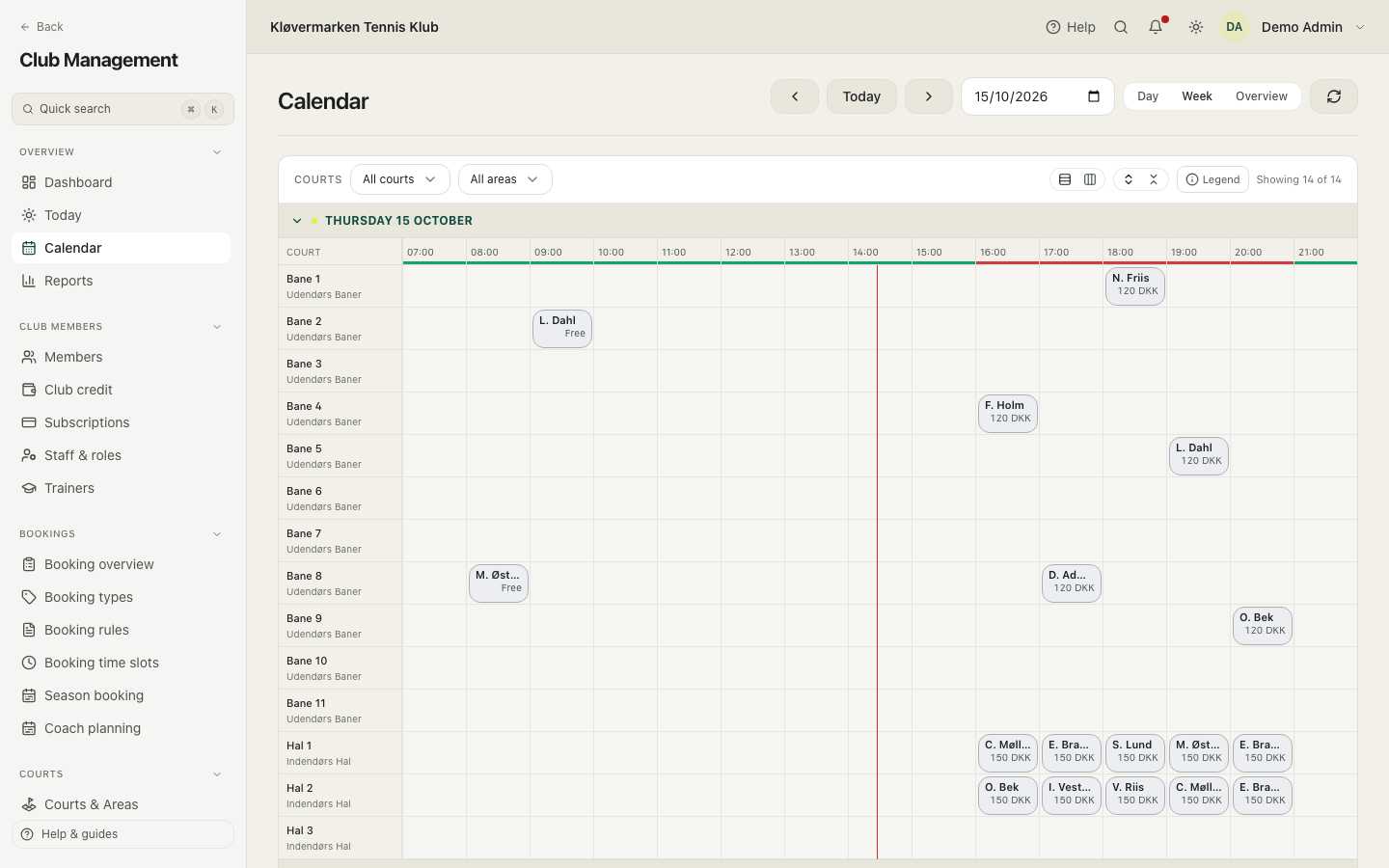
If a booking was already paid and you move it to a more expensive slot, the system tells you the difference. Collect or refund it at the desk: moving does not charge the card again.
The overview
The week as an occupancy map: days as rows, hours as columns, every court in the current filter counted. The number in a cell is how many courts are free at that hour, the fill grows as the hour gets busier, a small amber count says how many bookings still await payment, and hatched hours are closed. The whole week of every area fits on one desktop screen.
- Switch to Overview at the top.
- Look for the pale cells: that is where there is room.
- Click a slot to open that day there, with the bookings themselves.
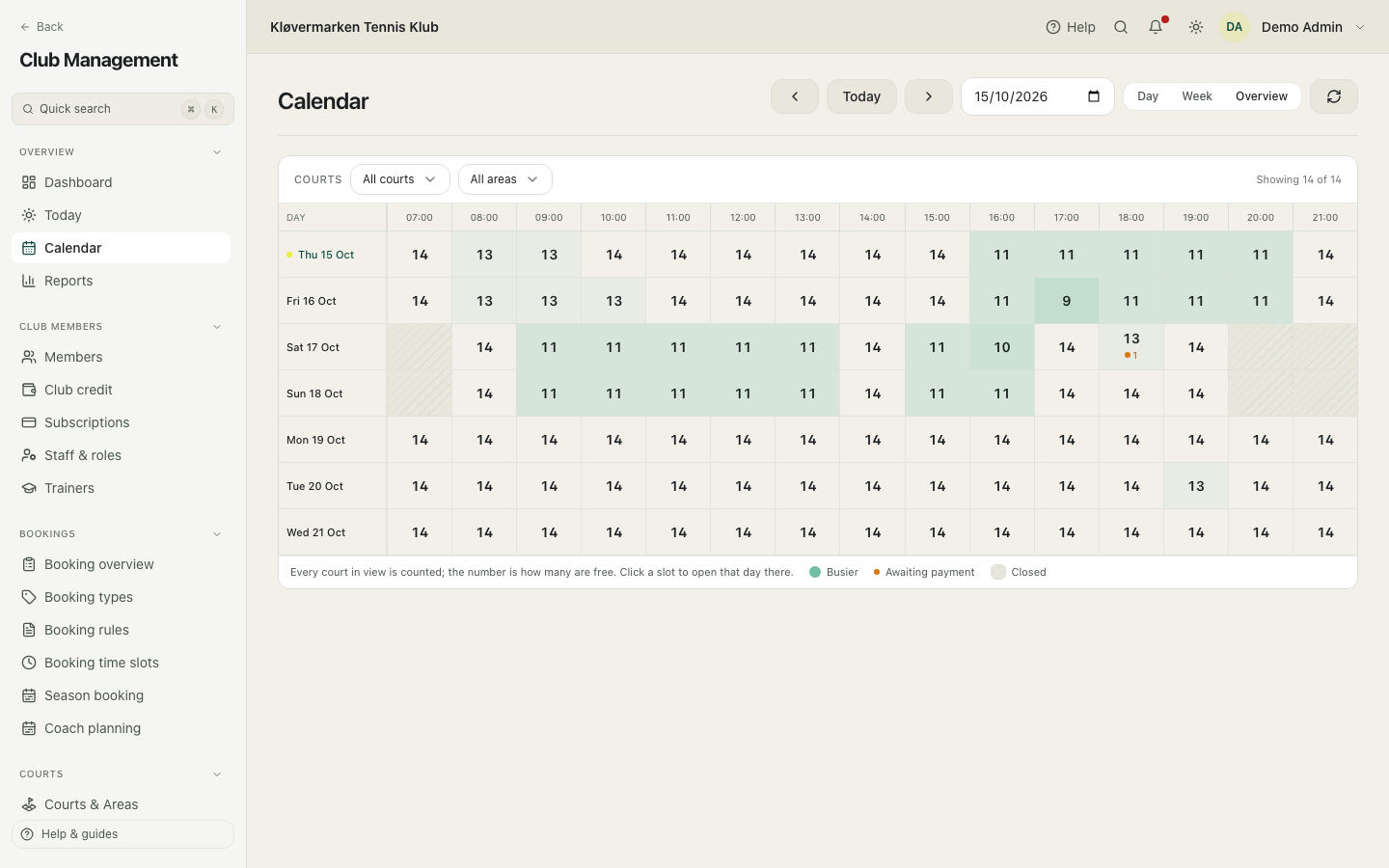
The amber counts are the day's unfinished business: open the day and use the Agenda list to send the pay link or cancel.
Closing a court
A closure blocks a court for a period so nobody can book it, and it shows as a striped block in the calendar. Use it for maintenance, a private event, a tournament or rain. Nobody is charged, and members see the block with the text you give it.
- Click the slot where the closure starts and choose closure instead of booking.
- Tap the other courts it covers, for example all outdoor courts when it rains.
- Give it a public label members will understand, for example 'Maintenance'.
- Save. Existing bookings in that period are not removed automatically: cancel them yourself if the court really is unusable.
Closure is for hours and days. For a whole winter, use Court seasons instead, otherwise the club's utilisation numbers get worse every month.
Today
The front desk screen. Who is playing now, who has checked in, what the day has earned, and which checkouts are half finished and still blocking a slot. Everything on it is about the next few hours.
- Check people in as they arrive.
- Watch the holds list: an unfinished checkout blocks the slot until it expires.
- Use New booking for a walk-in.
A hold releases itself after the minutes set in Settings, so you rarely have to do anything. Only step in if someone is standing at the desk waiting for that exact court.
9.Bookings
The calendar shows the day. The booking list answers questions about any period: what was booked, by whom, what was paid, and what was cancelled.
The booking list
Every booking in the club, filterable by status and period. Status tells you where the booking stands: confirmed, awaiting payment, cancelled, completed or no-show. The list is the place to look when a member asks what they were charged three weeks ago.
- Set the period and the status filter.
- Search for the member if you are looking for one booking.
- Click a row to open the booking with its price and payment.
- Export to CSV if it needs to go into a spreadsheet.
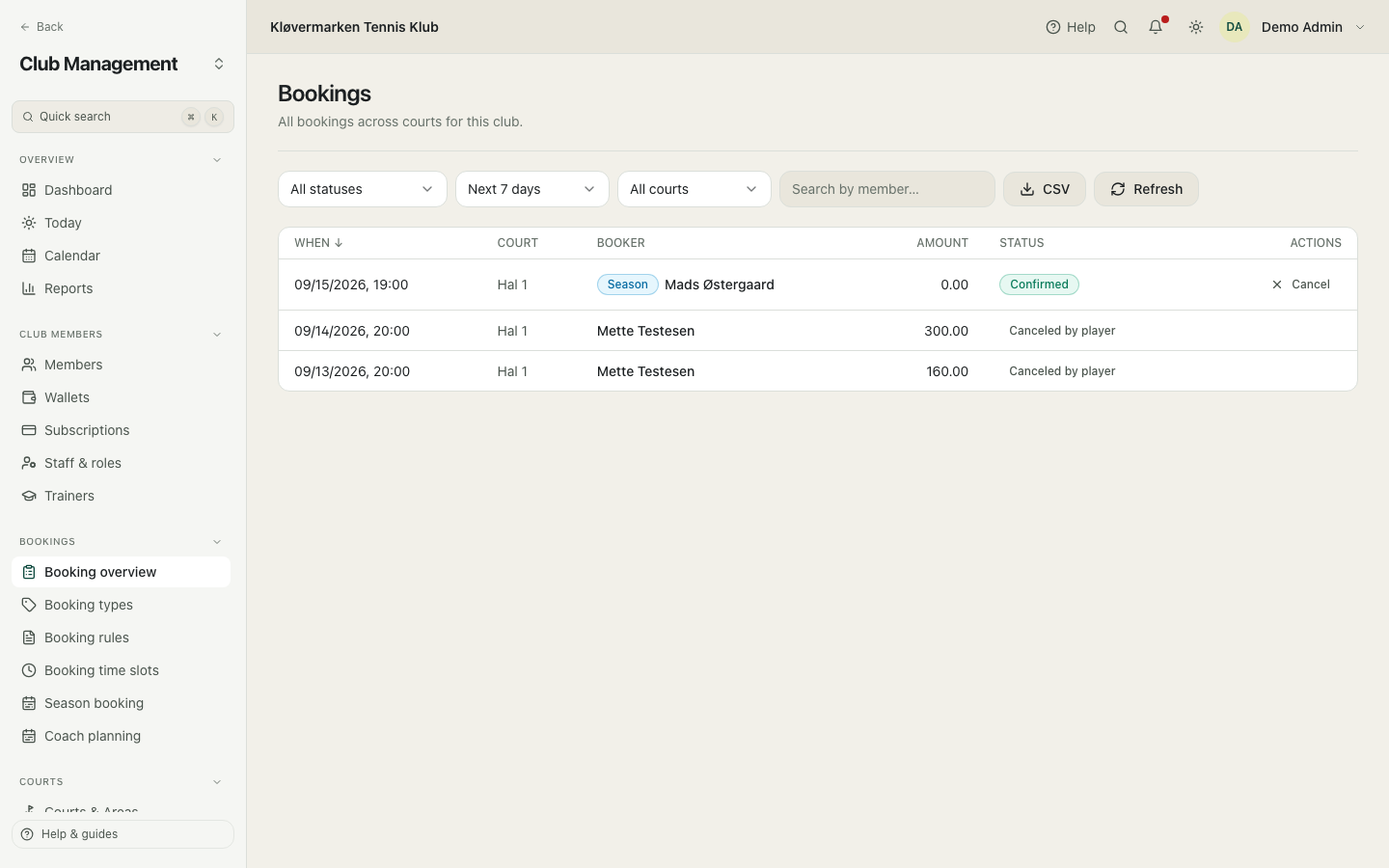
Awaiting payment means the member started a checkout and never finished. Those release themselves, and you do not have to clean them up by hand.
Cancelling, refunding and no-shows
Cancelling from the admin follows the club's refund policy, and the member is notified. What the money does depends on how the booking was paid: card payments are refunded, club credit goes back to the member's credit, and a booking paid with a clip gets the clip back on the card instead of money. Marking someone as a no-show does not move money, it only records that they did not turn up, which is what the no-show report counts.
- Open the booking from the calendar or the booking list.
- Choose cancel, and read the refund line before you confirm.
- Leave the amount empty for a full refund, or enter a smaller amount for a partial one.
- Confirm. The member is notified and the books are corrected automatically.
Everything here is written to the audit log with your name on it, which is what protects you when a member disputes a refund six weeks later.
10.Members and staff
The member register is the club's roster: who belongs, what they may do, and who works here. Everything about a single person is gathered on their member card.
The member list
Everyone in the club, with search, status filter and paging. A member is a person with a Racketr account attached to your club, and the club decides their membership type, their role and their status. Click a row to open the member card.
- Search by name, email or member number.
- Filter by status to find suspended or ended memberships.
- Click a row to open the member card.
- Use Add member to put an existing Racketr player straight onto the roster.
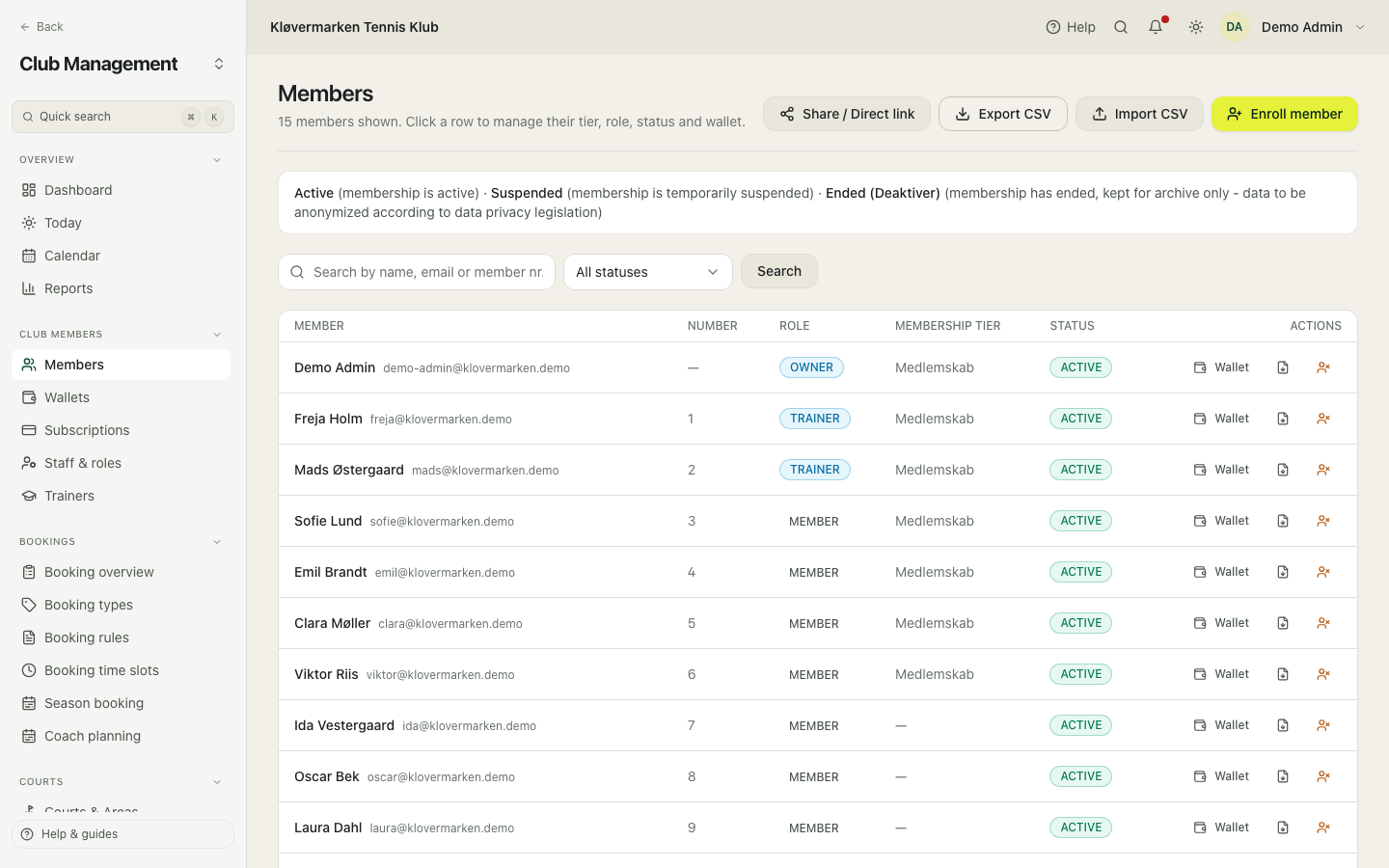
Removing a member keeps their bookings and their club credit and only takes away access. Anonymising is the other thing entirely: it ends the membership and clears the club's copy of their identity, and it cannot be undone. Use it when someone asks to be forgotten.
The member card
One person, everything about them: contact details, member number, membership type, role, status, club credit, what they owe, their coming bookings, their memberships and their history. Most day-to-day answers to 'what happened with this member' are on this page, and so are the buttons that fix it.
- Open the member from the list or from quick search.
- Change the membership type, role or status at the top.
- Open the wallet to see or adjust club credit.
- Use the family section to link a child who is already a member, or to add one who plays without their own login.
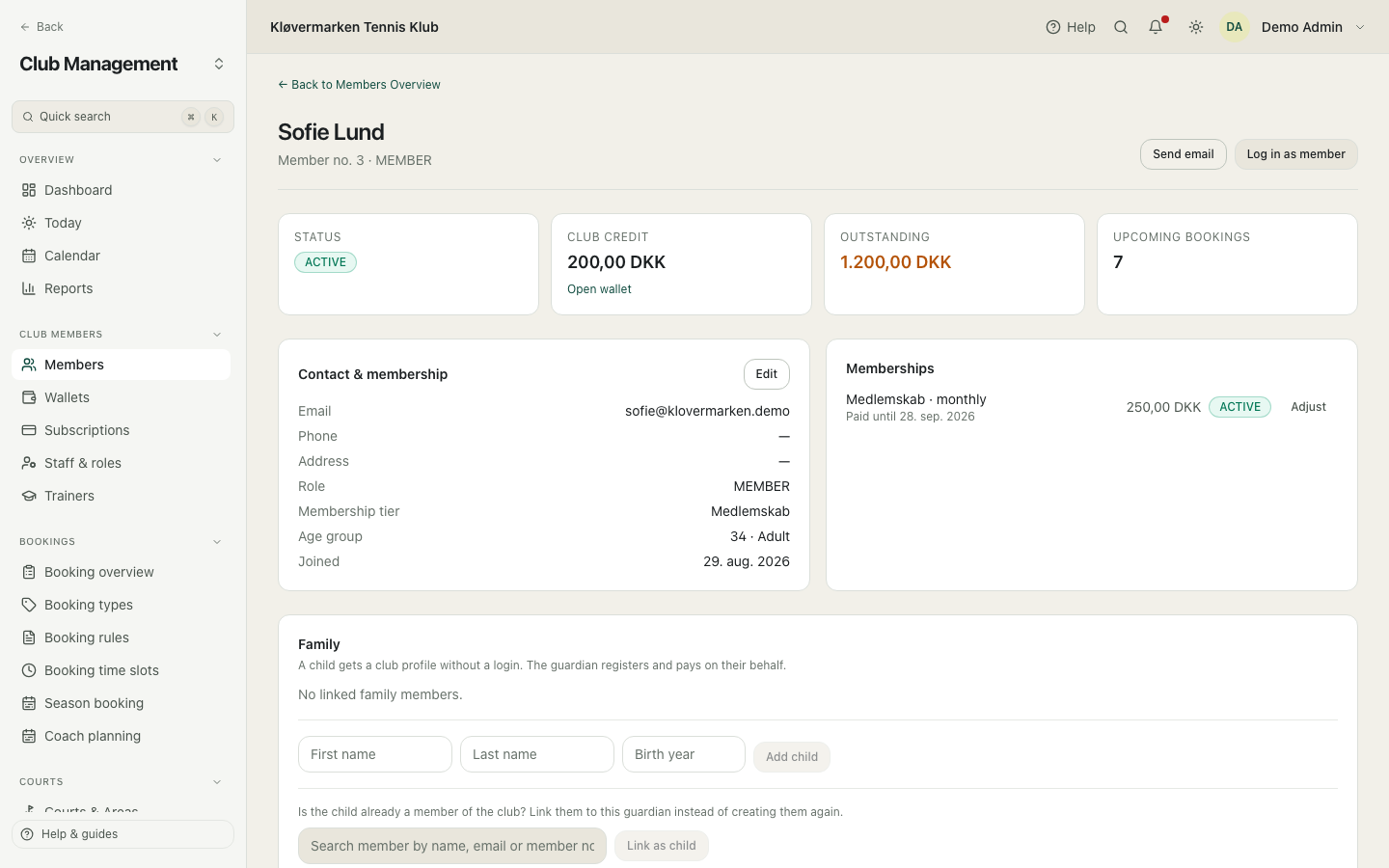
Sign in as member shows you exactly what that person sees in the app. It is the quickest way to settle a 'the app will not let me book' phone call, and the fact that you did it is written to the audit log.
Enrolling a member
The enrolment wizard signs someone up for a membership and takes the payment at the desk. It handles both cases: a person who already has a Racketr account, and a person who does not, who is invited by email and gets an account with an activation link.
- Choose whether the person already has an account or should be invited.
- Find them by name, or fill in email, first name and last name for an invitation.
- Pick the membership type and the billing cycle, and the starting date if it is not today.
- Read the summary, which says what is charged and what happens, then confirm.
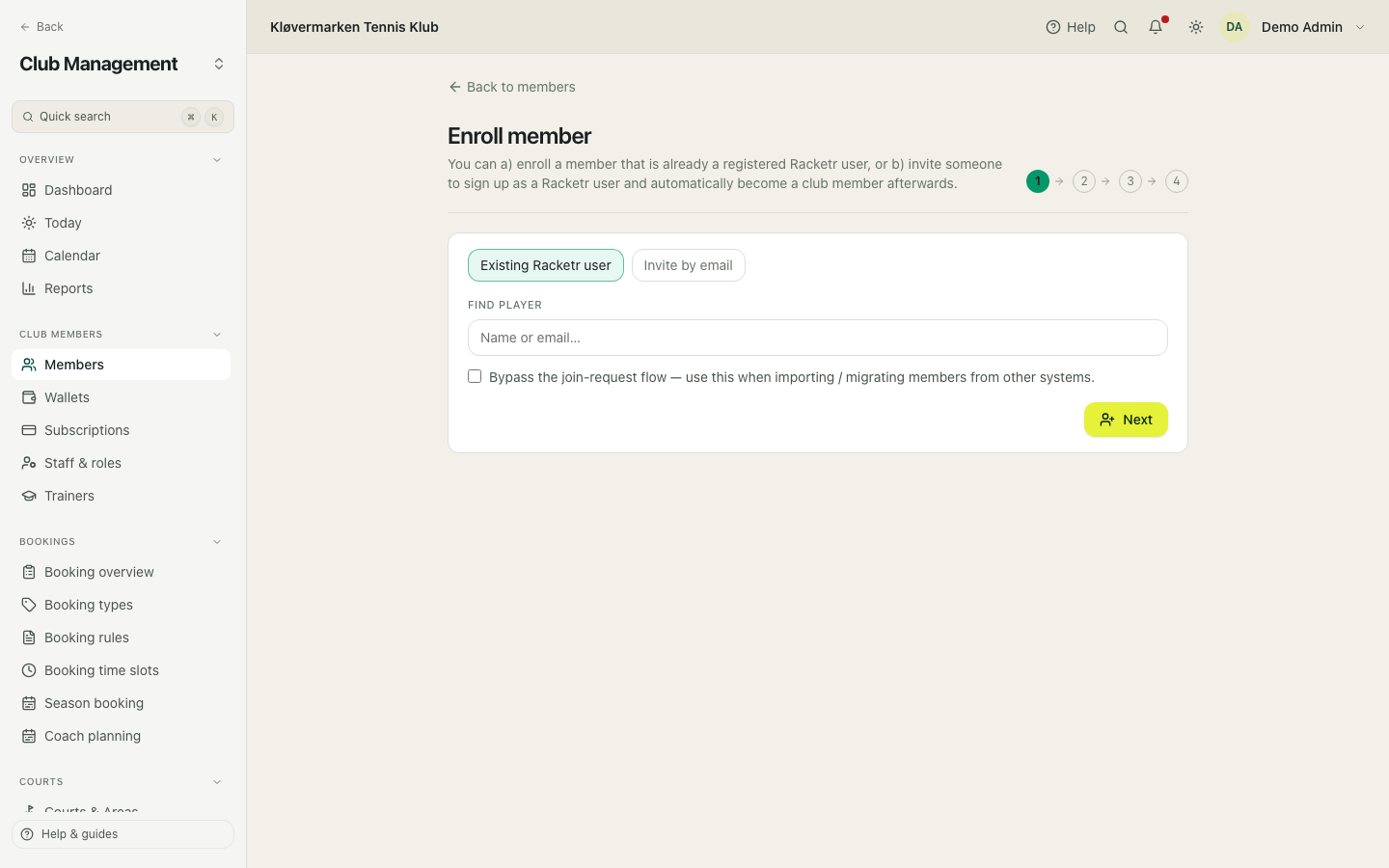
If you mark it paid at the desk, the membership is active at once and the revenue is booked. If you leave it unpaid, it waits for the member to pay and appears under Payments due until they do.
Importing members
Bulk import from a spreadsheet, typically the export from the club's old system. Every row is looked up by email: if there is no Racketr account, one is created with an activation key, and then the membership is added or updated. Danish column headings are understood, so an export with fornavn and efternavn works as it is.
- Export the members from the old system as CSV, or use the sample file as a template.
- Choose the file. The columns are read and shown to you.
- Check the warnings, especially membership types that do not exist yet.
- Run the import and check a couple of members afterwards.
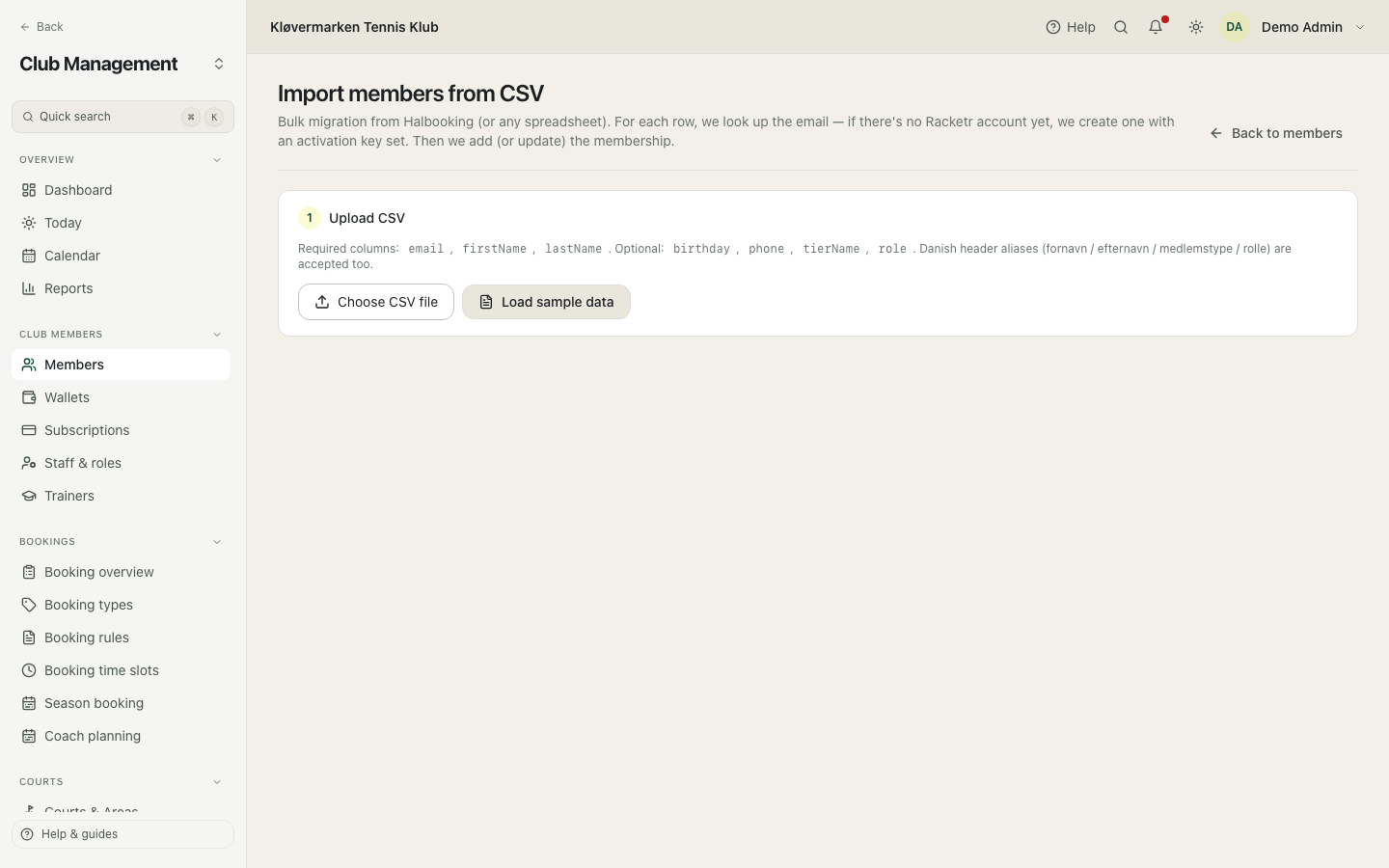
Create the membership types before importing. Rows pointing at a type the club does not have end up on the default type, and sorting that out afterwards is more work than doing it first.
Linking families from a file
When the club's juniors are already members, link them to their parents in one go instead of one member card at a time. Prepare a CSV file with one row per child: a guardian column and a child column, each holding the member number or the email address. The page reads the whole file first and shows, row by row, what would happen; nothing is written until you confirm.
- Open Members and click Link families.
- Choose the CSV file. Semicolons and commas both work, and Danish headings such as forælder and barn are understood.
- Read the result per row: will be linked, already linked, skipped, or a problem with its reason.
- Correct the file if needed and choose it again, then click Link and confirm.
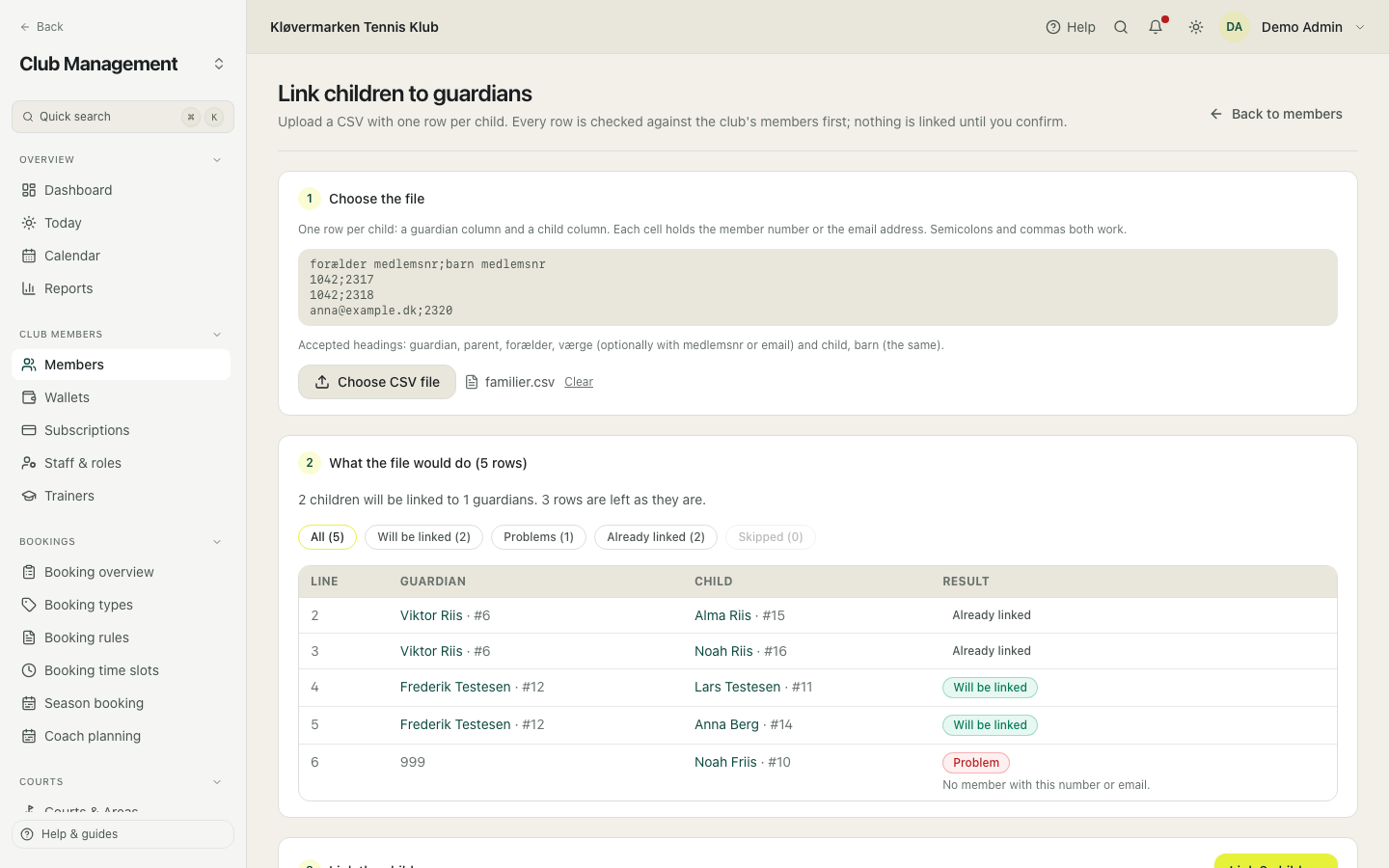
An existing guardian is never replaced, and running the same file again changes nothing. Every link is written to the audit log and can be removed again on the member card.
Staff and roles
Who works in the club and what they are allowed to do. A role is a ready-made bundle of permissions: administrator, staff at the desk, trainer, treasurer. You promote a normal member into a role from this page, and you can take the role away again the same way.
- Find the member in the list at the bottom.
- Pick the role and confirm.
- The change applies immediately and is written to the audit log.
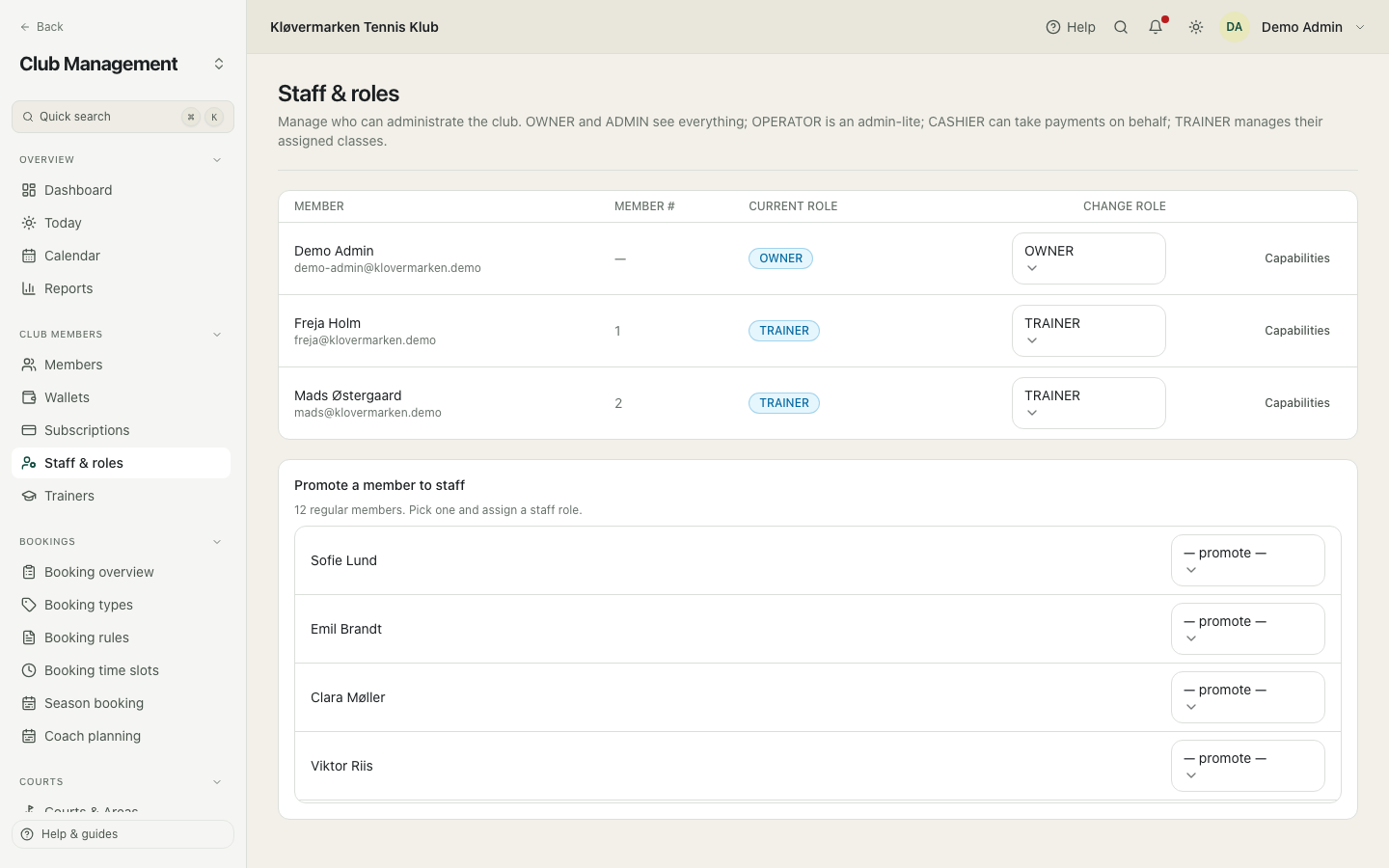
Give the desk the desk role, not the owner role. The owner role can turn court booking off for the whole club, and nobody needs that to check people in.
Permissions per person
When one person needs a little more or a little less than their role gives, you make the exception here. Every permission shows where it comes from: from the role, granted as an exception, or taken away as an exception. Changes take effect at once and are logged.
- Open the person from Staff and roles.
- Find the permission, using search if the list is long.
- Grant it or take it away, and confirm.
- Use reset to go back to whatever the role gives.
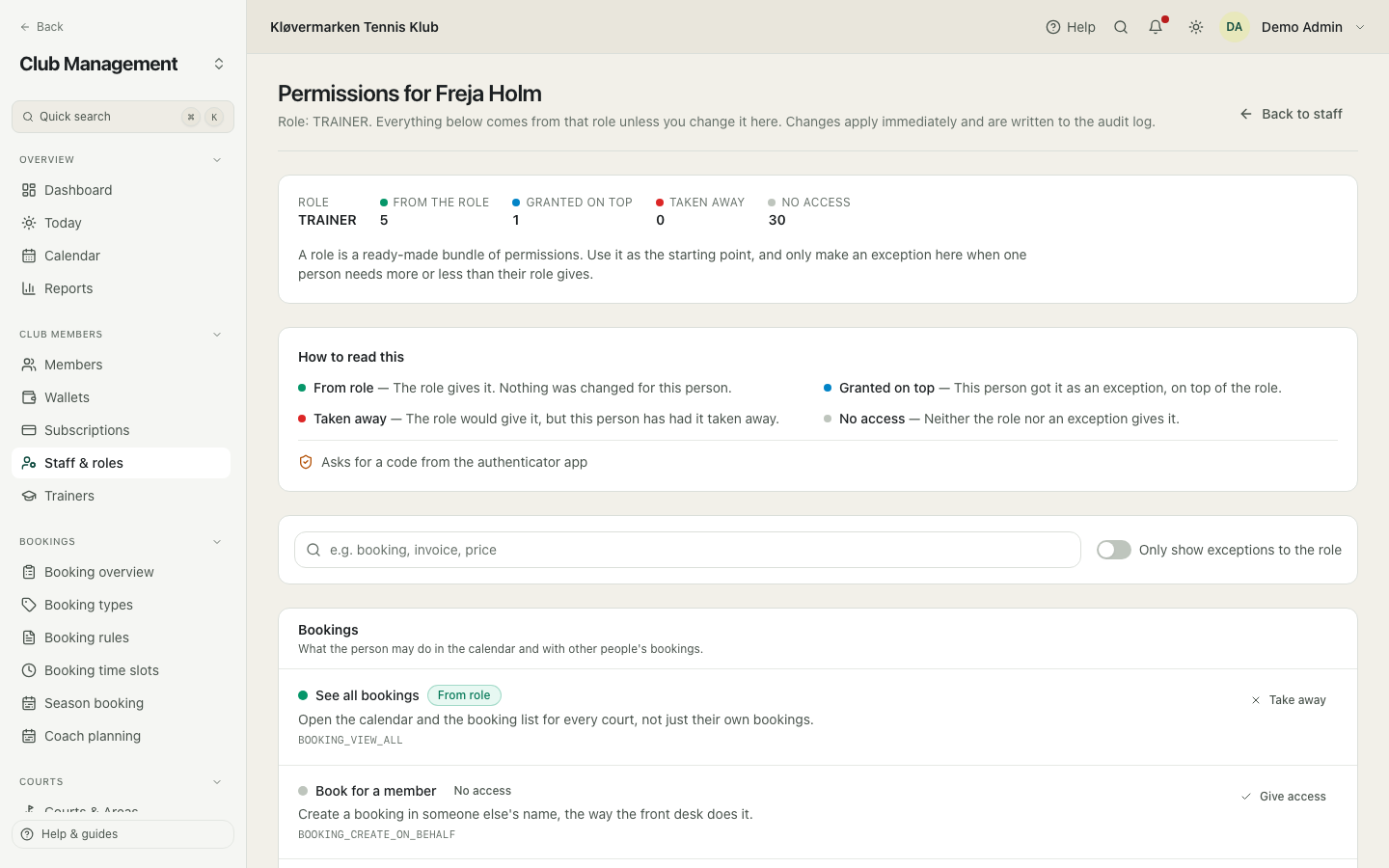
Start with the role and only make exceptions you can explain out loud. Ten people with ten different exception sets is the fastest way to lose track of who can refund money.
Trainers
The club's trainers. Adding a trainer gives an existing member the trainer role, which is what lets them be put on classes and training sessions, and gives them the coach screens in the app.
- Click Add trainer.
- Find the member and confirm.
- The trainer can now be assigned to classes and sessions.
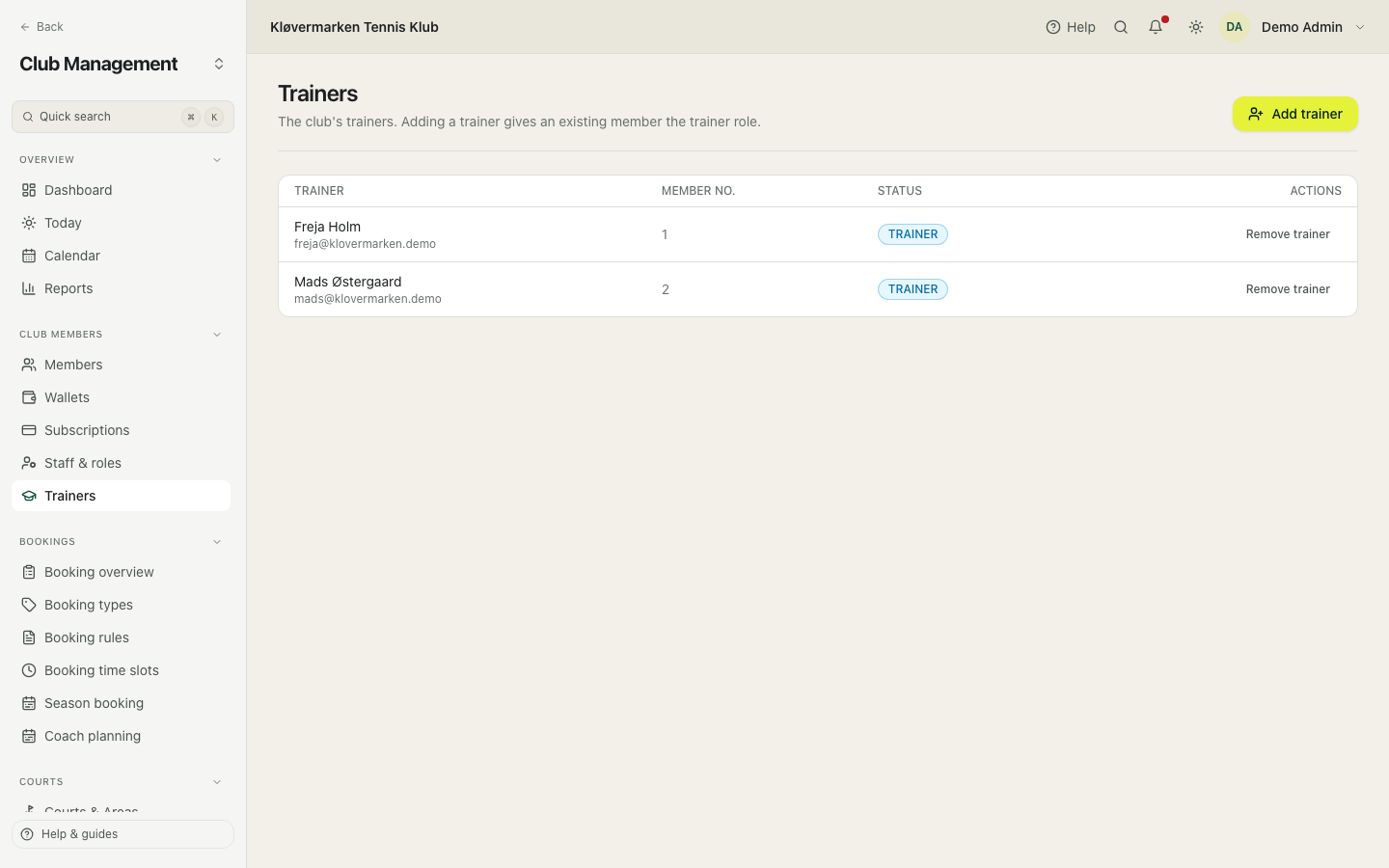
Removing a trainer takes the role away but leaves the sessions they have already taught, so the payroll export for last month still adds up.
11.Memberships and club credit
Membership types decide what a member pays in dues and what they pay per court. Subscriptions are the running memberships. Club credit is money the club owes the member.
Membership types
The club's categories: junior, senior, family, couple, trial. A type carries the monthly or annual dues, and price rules can target it, which is how members and non-members end up paying different court prices. A type can also carry its own revenue account, so junior dues land on a different account than senior dues.
- Click Add type and name it.
- Enter the monthly and annual price.
- Write the one-line benefit text members see in the app.
- Save, then use the type in your price rules.
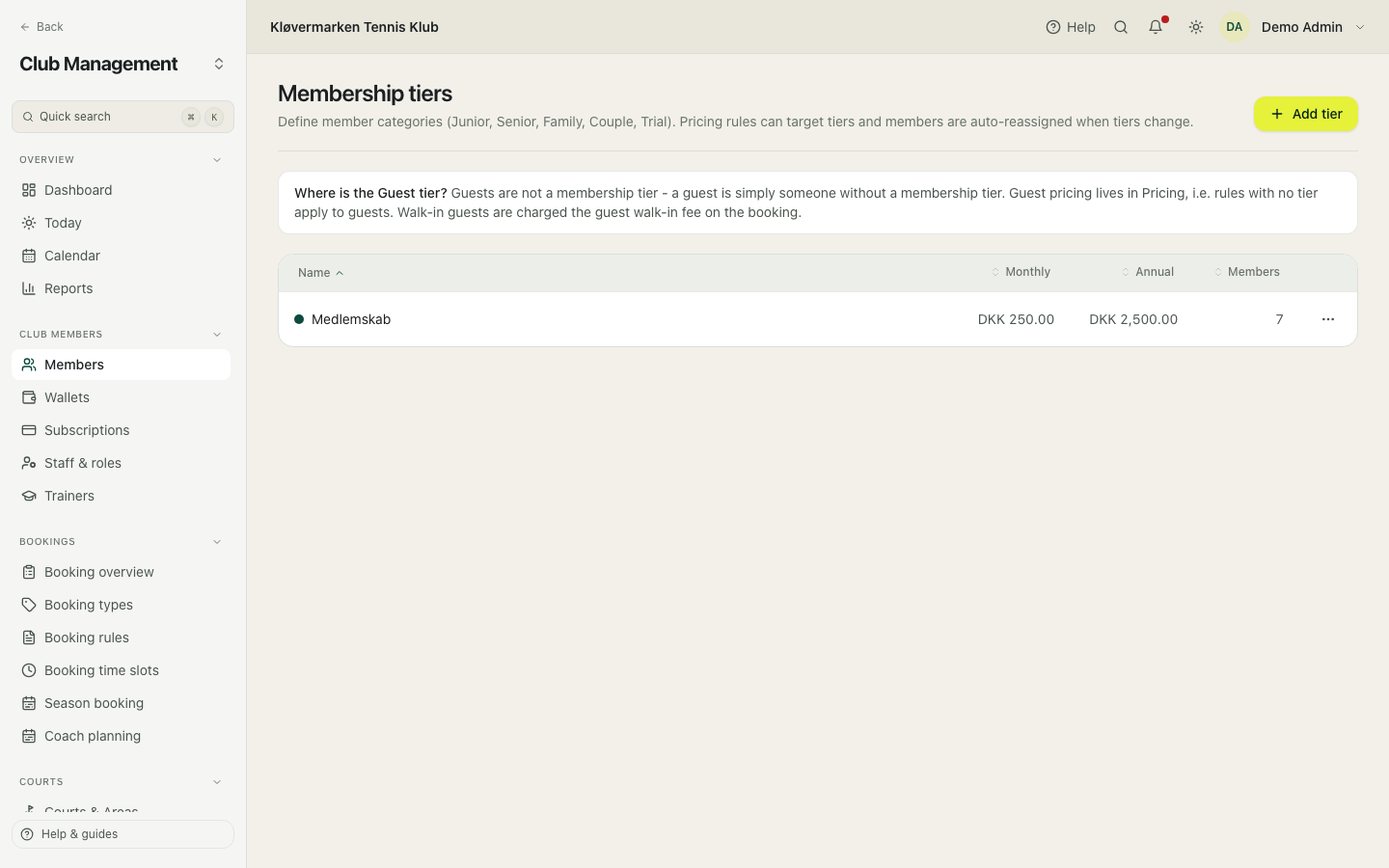
Changing or deleting a type shows you first how many members are on it and which price rules point at it. Read that before you confirm: deleting moves those members to the default type.
Subscriptions
Every running membership with its cycle, price, status and period. Active means paid and running, pending means waiting for a first payment, past due means the renewal failed. Members cancel from their own profile in the app, and the desk settles cash and bank payments here.
- Filter by status to find the memberships that need attention.
- Open a row to see the period and the payment history.
- Use mark paid to record a cash or bank payment. The membership becomes active at once.
- Use the invitation to ask members with no saved card to register one.
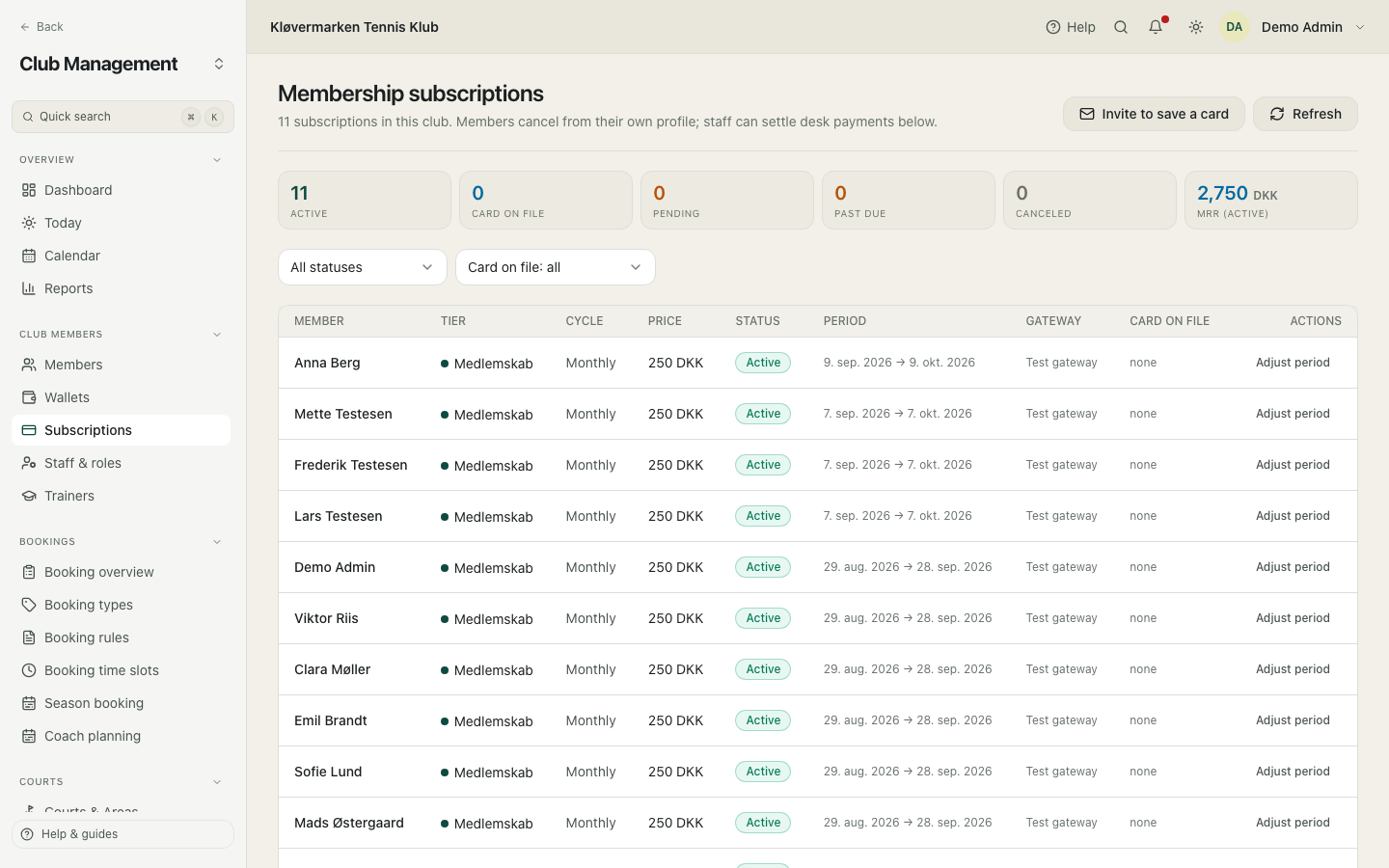
Past due does not cancel anything by itself. The member keeps their membership until somebody ends it, which is deliberate: clubs would rather ring the member than lose them to a failed card.
Card on file: how a member saves a card
With a card on file, a payment agreement between the member and the club's card gateway (NETS), the membership renews by itself: the morning renewal run charges the saved card when the paid period ends. Members save the card themselves in the member app, on the web or on iPhone. The card number is stored by NETS, never by the club or Racketr.
- The member opens Profile, then Memberships.
- On the membership they tap Set up automatic renewal. On the web that opens the Automatic renewal page, /app/communities/<club id>/payment-agreement.
- They tap Register card and enter the card on the NETS payment page.
- Back in the app they read Your card has been registered, and the membership says Automatic renewal: card **** 1234.
Registering costs the member nothing extra: a small verification amount is charged and refunded at once, or, when a renewal is already due, the card pays that amount and is kept for the next ones. A member can also tick Save my card for automatic renewal when they pay their membership.
Inviting members to save a card
From Subscriptions you can ask every member who has a membership but no saved card to register one. Nothing is sent until you have seen who gets it.
- Open Subscriptions and click Invite to save a card.
- Read the preview: how many members get the e-mail, the names on the list, and any warning, for example that the club has no card gateway yet.
- Click Send invitations. Each member gets the e-mail Save a card for automatic renewal with a link to the registration.
- The Card on file column says Invited for them until they register.
Send the invitation a couple of weeks before most memberships renew, and filter the list on Without a saved card afterwards to see who has not registered yet.
What the Card on file column says
Subscriptions shows a Card on file column, a filter for it and a count of saved cards at the top. The labels mean:
| Label | What it means | What to do |
|---|---|---|
| none | No saved card. Renewals are paid by hand: payment link, desk or bank. | Invite the member, or leave it if they pay at the desk. |
| Invited | The club sent the registration e-mail and the member has not registered yet. | Remind the member, or invite again later. |
| Registering | The member started the registration and has not finished on the NETS page. | Nothing. It changes by itself when they finish. |
| Card saved (**** 1234) | The card is on file and pays the next renewal by itself. | Nothing. |
| Card saved, renewal retrying | The last renewal charge was refused and the run will try again. | Nothing yet, or ask the member to check the card. |
| Charge failed | The card was refused on the last attempt. The membership is past due. | Contact the member: they pay through the payment link or register a new card. |
The filter Without a saved card is the list to invite. With a saved card is the list the morning run will charge.
The morning renewal run (korttræk)
Every morning at 06:30 the renewal run, korttræk, charges the saved card of every active membership whose paid period has ended, for the next period. A charged renewal extends the membership and is booked like any other membership payment, and one period is never charged twice. A refused card is tried three times:
- Open Reports and pick Korttræk (saved-card renewals) with a date range to see every charge: member, membership type, card, amount, attempt and result.
- On Subscriptions, look at the rows marked renewal retrying or Charge failed.
- For a past-due member, send the payment link from the row, or use mark paid when they pay at the desk or by bank.
| Attempt | When | If the card is refused |
|---|---|---|
| 1 | The first morning after the paid period ends | The member is told, and the membership stays active with renewal retrying. |
| 2 | 3 days after the period ended | The same. |
| 3 | 7 days after the period ended | The membership becomes past due, the member is asked to pay now, and the column says Charge failed. |
Past due does not end the membership by itself. A member who registers a new card while a renewal is due pays that amount at once.
Club credit
Club credit is money the member has with the club: a refund they chose to keep as credit, a top-up at the desk, or a goodwill amount from the club. It pays for bookings automatically before the card is charged. Adjusting a balance needs two-factor confirmation, is written to the audit log, and is posted to the books, because it is real money the club owes.
- Pick the member at the top to see their balance and history.
- Use adjust to add or remove credit, and choose the reason.
- Read the consequences shown before you confirm.
- Confirm with your two-factor code.
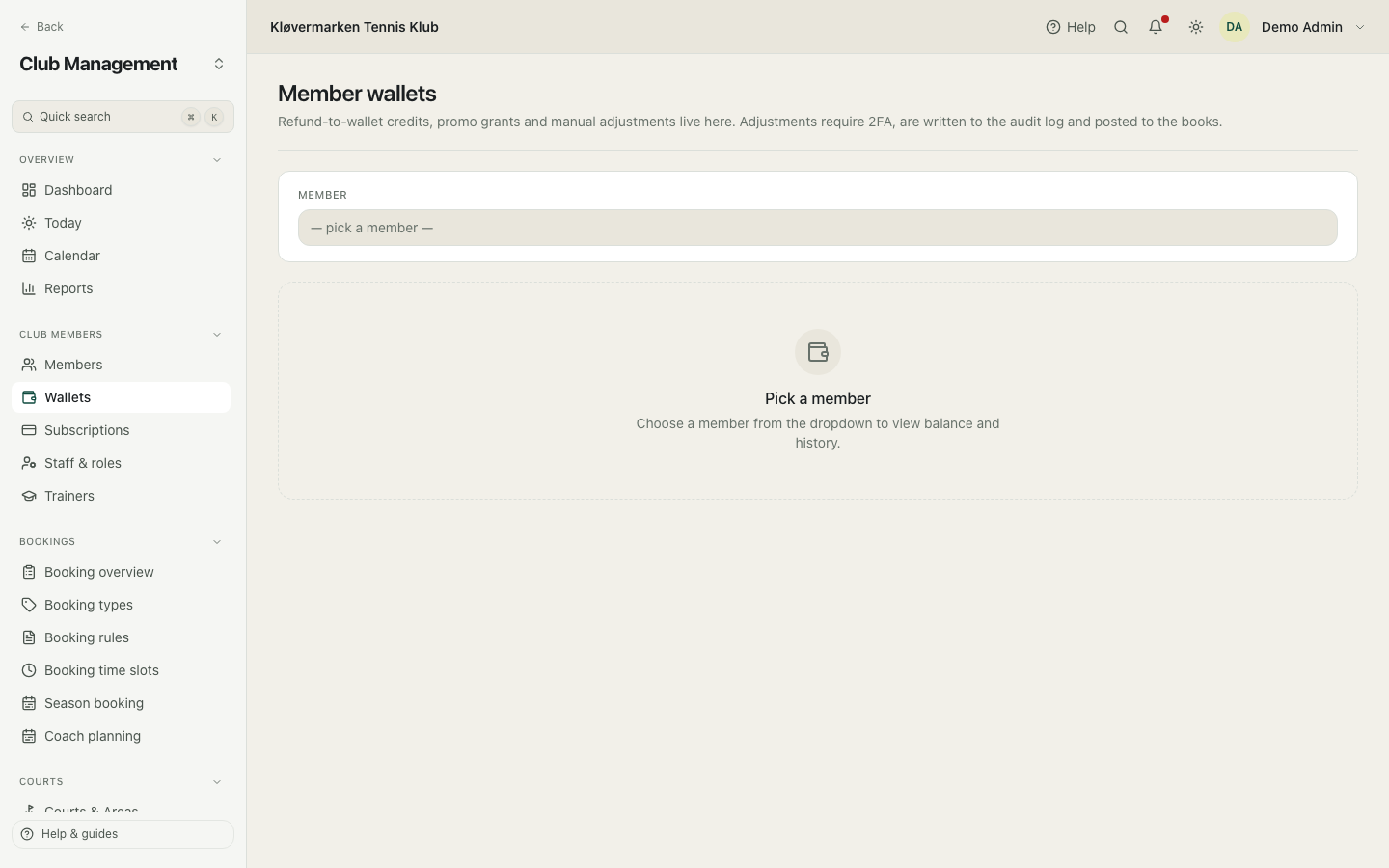
Club credit is a debt, not income. The club only earns it when the member spends it, or when it expires under the club's expiry policy. Chapter 14 shows exactly how that is booked.
12.Programs, classes and seasons
Programs are everything that repeats: weekly classes, season bookings that run all winter, clip cards and the waiting list. They all end up as normal bookings in the calendar, which is why a season booking blocks the court like any other.
The programs page
The front door to the four program areas: classes, season bookings, clip cards and the waiting list. Each card says what it is for and takes you to its own screen.
- Pick the area you need.
- Come back here to move between them.
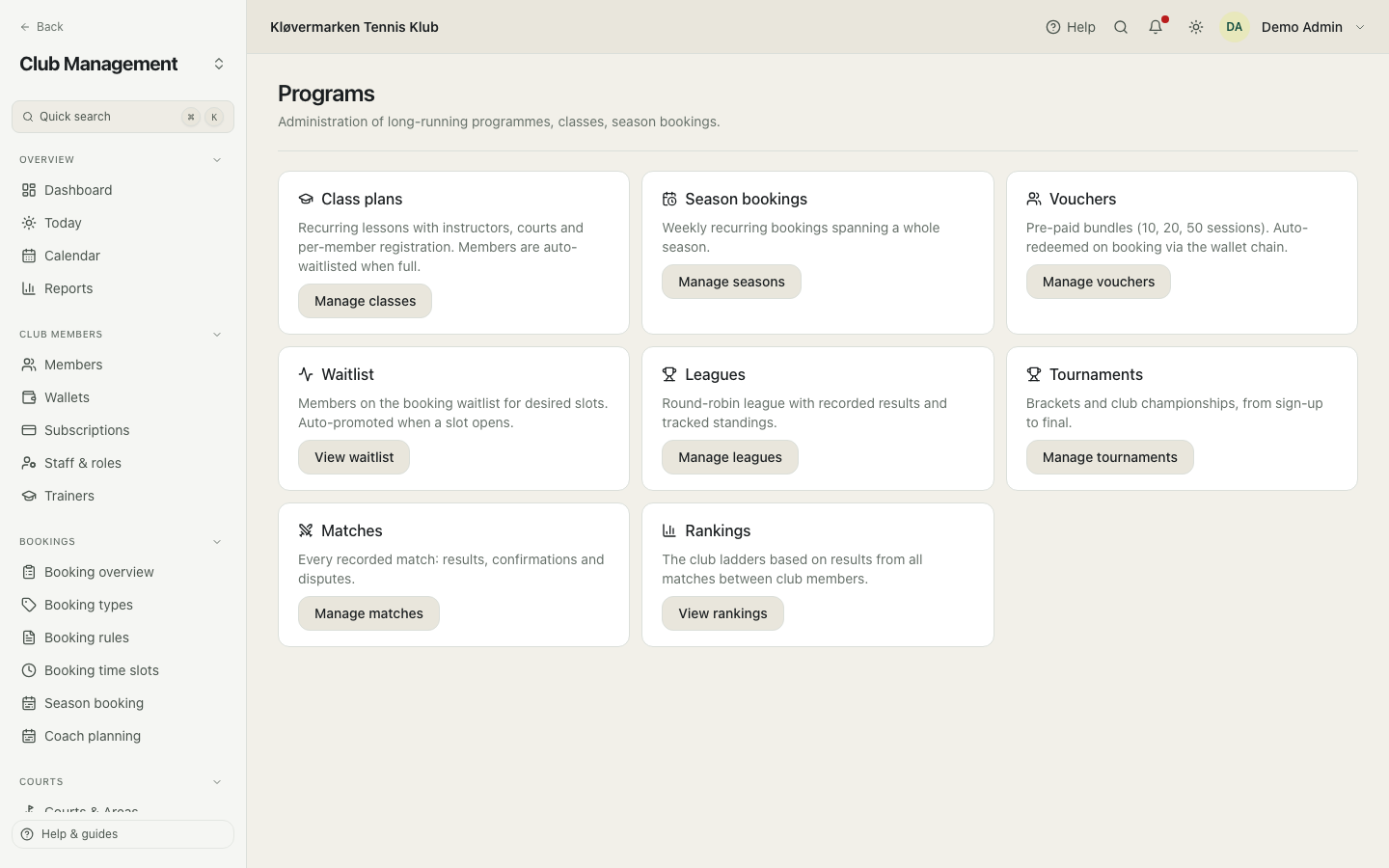
Classes and seasons look similar and solve different problems. A class has an instructor, a capacity and members who register one by one. A season booking is one group that keeps the same slot every week and pays as one.
Classes
Recurring lessons with an instructor, a court and registration per member. You set the price, the period, the weekly schedule and the capacity. When the class is open, members register from the app, and when it is full, the next ones are waitlisted automatically. Each session reserves its court, so the calendar shows it like any other booking.
- Fill in the title, the total price, the start and end dates and the capacity.
- Set the weekly schedule and pick the court and the instructor.
- Save as draft, check it in the calendar, then set it to open for registration.
- Use the notify option to send members a push when registration opens.
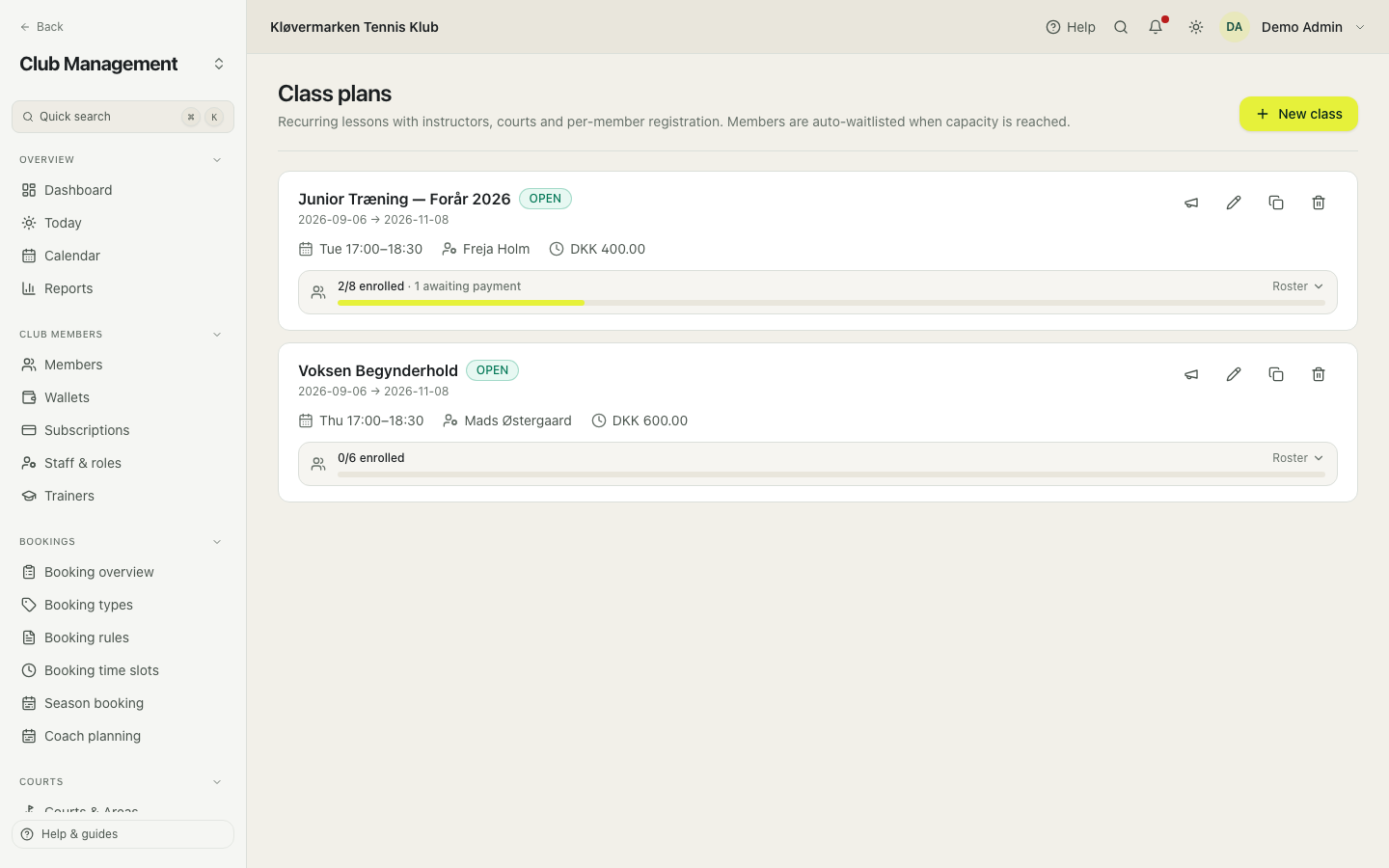
A late joiner can pay pro rata for the sessions that are left. Switch that on when you create the class, so the desk does not have to calculate it by hand in January.
Who is coming to training
For every session, members say whether they are coming, and a guardian answers for their child. The answer lives in the app and on the member web, and can change until the session starts. On the class page, open the registration roster: below it, the attendance panel shows each session of the last two weeks and the coming four with how many are coming, how many are not, and how many have not answered. Coaches see the same thing next to each session in their own schedule.
- Open Programs, then Classes, and click the registration line of the class.
- Pick a session in the attendance panel.
- Read the three groups: coming, not coming, and no answer.
- Once the session has started, record who was there, if the club wants to. Tap again to clear it.
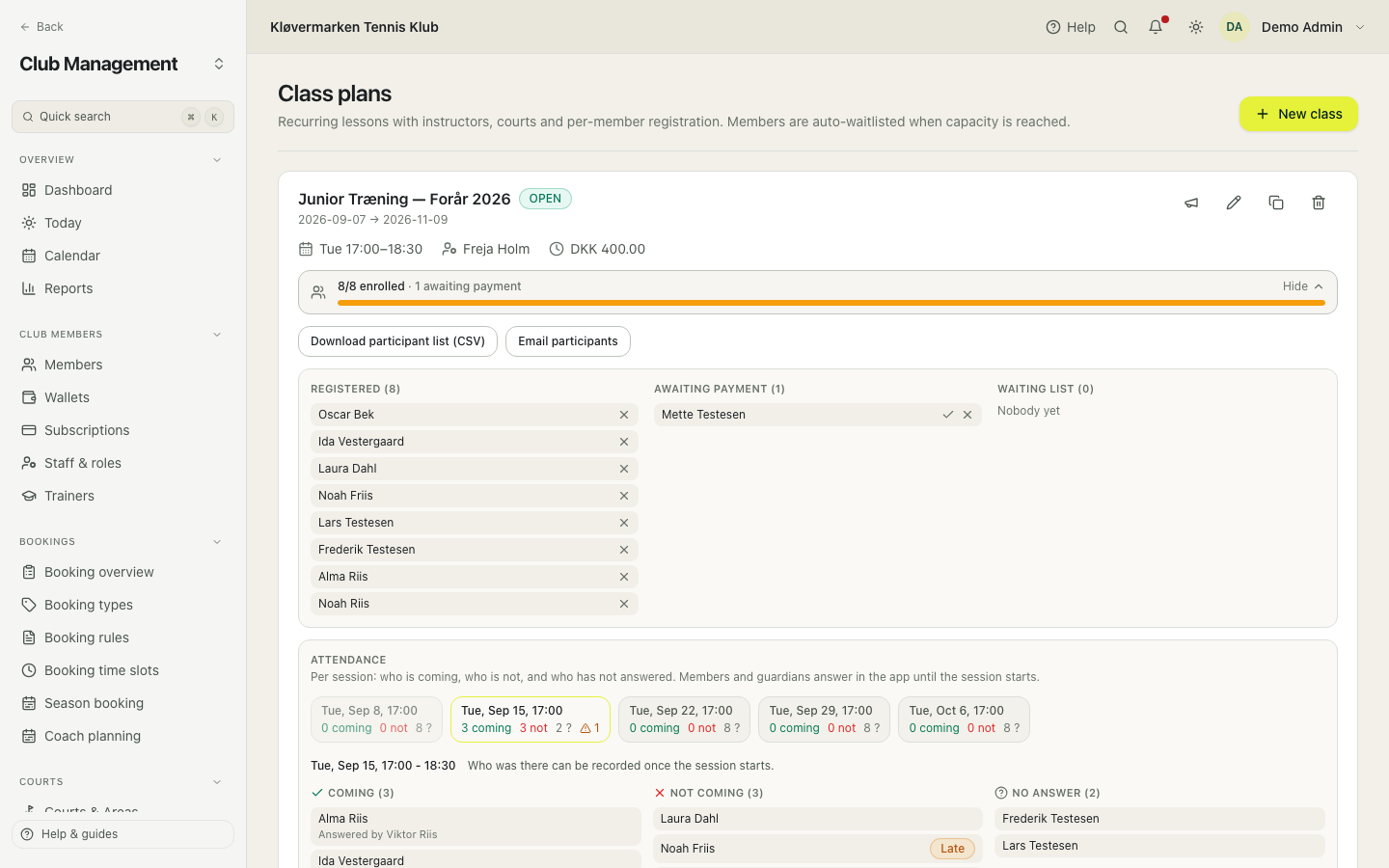
No answer is never counted as coming, so a full-looking session can still be half empty. An answer given inside the club's cancellation deadline carries a Late badge, which is where last-minute cancellations show up.
Season bookings
A season booking is the same slot every week for a whole season, for one group of members. One of them is the organiser and is billed, the others are on the roster. This is what most Danish clubs call a fixed hour, and it is the backbone of the winter schedule.
- Open Season bookings to see the list for the current season.
- Filter by status: preliminary, approved, activated or cancelled.
- Open one to see its weekly slots, its members and its price.
- Activate it when the season starts, which places the bookings on the calendar.
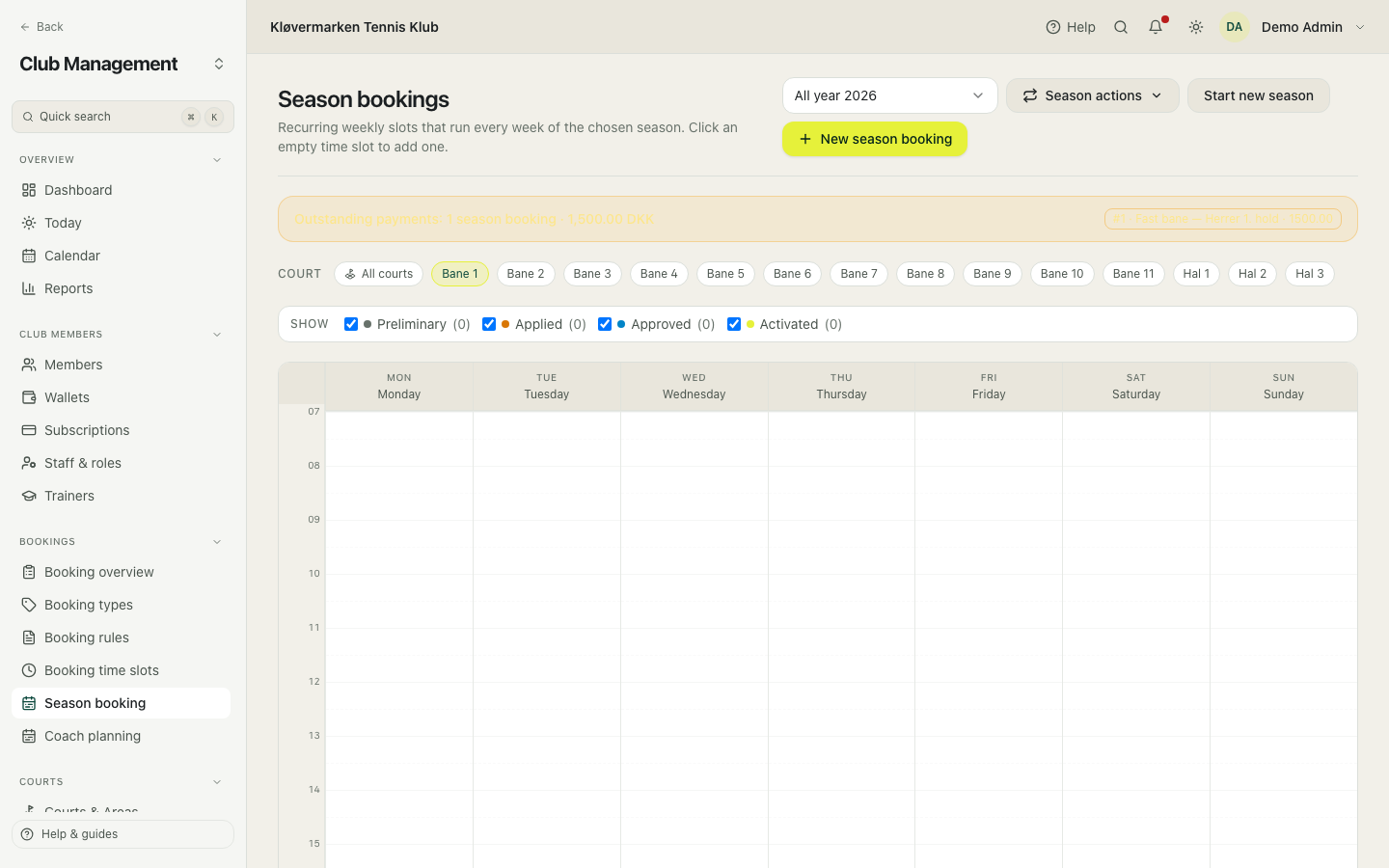
Activation is the moment the courts are actually taken and the money becomes payable. Until then the season is a plan you can still change freely.
Creating a season booking
The form walks through the whole thing: which season, which booking type, which weekly slot, which courts, and who is on it. The price is not typed in by hand. It is calculated from every weekly occurrence using the club's normal pricing rules, so a fixed hour costs what those hours cost. Untick a date and the total updates.
- Pick the season and the booking type.
- Set the weekday, the time and the courts.
- Add the members. The first one is the organiser and gets the invoice.
- Untick any dates the group does not play, for example holidays.
- Choose the cancellation rule and, if the club splits the bill, the two instalments.
- Save. The booking starts as preliminary until you approve and activate it.
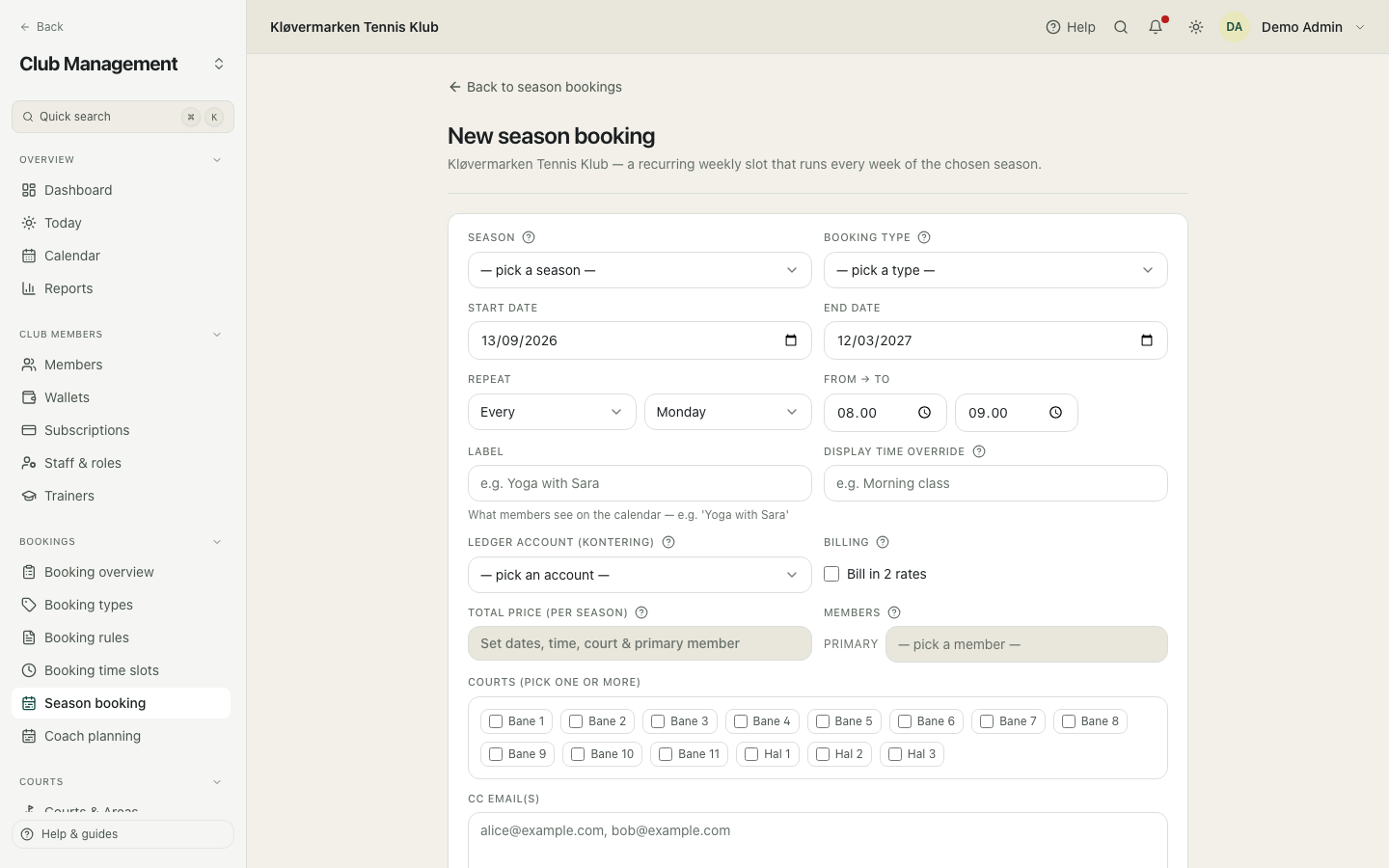
Two instalments means two invoices and two postings, for example one in September and one in January. The season counts as fully paid only when the last instalment is settled.
The seasons themselves
A season is the time window that season bookings attach to, for example winter 2026. You create at least one before any season booking can exist, and you deactivate an old one when it is over so it stops appearing in pickers.
- Enter the name, the start date and the end date.
- Create it. It can now be chosen on season bookings.
- Deactivate a season when it is finished, or reactivate it if you need it back.
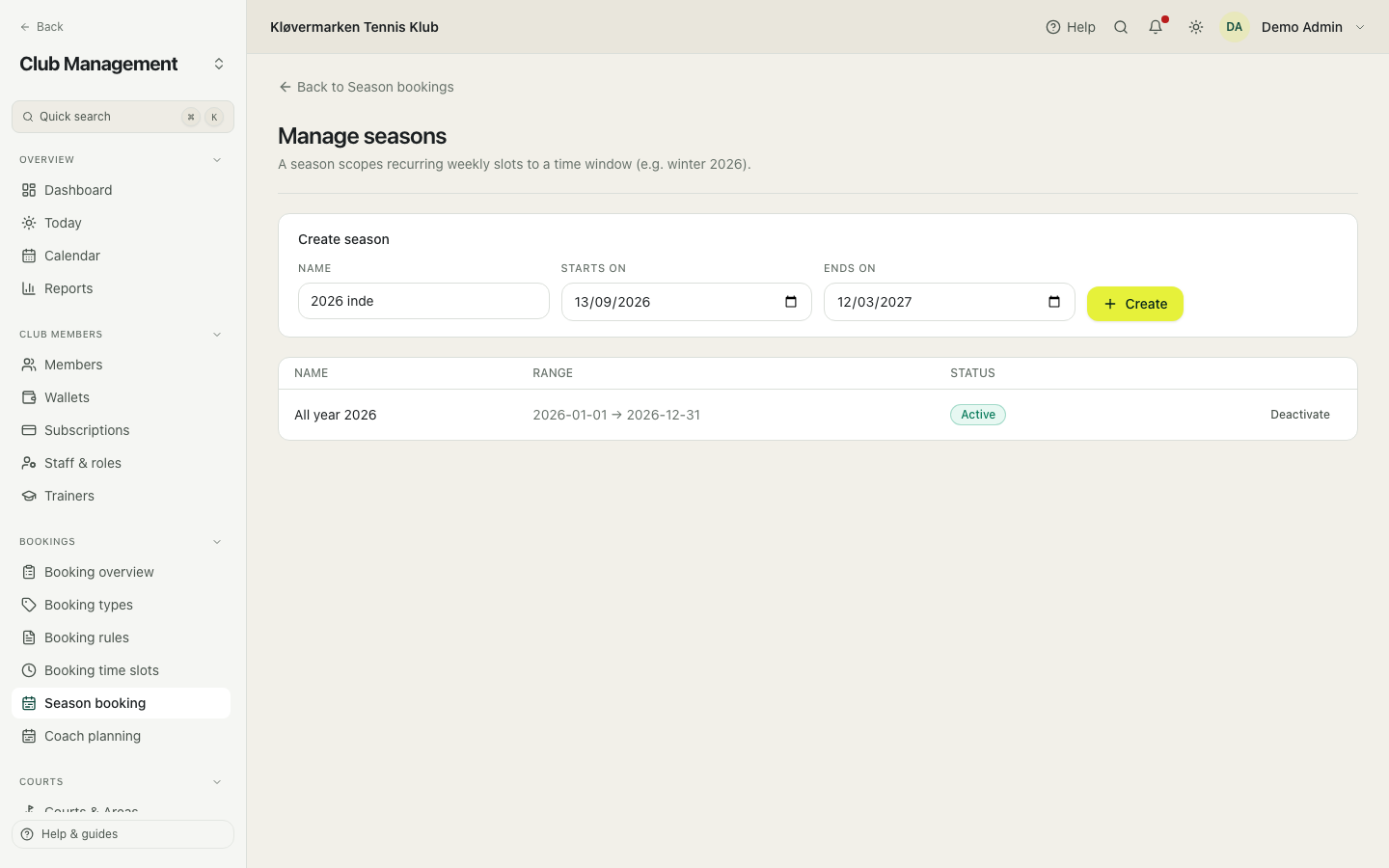
Use the copy tool when next season looks like this one: it duplicates every season booking into a new season as drafts you can adjust, instead of typing forty fixed hours again.
Rolling a season forward
The guided version of 'same as last year'. It copies last season's bookings into a new one, recalculates every price under the club's current rules, lets you drop the groups that are not continuing, and then approves and notifies them in one go. This is the yearly job that used to take a week.
- Pick the season to copy from and name the new one, with its dates.
- Press copy and review. Prices were recalculated, so check them.
- Drop the bookings that should not continue.
- Approve, and optionally send every organiser a confirmation.
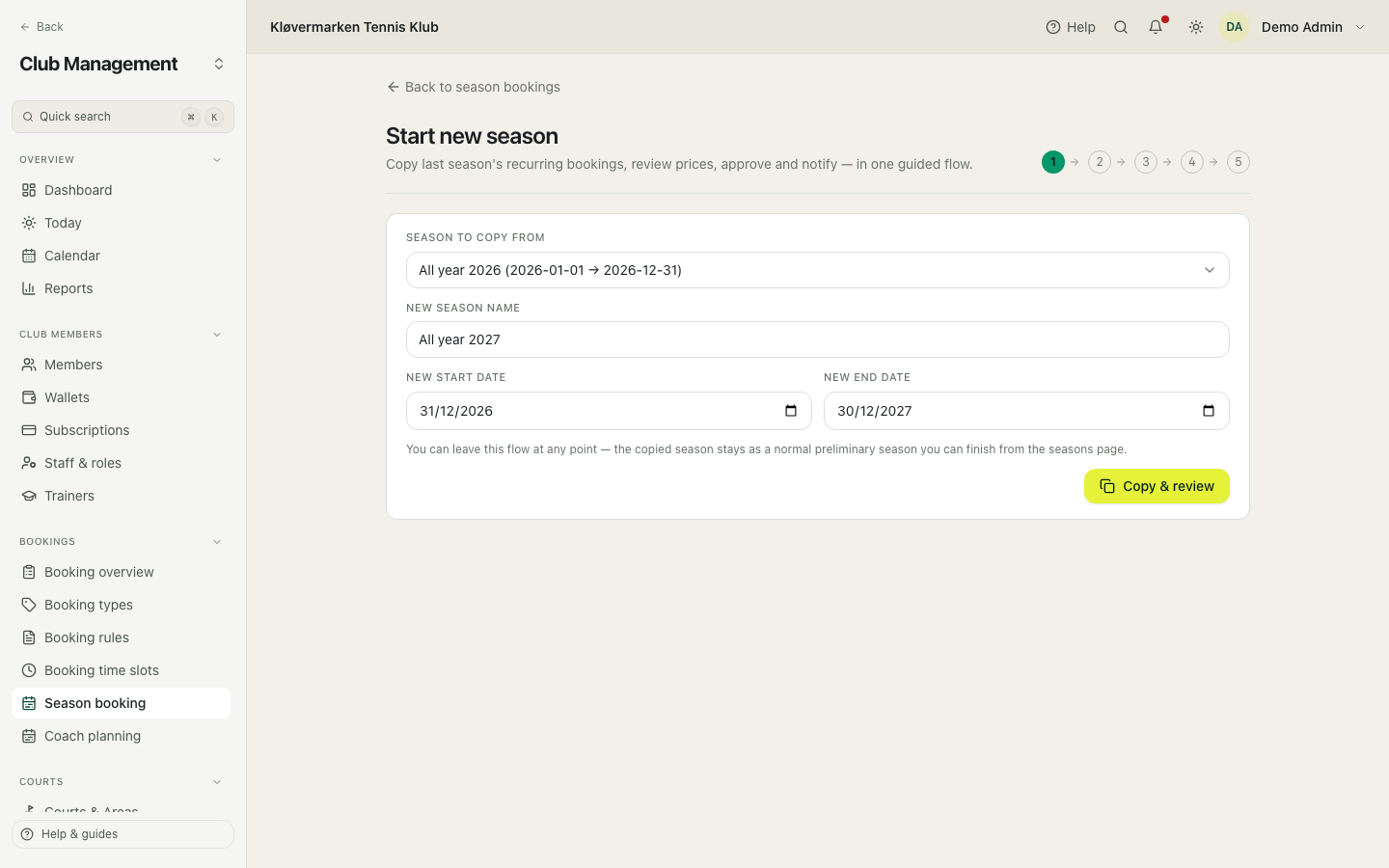
You can leave halfway through. What has been copied stays as an ordinary preliminary season you can finish later from the seasons page, so an interruption costs nothing.
Cancellation rules
The catalog of refund rules a season booking can be created under. A rule is a deadline plus what happens if someone cancels before it: full refund, a percentage, club credit, or nothing. You can also have the freed slot offered to the next person on the waiting list automatically.
- Click New rule and name it, for example '48 hours, full refund'.
- Set the deadline in hours and the refund mode.
- Tick release to offer the slot on automatically.
- Save. The rule now appears when creating season bookings.
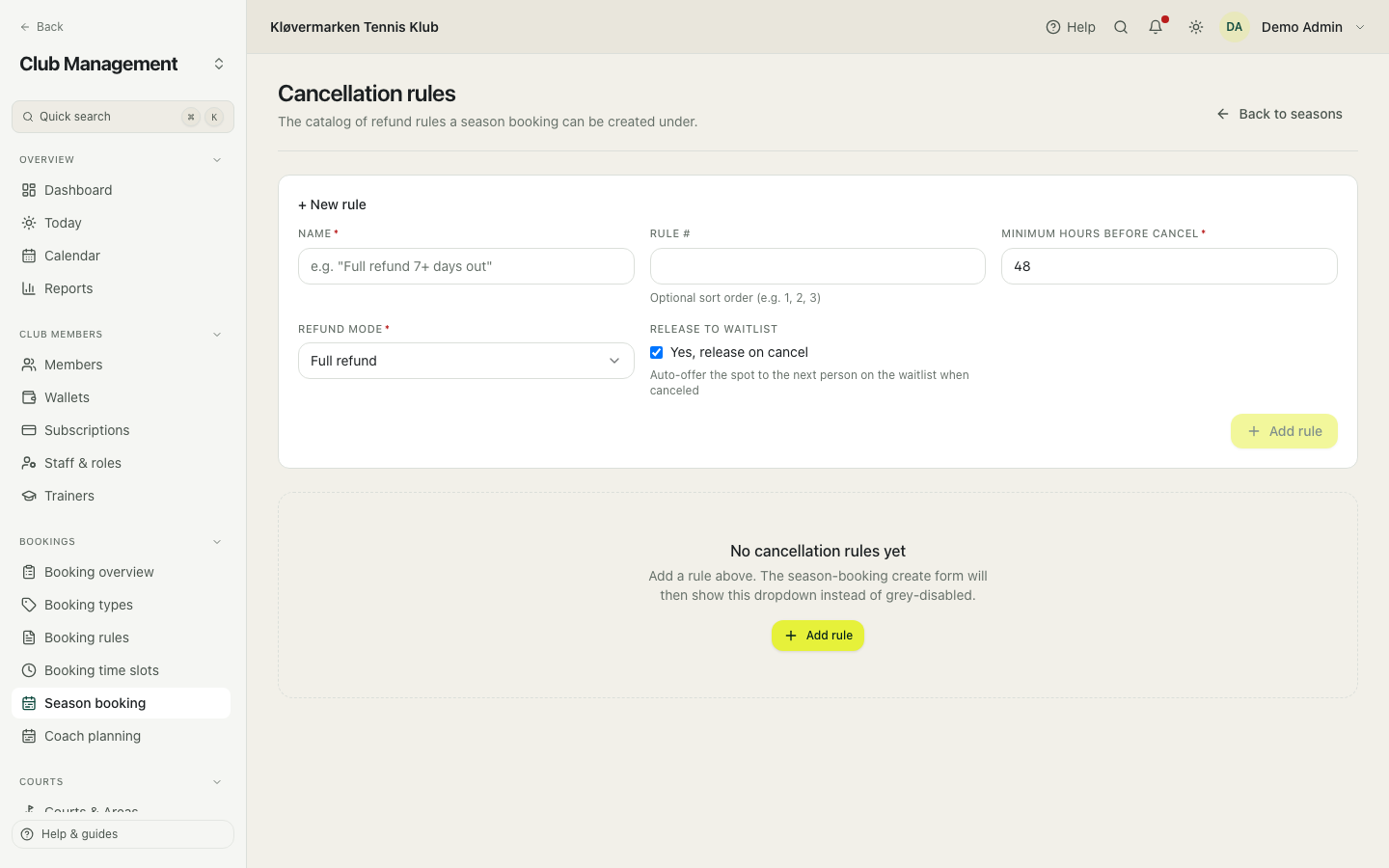
Make the rules before the season starts. A season booking keeps the rule it was created with, so changing the catalog later does not rewrite existing agreements.
Season mailing list
Collects the email addresses of everyone with an approved or activated season booking, so you can paste them into the club's own mail tool. It also counts the members behind the addresses, so you can see who you are actually reaching.
- Pick the season.
- Check the number of recipients.
- Copy all addresses and paste them into your mail tool.
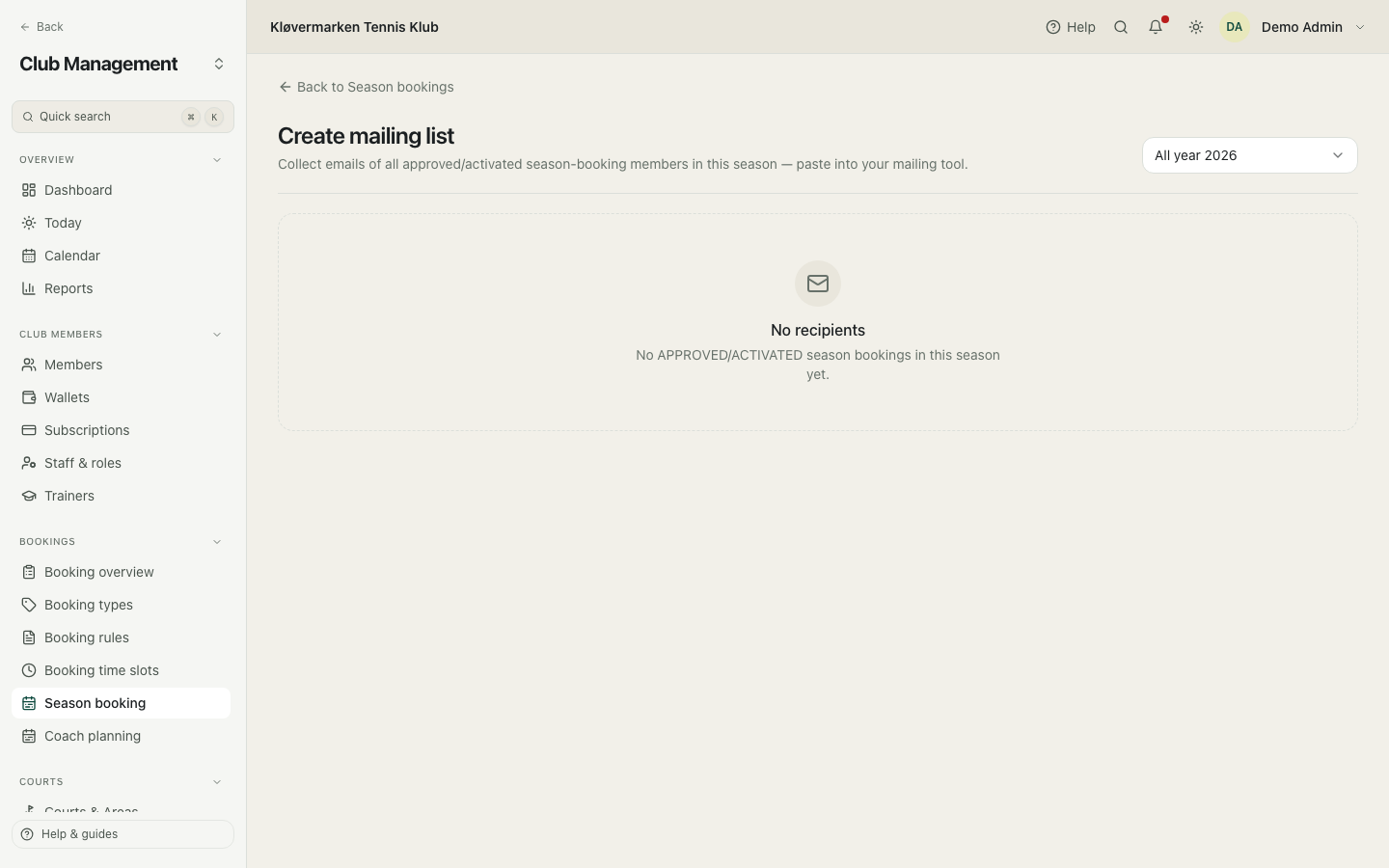
For an ordinary message to the whole club, use Communication instead: it sends in the app, by email and by push, and it shows the reach before you send.
Clip cards
Prepaid bundles, for example ten sessions for 800 kroner. Members buy them in the app or at the desk, and a clip is used automatically when they book a court. The page shows every card, how many clips are left, and when they expire, plus the offers the club sells.
- Create the offers: name, number of clips and price.
- Sell a card at the desk when a member pays cash or card there.
- Follow the cards in the list: used, left and expiry.
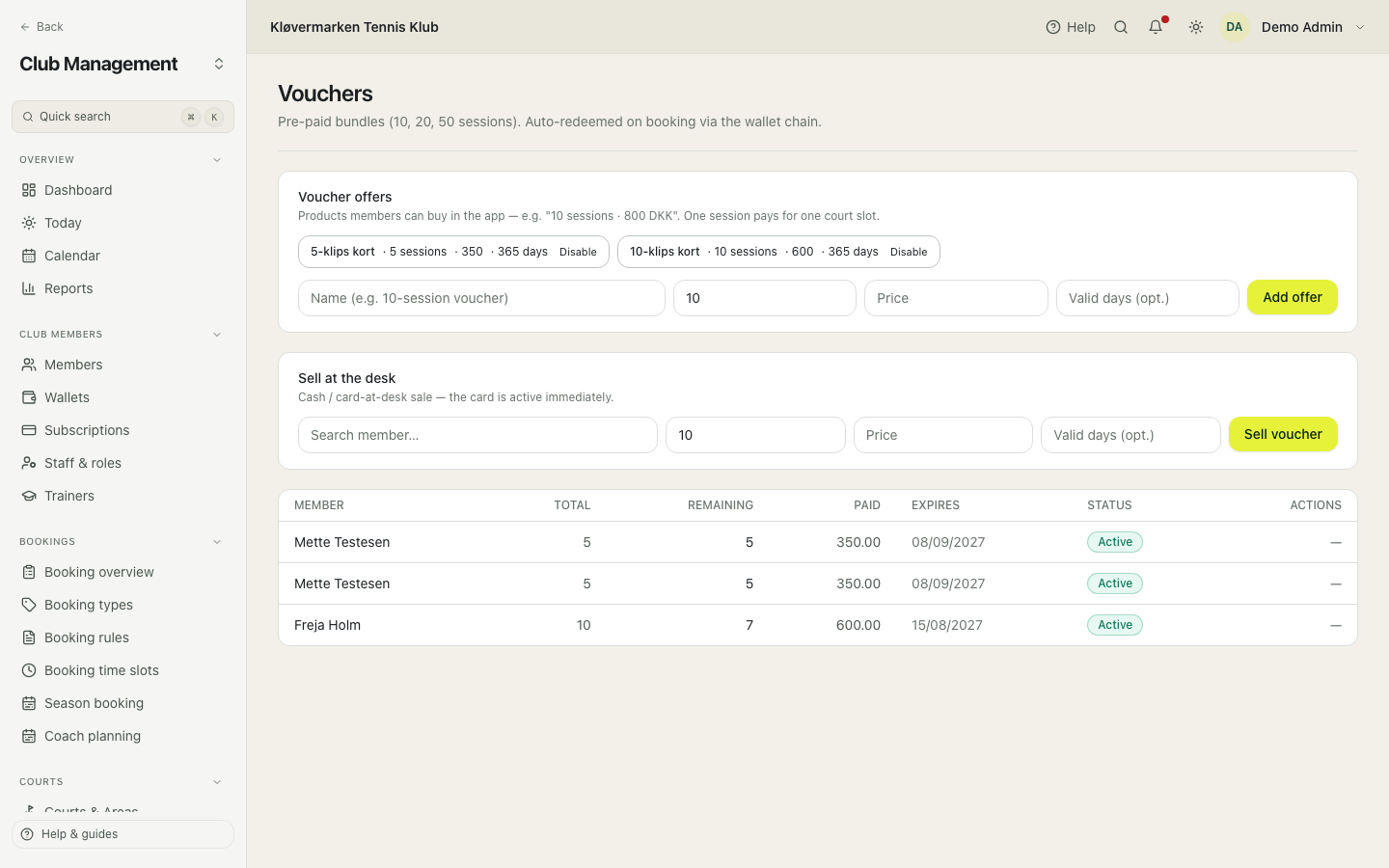
A clip card is prepayment, not income. The club earns it as the clips are used, and unused clips become income when the card expires. Chapter 14 shows the postings behind it.
Waiting list
Members who wanted a slot that was taken. When a matching slot opens, for example because someone cancels, the first in line is promoted to a real booking automatically and notified. The list shows who is waiting, for what, and in which order.
- Check the list to see what members are waiting for.
- Nothing has to be done by hand: promotion happens automatically.
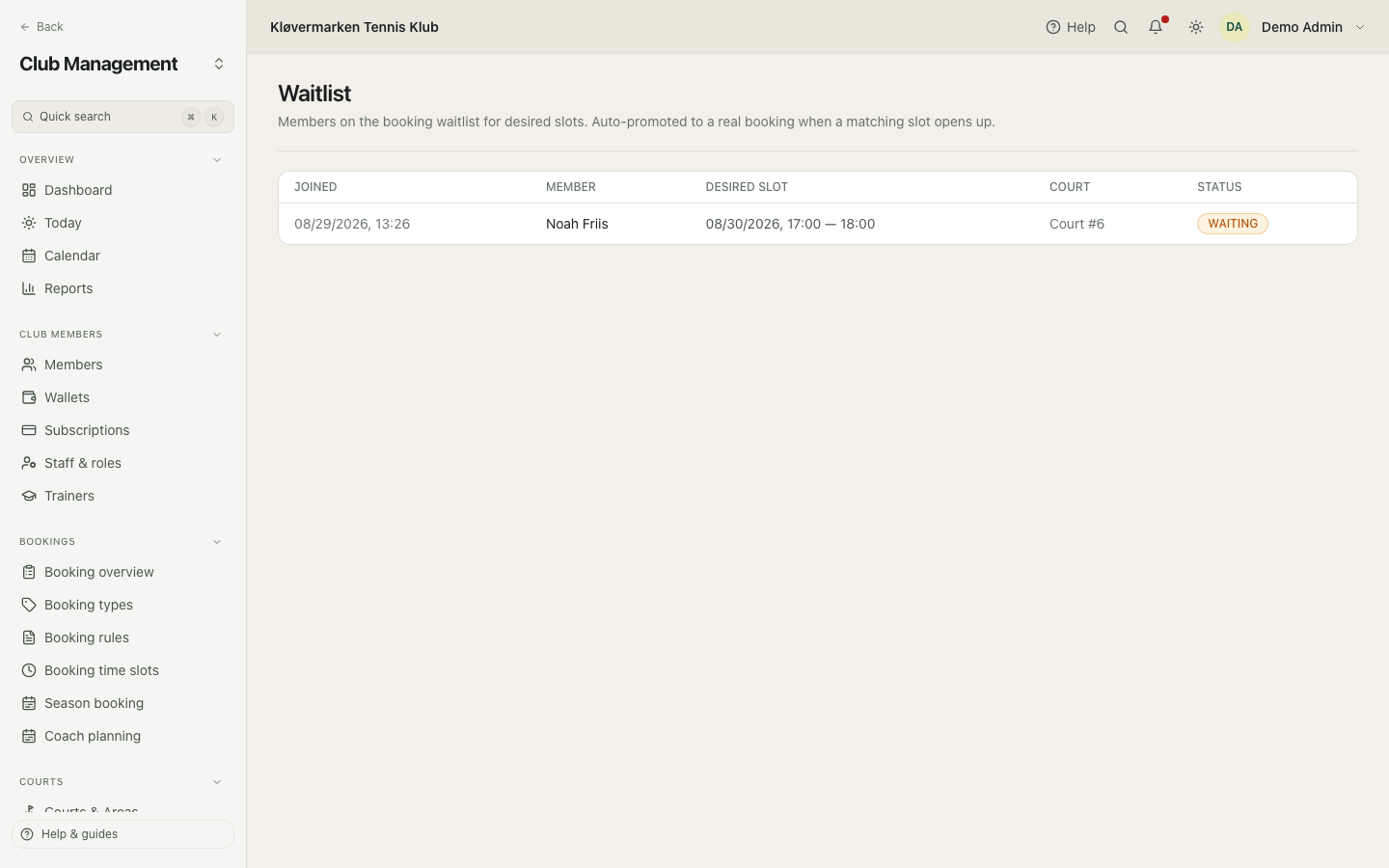
A long waiting list for the same hour on the same court is a pricing signal. That hour is priced below what members are willing to pay.
Americano evenings
An Americano is a club evening where everyone plays with and against everyone, and the points are personal: whatever your pair scores on a court is yours, so the winner is a player and not a pair. You set the evening up with the courts you have, the number of rounds and how many points a round is played to. The system builds the schedule from the player list so people keep swapping partners, and the four on a court type their own score from a phone between rounds. The leaderboard updates as the scores come in.
- Open Programs, then Americano, and fill in the name, the date, the courts, the rounds and the points per round.
- Add the players: members by name, and guests who have no account by writing their name.
- Click Generate the rounds. The preview tells you how many matches there are per round and how many players sit out.
- During the evening, the players type the score on their own phone, or the desk types it on this page. A score can be corrected until the event is closed.
- Close the event when you are done. The standings are frozen, and only a reopen can change them.
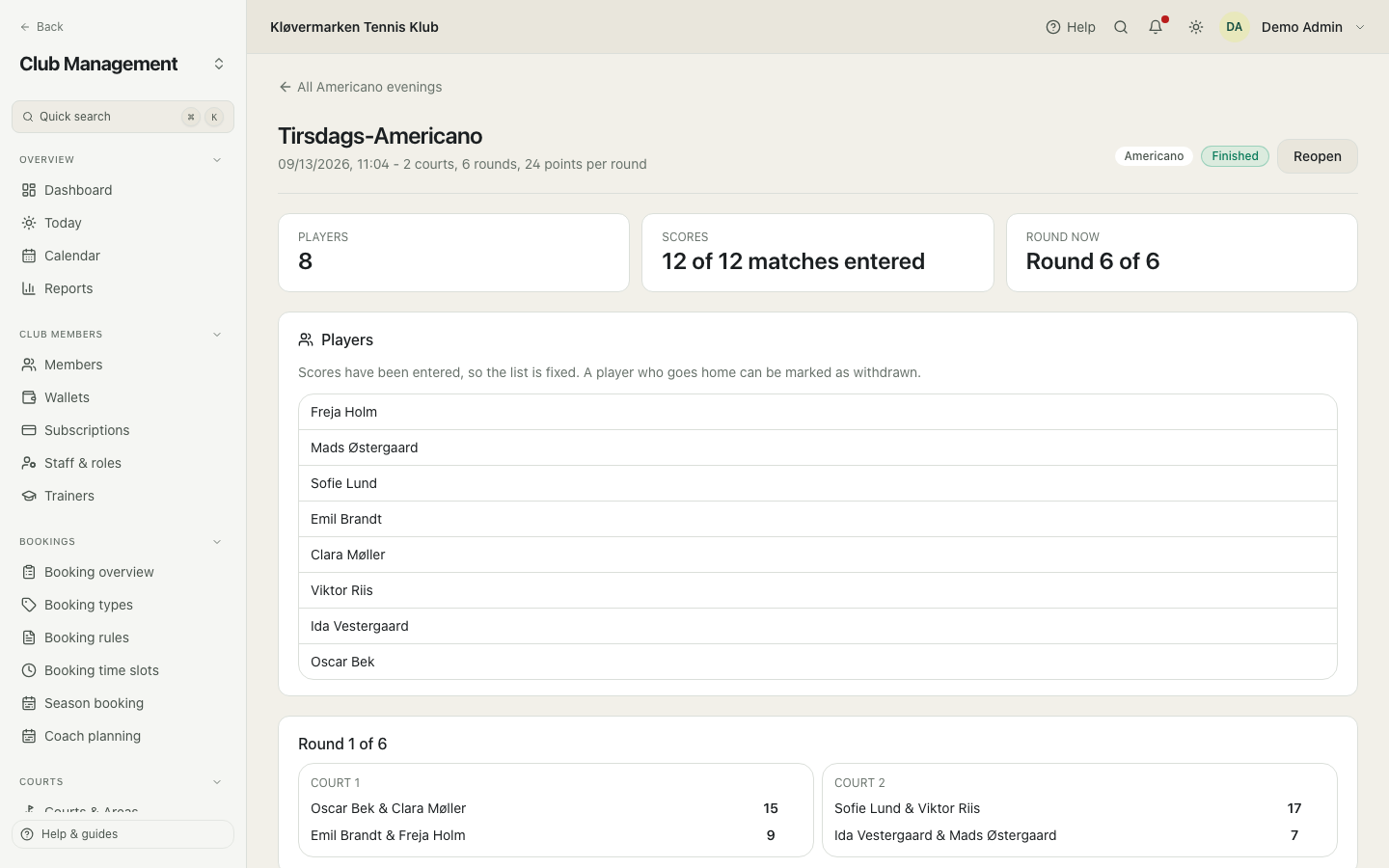
The number of players does not have to be divisible by four. The ones who sit out rotate, so the bye counts never differ by more than one, and the leaderboard then ranks by points per match so nobody loses the evening by waiting a round.
The Americano leaderboard
The leaderboard is individual, and it says in one line how it was ranked. While everybody is down for the same number of matches, that is total points, then point difference, then matches won, then name. When byes make the match counts differ, it ranks by points per match instead, so a player who sat a round out is not punished for it. Two players who are equal on every criterion share a rank and are shown with an equals sign rather than being separated by a coin toss.
- Read the line under the heading: it names the rule the order follows.
- Points is what the player's pairs scored all evening; difference is that minus what they let in.
- Close the event when the last score is in. The table then stops moving.
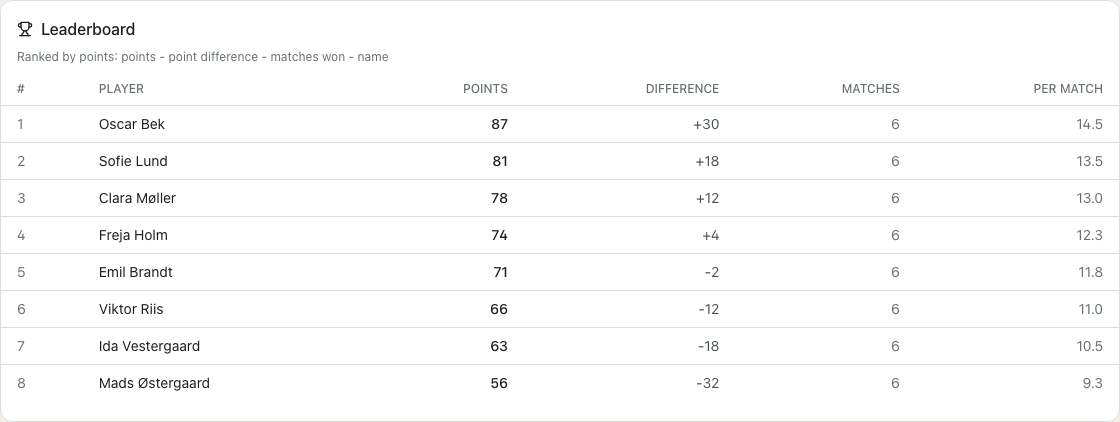
The ranking basis follows the schedule, not how far the scoring has got, so the table does not reshuffle every time one court hands its score in.
Mexicano: the rounds follow the table
A Mexicano is the same evening with one difference: only the first round is drawn up front, and every round after it comes out of the standings. Court 1 takes the four best placed players, court 2 the next four, and on each court the first and fourth play against the second and third. The matches therefore get tighter as the evening goes on, because you end up playing the people you are level with. You pick Americano or Mexicano when you create the event, and nothing else works differently.
- Choose Mexicano in the format field, and decide how the first round is seeded: at random, or in the order the players are listed.
- Generate the rounds. Only round 1 appears; the rest are shown as lines waiting to be drawn.
- Type the scores as usual. The score that completes a round draws the next one by itself.
- If a court has not reported yet, the page says which round it is waiting for. Nothing is drawn from half a table.
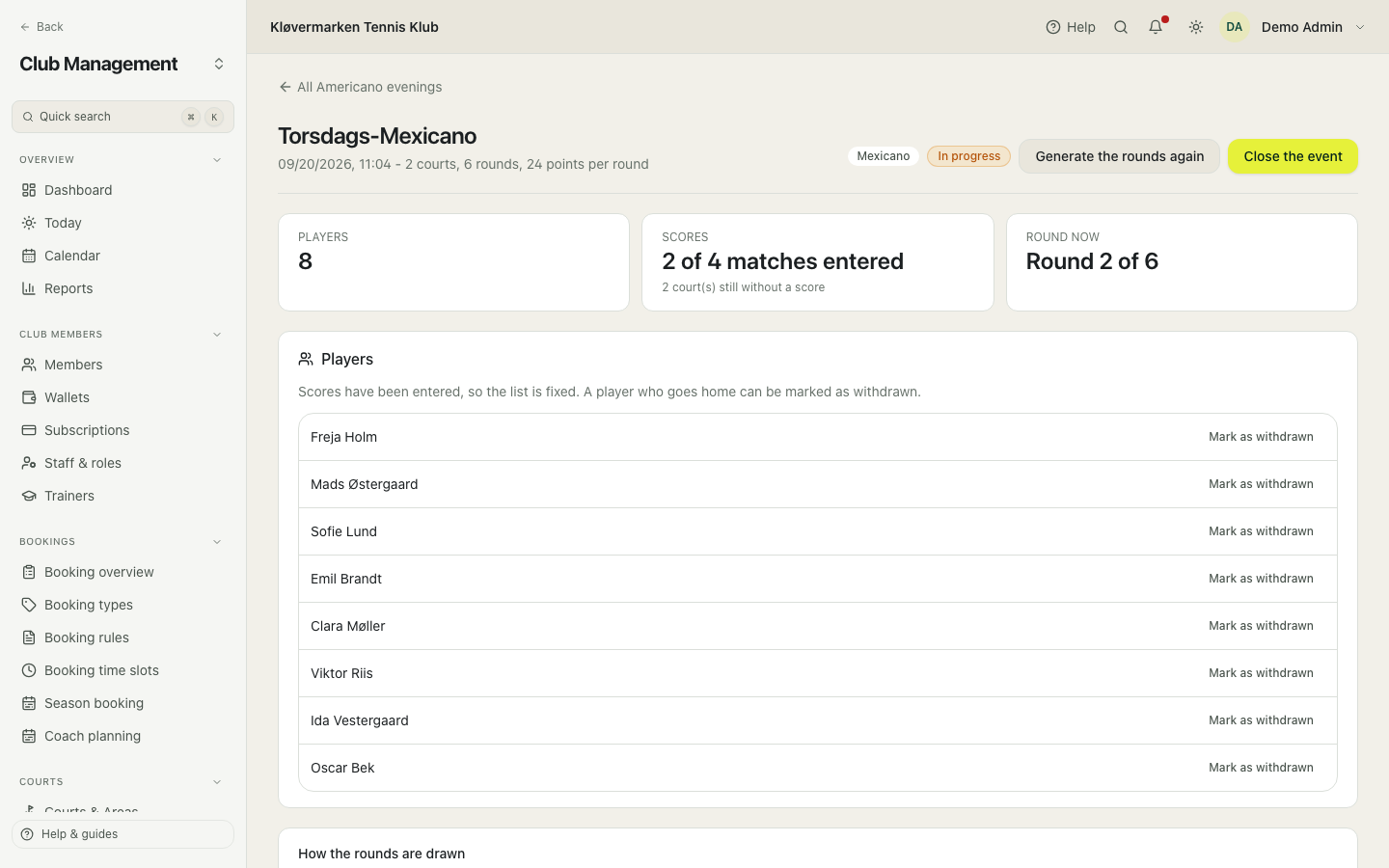
The format cannot change once the rounds are drawn, because a Mexicano and an Americano do not mean the same thing by a schedule. Generate the rounds again to switch, which is the same deliberate step as any other regeneration.
13.Coach planning
Coach planning is for clubs with paid trainers: who takes which session, who swaps with whom, who stood in, and what that adds up to at the end of the month.
The planner
One week at a time, every training session with the coaches assigned to it. Green means covered, amber means something needs attention, for example a session with no coach or a coach who said they are not available. The sessions themselves come from the class plans, so the planner never invents a session.
- Use the arrows to move week by week.
- Click a session to open its panel.
- Deal with everything that is not green.
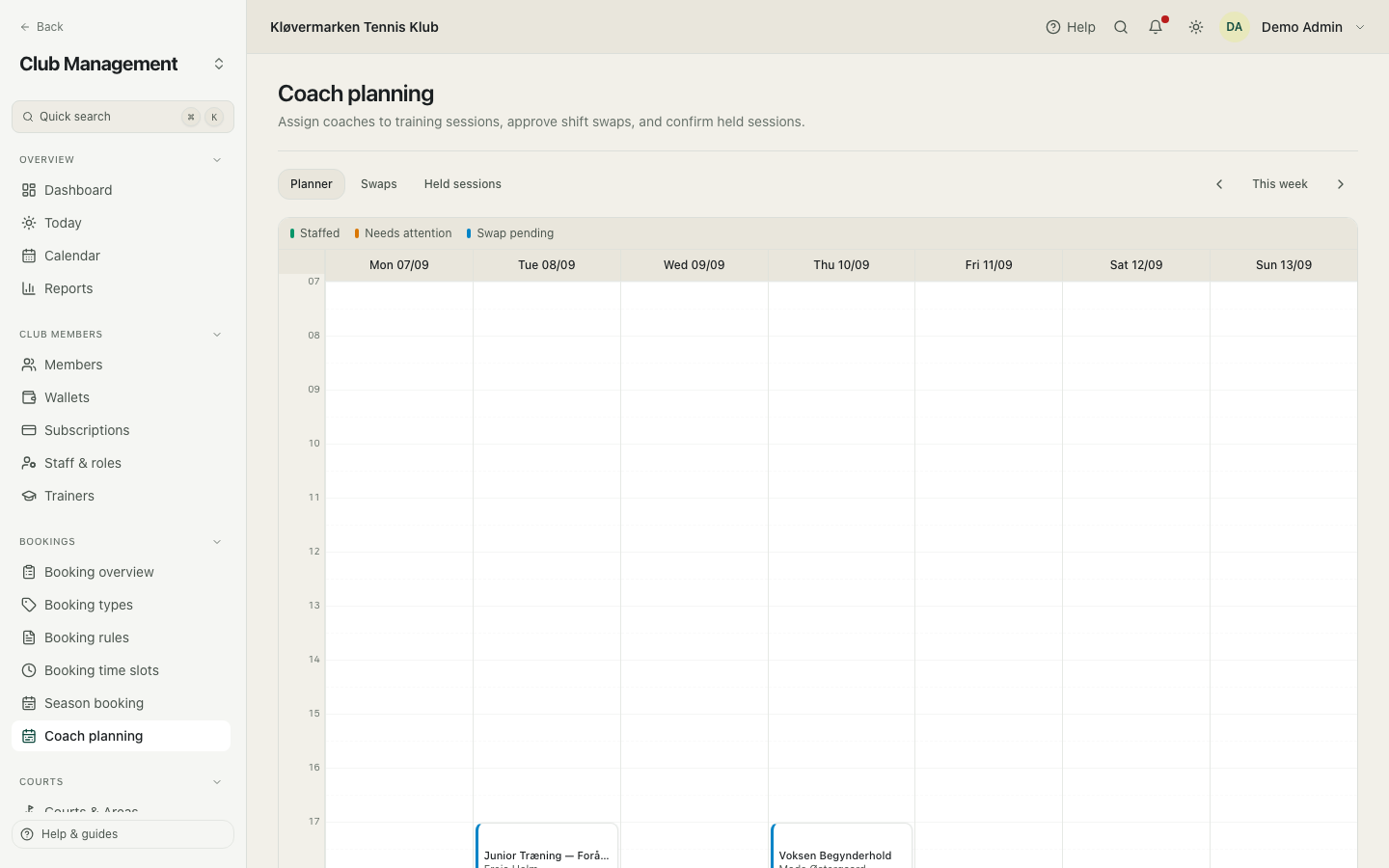
The export is payroll ready: hours per coach, then every session line, straight into a spreadsheet.
Assigning coaches
The panel for one session: which coaches are on it, whether they are available, and room for more than one. Availability comes from the coaches themselves in the app, so the planner sees a refusal before the session becomes a problem.
- Click the session in the planner.
- Add or remove coaches.
- Save. The coach sees the change in the app straight away.
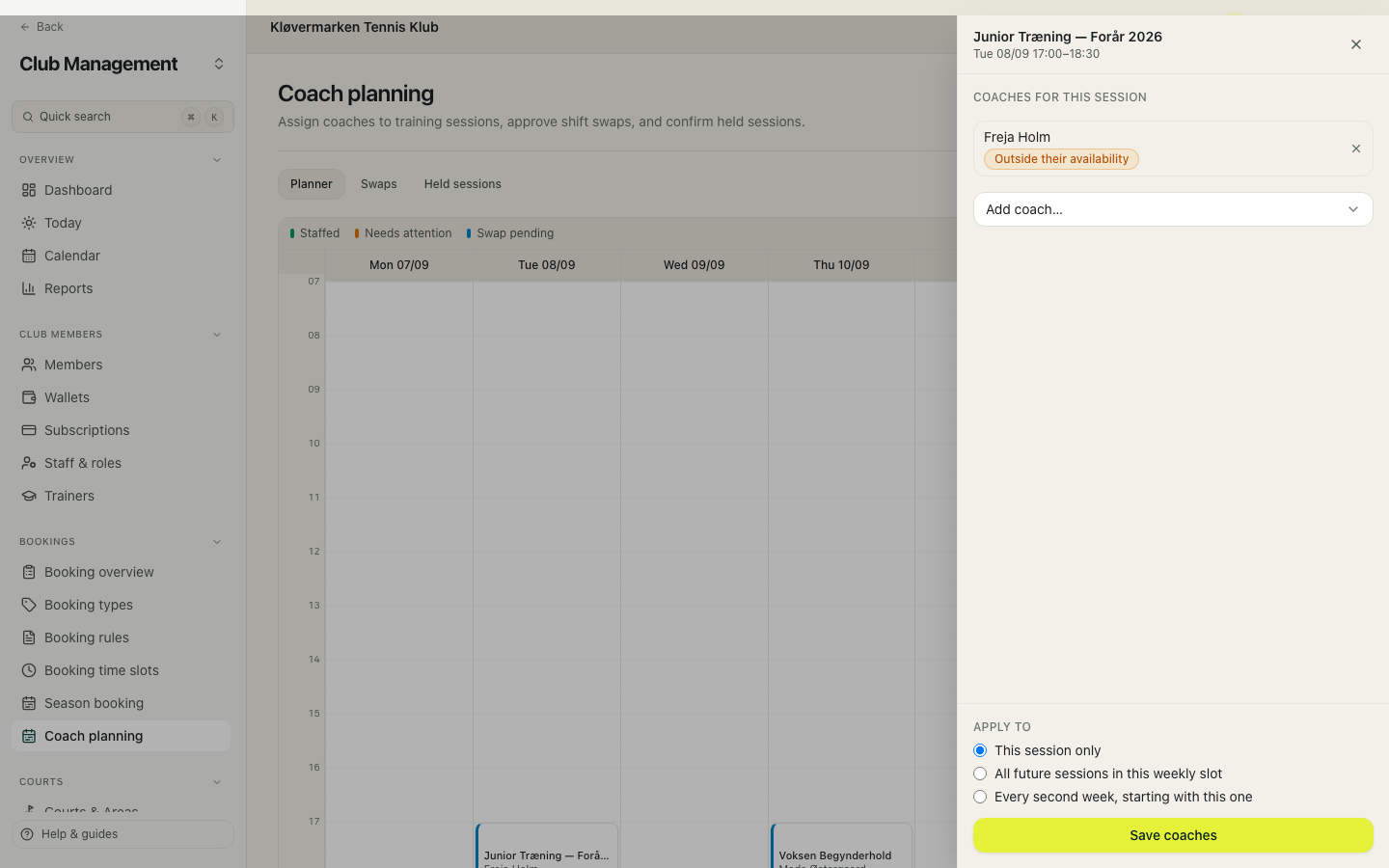
Unknown availability is not a refusal. It means the coach has not answered yet, which is a reminder rather than a replanning.
Swaps
When two coaches agree to swap sessions, they do it in the app and the club approves it here. Until it is approved, the original coach is still the one on the session, which is what keeps the payroll honest.
- Open the swaps tab.
- Read who wants to swap with whom, and on which sessions.
- Approve or reject.
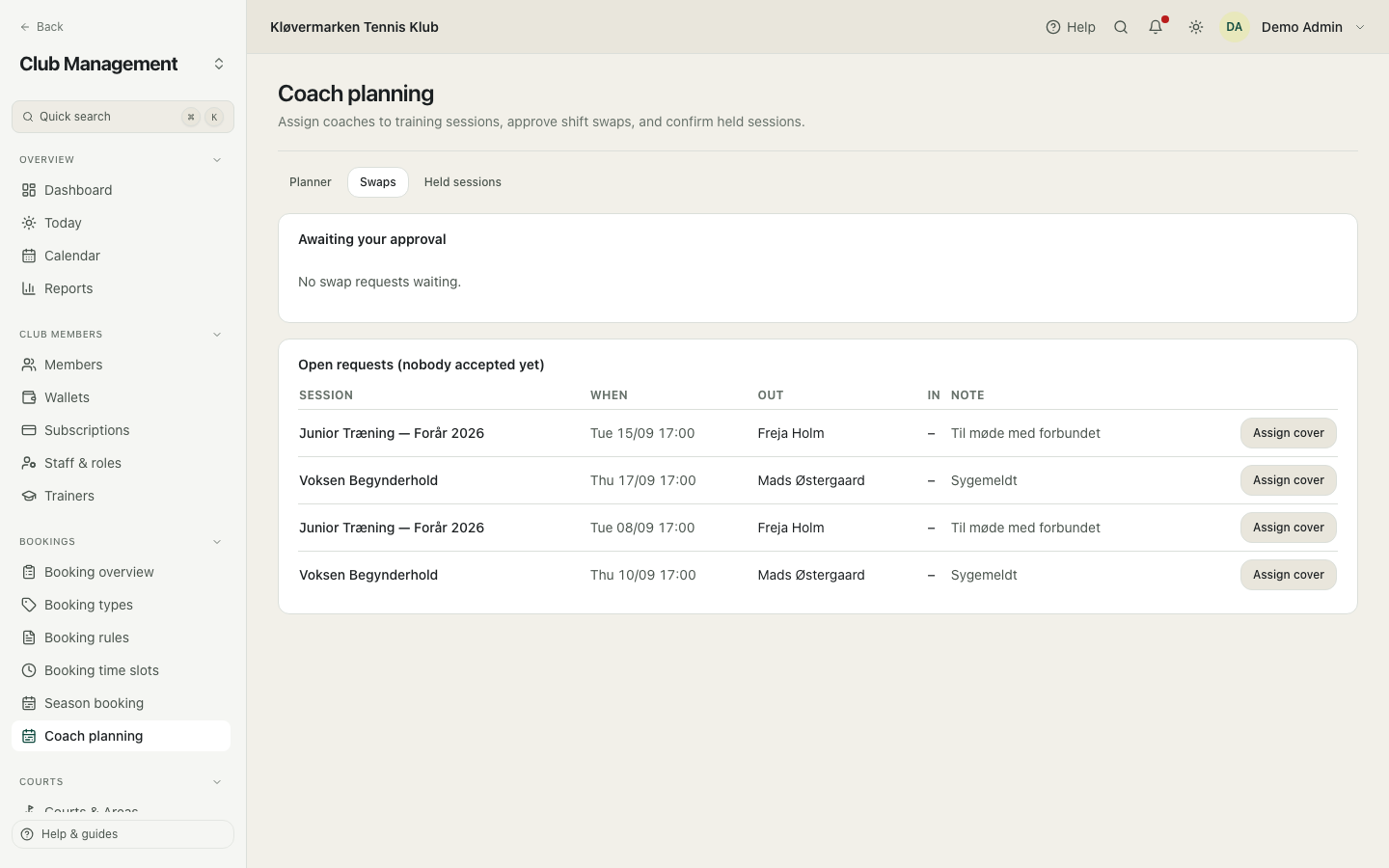
Approving the swap moves the hours to the coach who actually takes the session, so the export at the end of the month needs no manual correction.
Cover for a sick coach
When a coach reports sick, the club assigns a stand-in from the same screen. The list shows who is free at that hour, so you are not guessing from memory.
- Find the session marked as reported sick.
- Choose assign cover.
- Pick the coach from the list of available ones.
- Confirm. Both coaches are notified.
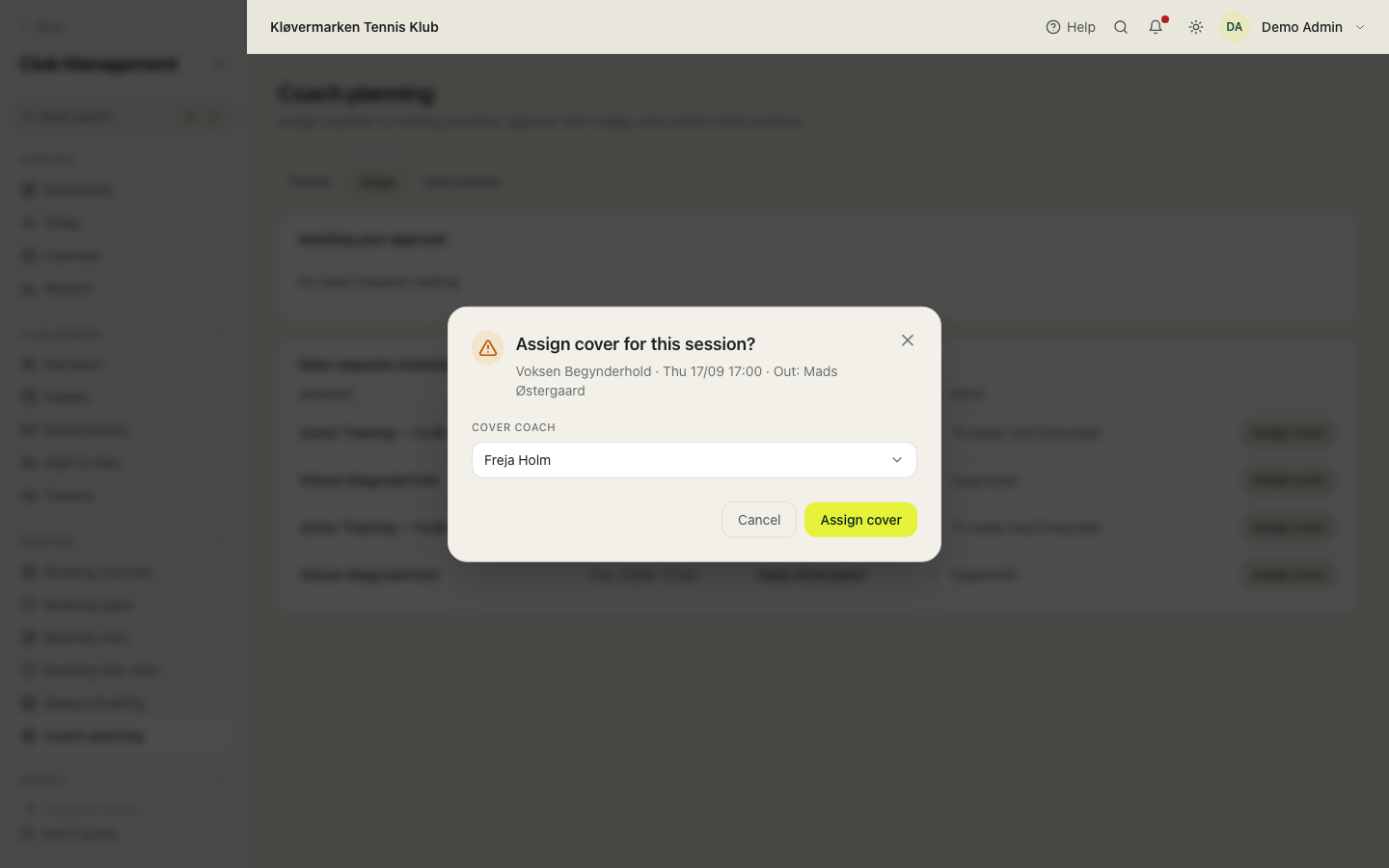
The stand-in is the one credited with the hours in the payroll export, not the coach who was ill.
Sessions held
The month's confirmation: which sessions were actually held, by whom. This is what the export is built on, so it is worth confirming weekly rather than on the last day of the month.
- Open the held tab.
- Confirm the sessions that took place.
- Export for payroll when the month is done.
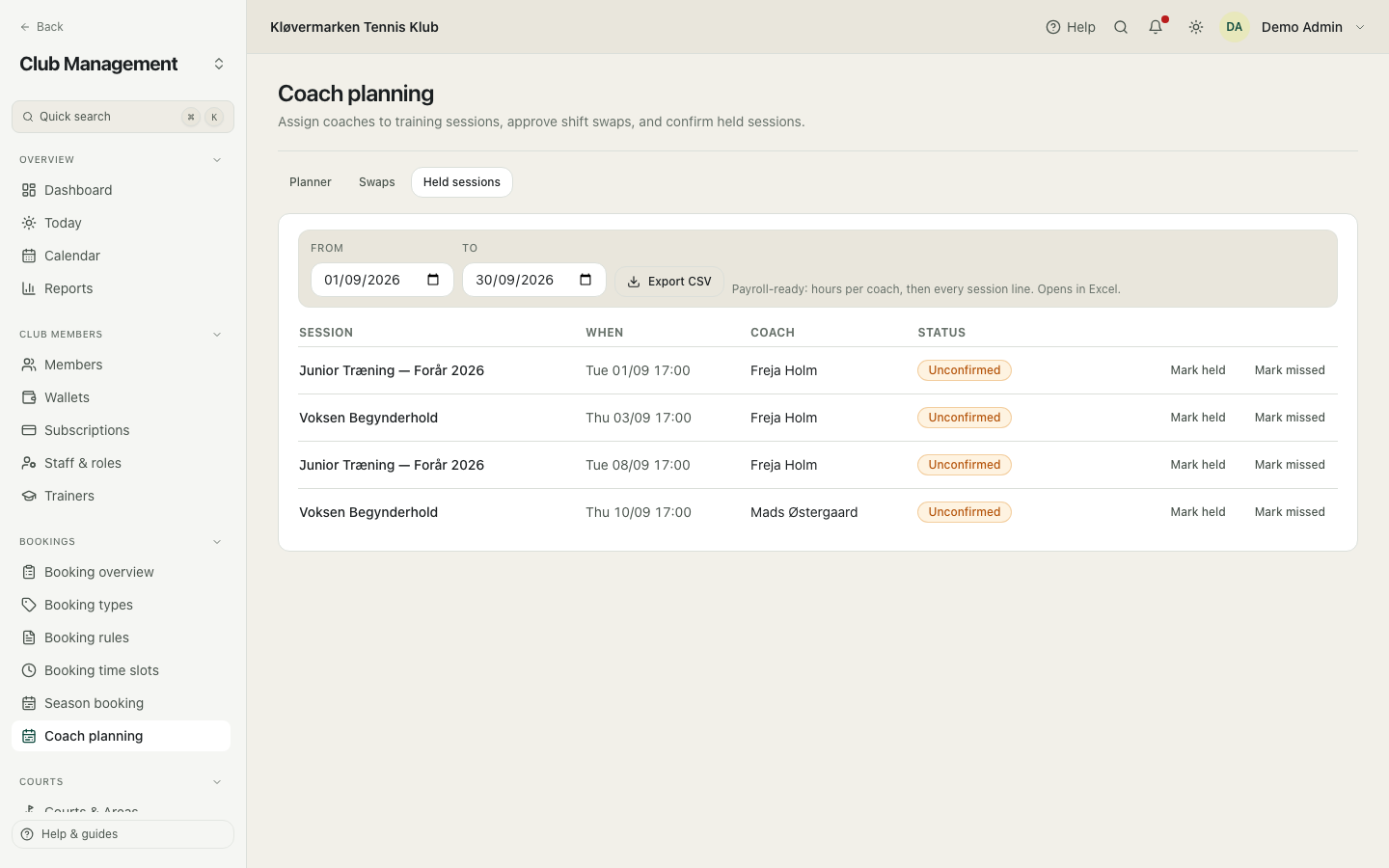
A session nobody confirms is not counted as held. That is deliberate: the club should not pay for an hour nobody can confirm happened.
What the coach sees
Coaches do not use the admin. They get their own screens in the app: this week's sessions, where and with whom, and any changes the club made. This is what the club is actually giving them when it plans here.
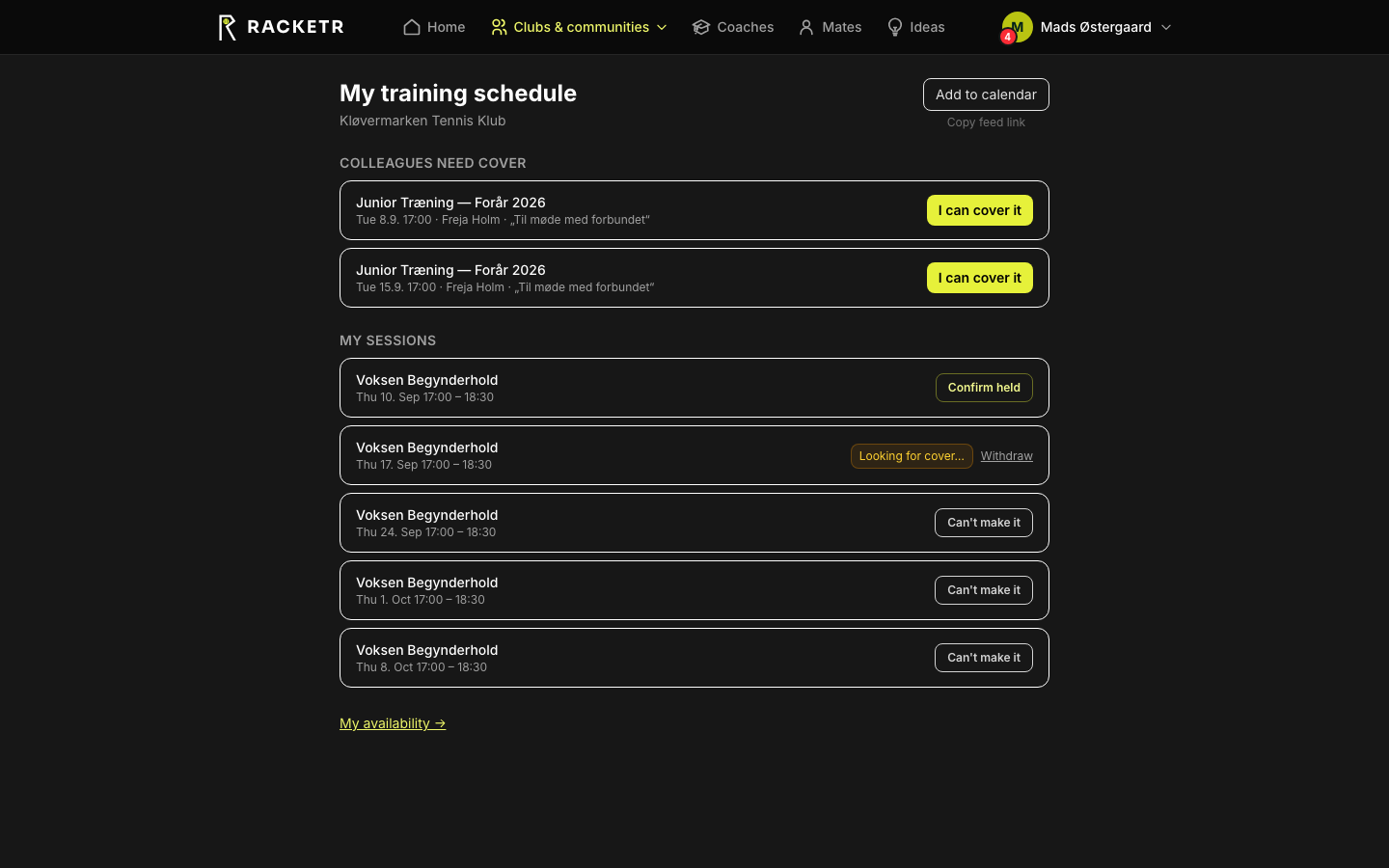
If a coach says they never heard about a change, check whether the session was saved in the planner. The app mirrors the planner, it does not have its own version.
Availability from the coach
Coaches mark when they are available, and that is what colours the planner. It costs the coach a minute a week and saves the club the phone calls.
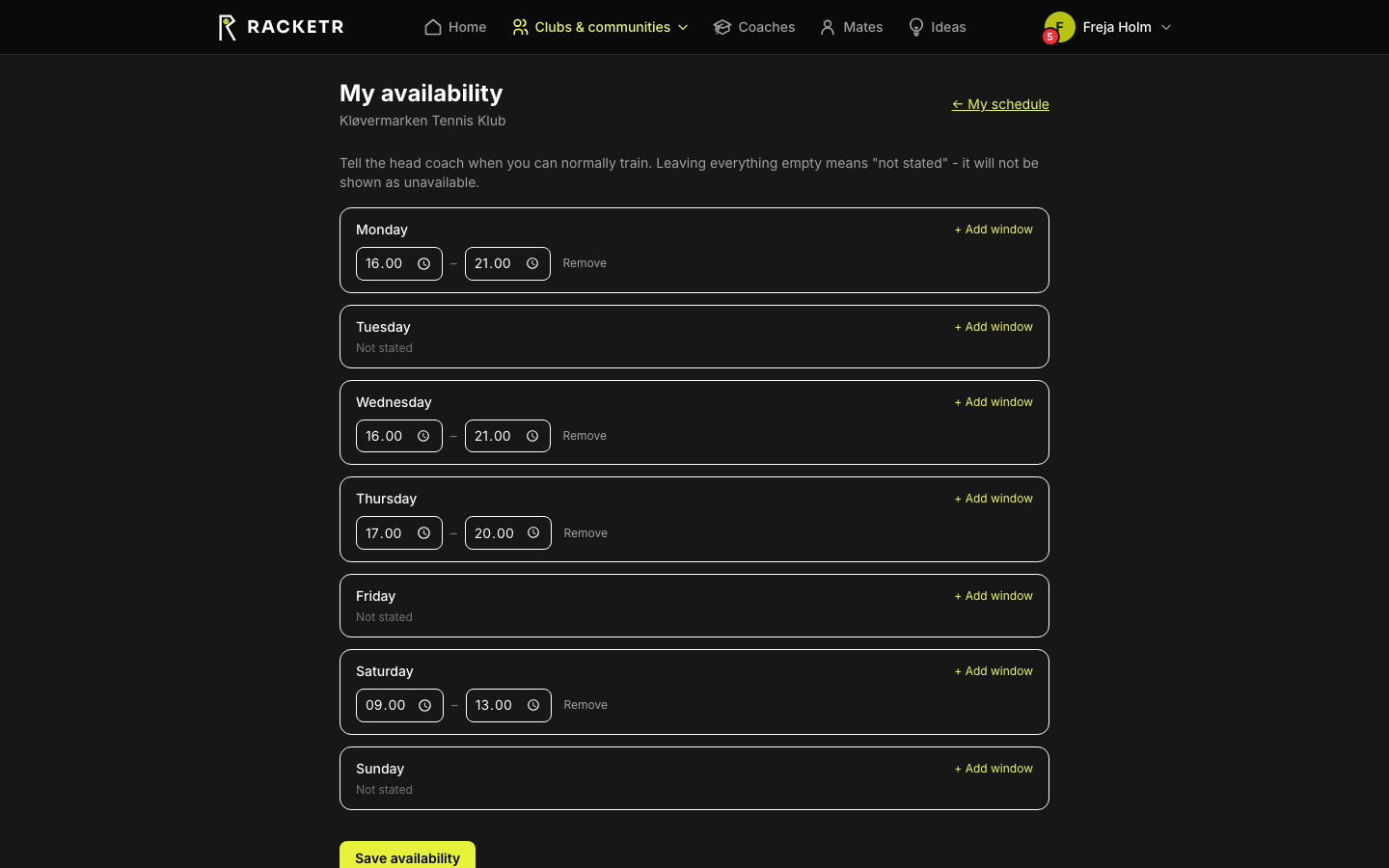
Ask the coaches to fill this in before the season is planned, not after. The planner is only as good as the availability it is given.
14.How the money works
This chapter has no screenshots on purpose. It explains what the club's accounts are doing before you meet the screens that show them, in plain words and with no accounting background assumed. Read it once and the whole finance section stops looking like a wall of Danish words.
The journey of one payment
A member books a court at 18:00 and pays 200 kroner with their card. Six things happen, and the club does none of them by hand. The booking is confirmed and the slot disappears from the grid. An invoice is issued with the next number in the club's sequence. The money goes from the member's card to the club's own account at the payment provider, never to us. The payment is matched to the invoice. The revenue is posted to the club's books, split into the court income and the VAT. And the amount turns up in the day's revenue on the dashboard.
- The member pays in the app or on the club's website.
- The invoice is issued automatically and numbered without gaps.
- The money lands in the club's own account at the payment provider.
- The posting is written to the ledger the same day.
- You see it under Invoices, in the journal and in the statements.
The platform never holds the club's money. It goes straight from the member to the club's account at Stripe, NETS or MobilePay, and from there to the bank on the provider's own schedule. That is why the bank sees one lump sum a day while the books see each individual payment.
Debit and credit, without the jargon
Bookkeeping writes every amount down twice: where the money came from and where it went. The two sides are called debit and credit, and they always cancel out to zero. That is the whole trick, and it is what makes it possible to discover that something is missing. One such set of lines is a voucher, in Danish a bilag. If a voucher does not add up to zero, it is not posted. In the lists you will see amounts with a minus in front: that is the credit side, and it is normal on revenue.
| Line | Account | Amount | In plain words |
|---|---|---|---|
| Debit | 1030 Bank | +200,00 | the club received 200 kroner |
| Credit | 4000 Court booking revenue | -160,00 | 160 kroner of it is income from court rental |
| Credit | 6900 VAT payable | -40,00 | 40 kroner of it is VAT the club owes the tax authority |
| Total | 0,00 | the voucher balances, so it can be posted |
You will never type this for an ordinary booking. The system writes it. You need to recognise it, so that when the trial balance does not come to zero, you know what the screen is telling you.
What the account numbers mean
The chart of accounts is the list of drawers the club sorts money into. Every account has a number, a name and a type, and it is the type, not the number, that decides which report the account turns up in. The number is the sort order, and it follows whatever the club and its accountant already use. A new club can start from the small standard chart of nine accounts, or from the larger Danish club chart, where for example dues sit on 1010 to 1095 and court sales on 1150 and 1265.
| Type | What it is | Examples from the standard chart | Where it shows up |
|---|---|---|---|
| Asset | what the club owns | 1030 Bank | Balance sheet |
| Liability | what the club owes | 2810 Club credit, 6900 VAT payable | Balance sheet |
| Equity | the club's own capital | 20900 Result for the year | Balance sheet |
| Revenue | what the club earns | 4000 Court booking, 4100 Membership, 4200 Classes, 4300 Clip cards | Income statement |
| Cost | what the club spends | Electricity, balls, wages, fees | Income statement |
Revenue and cost accounts start from zero every year. Balance sheet accounts carry their balance into the next year. That is exactly what the year-end close does, and it is the only real difference between the two halves of the chart. If the club's accountant already has a chart, import it as CSV rather than retyping it.
What is posted without you
This is the part clubs coming from an older system find hardest to believe: almost everything is already booked. The club only types a posting for things the system cannot see, such as an electricity bill or a correction. The table below is the full list of what the club does and what the books get.
| What happens in the club | What the books get |
|---|---|
| A court booking is paid | Bank up, court revenue up, VAT up |
| A membership is paid | Bank up, membership revenue up |
| A member registers for a class | Bank up, class revenue up |
| A season instalment is settled | Bank up, season revenue up |
| A clip card is sold | Bank up, club credit up - not income yet |
| A clip is used on a court | Club credit down, court revenue up, VAT up |
| A clip card expires unused | Club credit down, clip card income up |
| A member tops up club credit | Bank up, club credit up |
| A credit note is issued | Revenue down, VAT down, money back or to club credit |
| A manual order is settled at the desk | Bank up, revenue on the account of each line |
Every one of these vouchers keeps a link back to the booking, invoice or card that caused it. That is why you can always click from a number in a report to the thing behind it, instead of asking who typed this.
Prepayment is a debt, not income
When a member puts 500 kroner of club credit on their account, or buys a clip card, the club has the money but has not earned it. It owes the member play. In the books that sits as a liability called club credit, and it only becomes income the day it is used up. There are exactly three ways it leaves that liability: the member spends it, it expires under the club's rules, or the club pays it back.
| Event | Club credit | Income |
|---|---|---|
| Member buys credit or a clip card | goes up | unchanged |
| Member books and the credit pays | goes down | goes up on the day of play |
| Credit or clips expire | goes down | goes up as expired credit |
| Club gives goodwill credit | goes up | goes down as a discount |
| Club pays the member back | goes down | unchanged |
This is why a club can have a lot of money in the bank and a modest result. Some of that money is still the members'. The balance sheet shows you how much.
VAT, in one place
If the club is VAT registered, the VAT inside every payment is split off at the moment of posting and parked on its own account until it is settled with the tax authority. Each VAT rate is a code, normally 25 percent and a zero-rate code for VAT-free activity. Only the VAT line of a voucher carries the code, which is what makes the VAT report add up rather than count everything twice. A VAT-free club simply has no VAT lines.
- The club's VAT codes are set up once under Catalogs.
- Every posting splits the VAT off automatically.
- At the end of the period you read the VAT report.
- You settle, which posts one voucher moving the VAT from its account to the bank.
The VAT report keeps showing the period's entries after settlement. What changes is the balance sheet: the club no longer owes it. That surprises people the first time.
The monthly routine
Twenty minutes at the start of the month, and the year-end takes care of itself. This is the list a treasurer with no accounting training can follow as it stands.
- Reconciliation: clear any payment nobody matched to an invoice.
- Bank import: upload the bank's CSV so the club's money and the books agree.
- Dunning: run the reminders, or check that the automatic run did.
- Kassekladde: type the postings the system cannot see, such as bills and wages.
- Trial balance: check that it comes to zero.
- Statements: read the result for the month and compare it with the budget.
- Period close: close the month so nothing can be changed behind your back.
Close the period every month rather than in a burst in January. A closed period is what stops a late correction quietly changing a result the board has already seen.
The yearly routine
The year-end is the monthly routine plus four things. The system checks the conditions itself and refuses to close if they are not met, so the worst case is a list of what to fix, not a broken year.
- Close every period of the year.
- Check that every voucher is posted and nothing is left as a draft.
- Check that the trial balance is zero.
- Run the VAT settlement for the last period.
- Close the year. The result is moved to the account the club picked, and the balance sheet accounts carry forward into the new year.
Create the new fiscal year before the first of January. Bookings in the new year need a year to be posted into, and the club notices this at the worst possible moment: at the desk on the second of January.
The words, translated
The finance screens keep the Danish names clubs and auditors already use, with the English term next to them. This table is the whole vocabulary.
| Danish | English | What it is |
|---|---|---|
| Kontoplan | Chart of accounts | the list of accounts the club sorts money into |
| Kassekladde | Cash journal | where you type postings by hand |
| Bilag | Voucher | one set of lines that balances to zero, plus its receipt |
| Postering | Posting | a single line on an account |
| Kontokort | Account ledger | one account's postings with a running balance |
| Kontering | Account mapping | which account a kind of income lands on |
| Saldoliste | Trial balance | every account's total, which must come to zero |
| Resultatopgørelse | Income statement | income minus costs for a period |
| Balance | Balance sheet | what the club owns and owes on a date |
| Momskoder | VAT codes | the club's VAT rates |
| Momsrapport | VAT report | the VAT per code for the period |
| Rykkerkørsel | Dunning | the reminder run for overdue invoices |
| Periodeafslutning | Period close | locking a month |
| Årsafslutning | Year-end close | locking the year and moving the result |
| Klubkredit | Club credit | money the club owes a member |
Switching the admin to English does not rename the club's accounts. Account names are the club's own text and stay as the club typed them.
15.Payments and finance
The finance section has two halves. The first is everyday money: who owes what, which invoices are out, what came in from the bank. The second is the club's books: chart of accounts, cash journal, VAT and year-end. Chapter 14 explains what the books are doing. This chapter is a walk through the screens, one by one, in the order they sit in the menu.
Payments due
Everything owed at the desk, gathered in one list: class registrations, memberships and season bookings waiting for payment. Unpaid court holds are not here, because they expire on their own, and they live on Today instead. This is the page to open when someone at the desk says they want to pay what they owe.
- Find the member, either in the list or through search.
- Check what they owe and for what.
- Record the payment when they pay at the desk.
- Send a reminder to whoever is still missing.
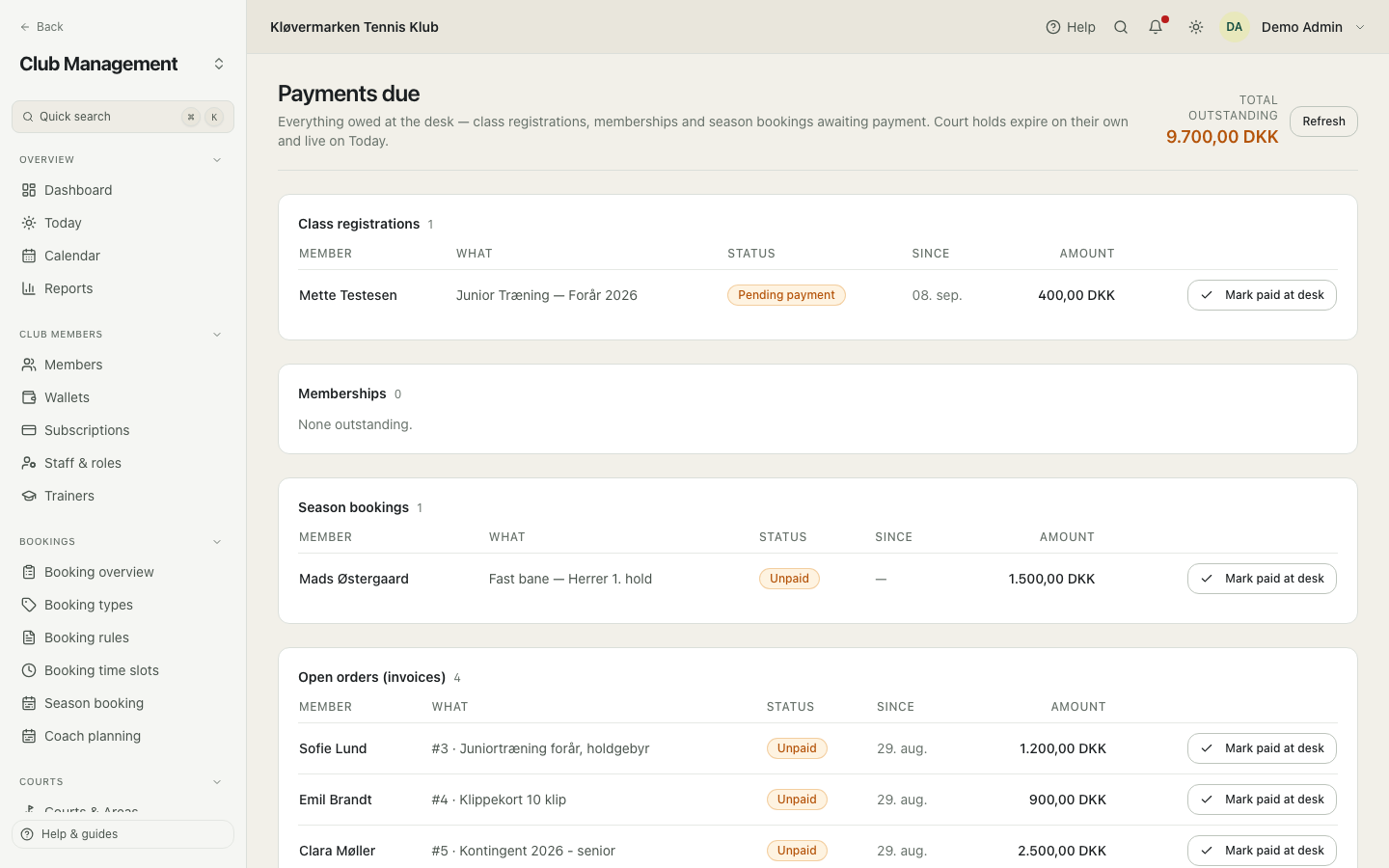
The total at the top is the club's outstanding amount right now. If it only ever grows, the problem is usually not the members but a missing reminder run, which is the next screen but one.
Payment gateways
The gateway is the club's account with the payment provider: Stripe, NETS or MobilePay. Money paid by members goes straight there, into the club's own account, and the platform never holds funds. At least one gateway must be connected before the club can take a single online payment.
- Open the provider the club has an agreement with and choose Test or Live.
- Paste the club's own keys from the provider's portal and save.
- Press Test connection, then Switch on.
- Make one real payment of a small amount and check that it appears under Invoices and in the journal.
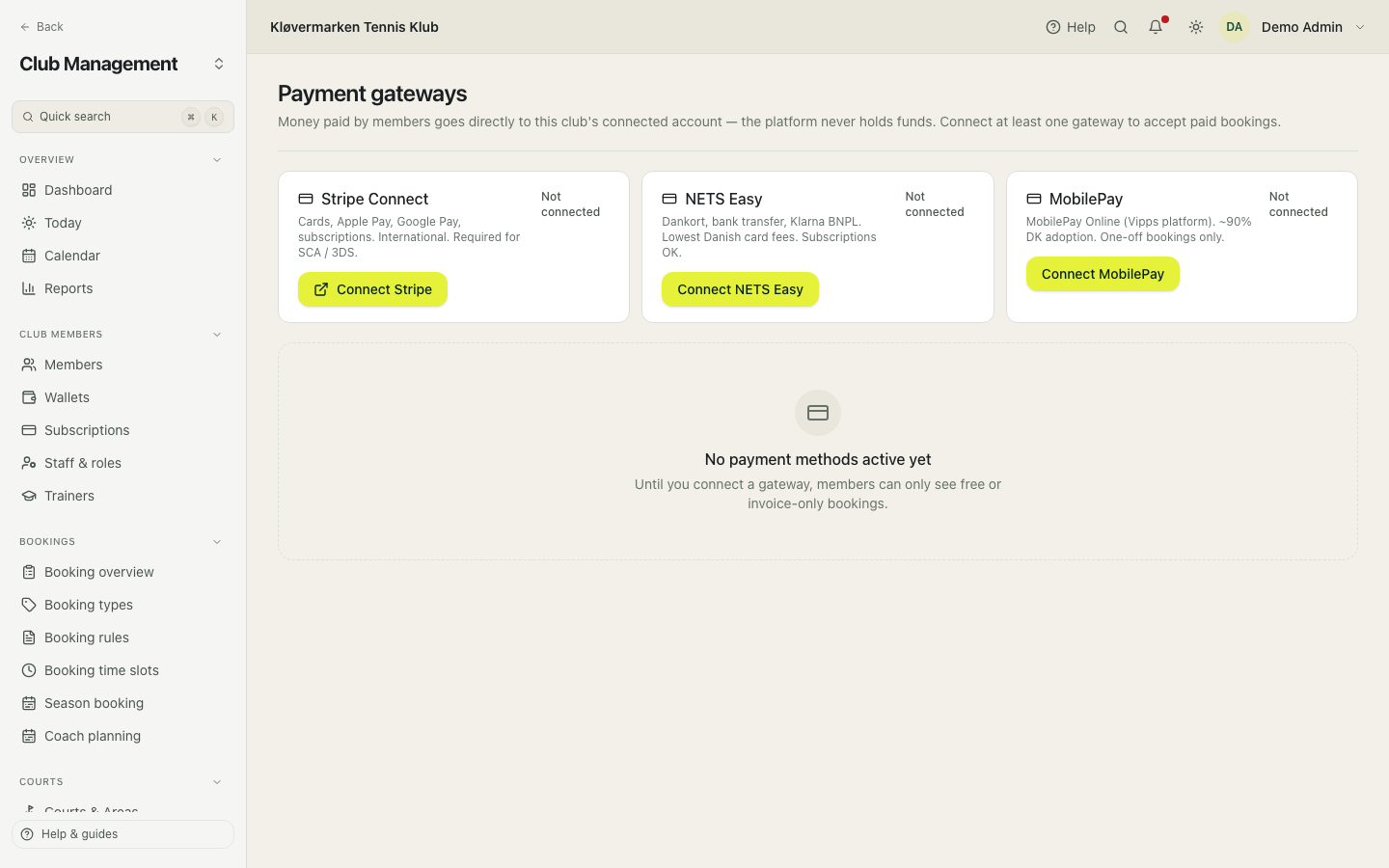
Test with a real card, not with a test key, before the club goes live. It is the only way to see the whole chain, and the amount can be refunded straight away.
The bookkeeping overview
The front page of the books: the result so far this year and this month, what is outstanding, how many payments nobody matched, the VAT position, and the result per month as a graph. Below that are the fiscal year's periods with their status, and the buttons for closing a period or the year. If the club took over data from an older system, a note says how many vouchers came from that import.
- Read the four figures at the top.
- Click a figure to go to the page that explains it.
- Check the period list: open, has unposted entries, or closed.
- Close the period from here when the month is done.
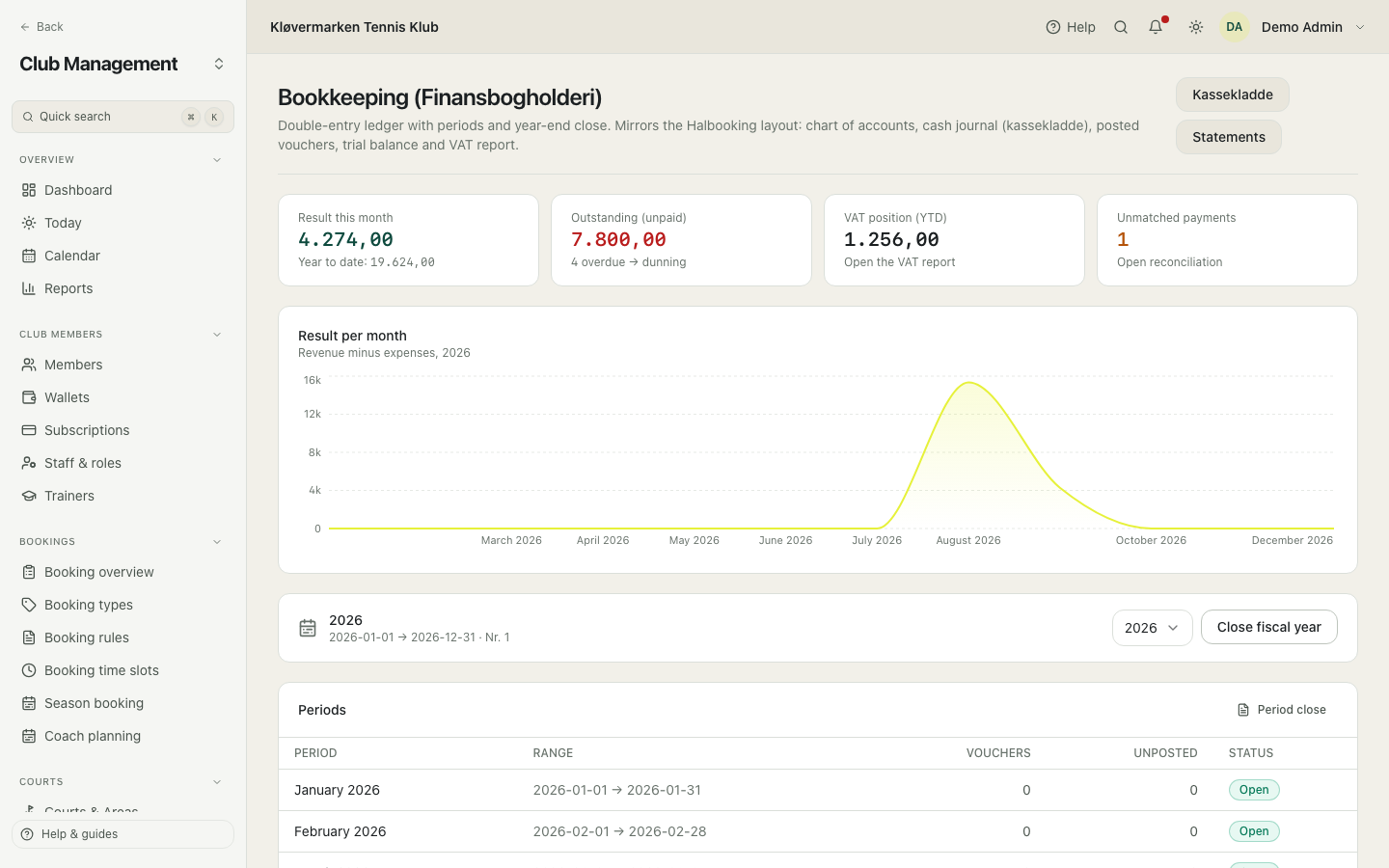
Has unposted entries means somebody typed lines in the cash journal and never posted them. They do not count anywhere until they are posted, so a result that looks wrong usually starts here.
Chart of accounts
The club's own list of accounts, the one everything else refers to. The first time you open the screen it is empty, and you pick a starting chart: the small standard one, or the larger Danish club chart. Each account has a number, a name and a type, and the type is what decides whether it belongs to the result or the balance sheet. You can import and export the chart as CSV, which is what the club's accountant will ask for.
- Click New account and enter the number, the name and the type.
- Save. The account can be used in postings immediately.
- Use search and the type filter to find your way in a long chart.
- Export to CSV when the accountant wants the list.
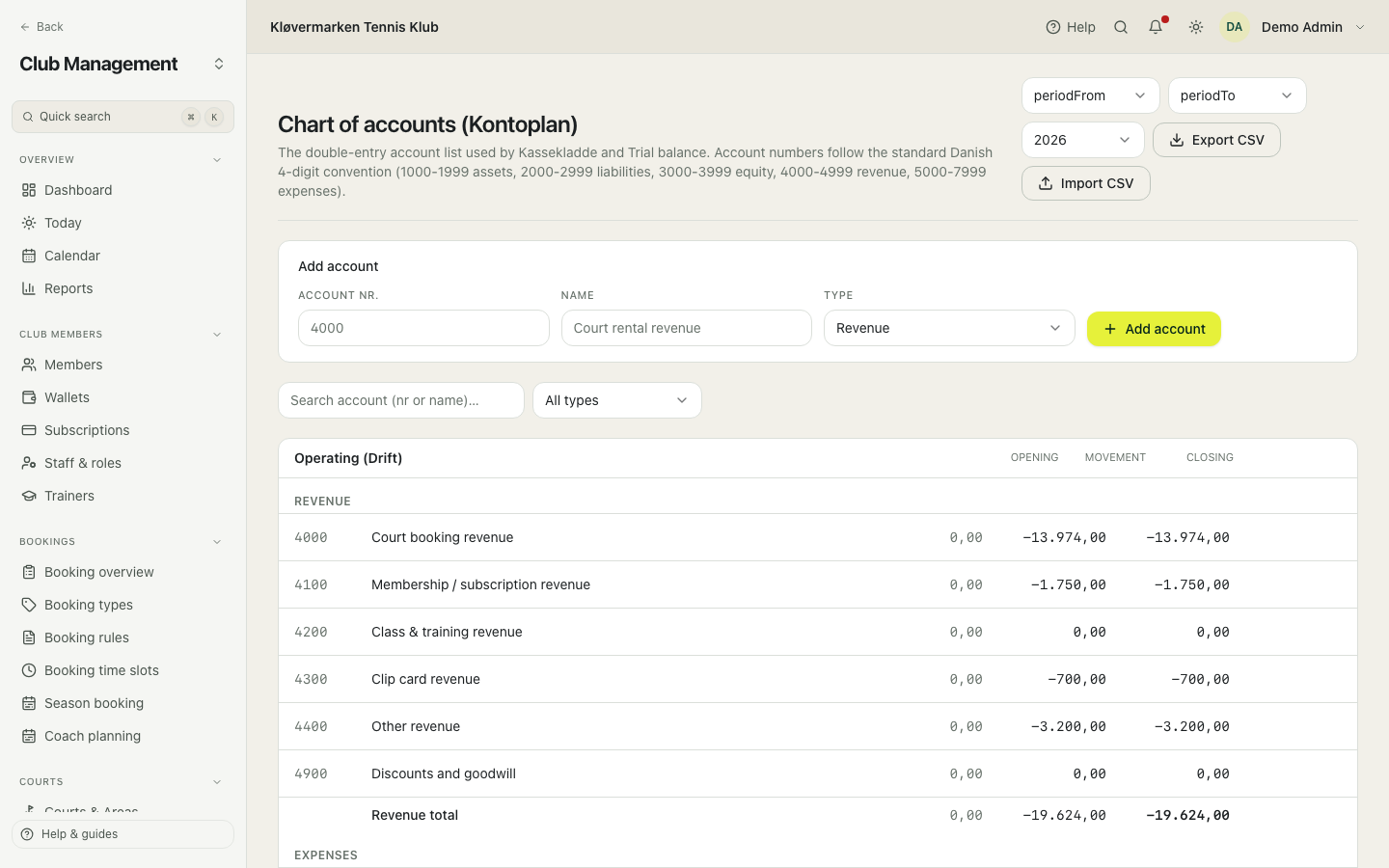
An account that has postings is never really deleted: it is marked inactive, so the history keeps its names. The system also refuses to deactivate an account that pricing or account mapping still points at, and it tells you which one.
Account mapping
This is the screen that decides where automatic postings land. Each kind of money has a slot: court revenue, membership revenue, class revenue, season revenue, clip cards, other revenue, bank, VAT, club credit. You pick the account from the club's own chart, and every automatic posting from then on uses it. Individual courts can have their own account, which is how a club keeps the hall and the outdoor courts apart in the result.
- Go through the system accounts at the top and pick the club's own account for each.
- Use reset if you want the platform default back.
- Scroll down to the courts and give a court its own account if it should be kept separate.
- Save. New postings follow the change; old ones keep the account they were posted to.
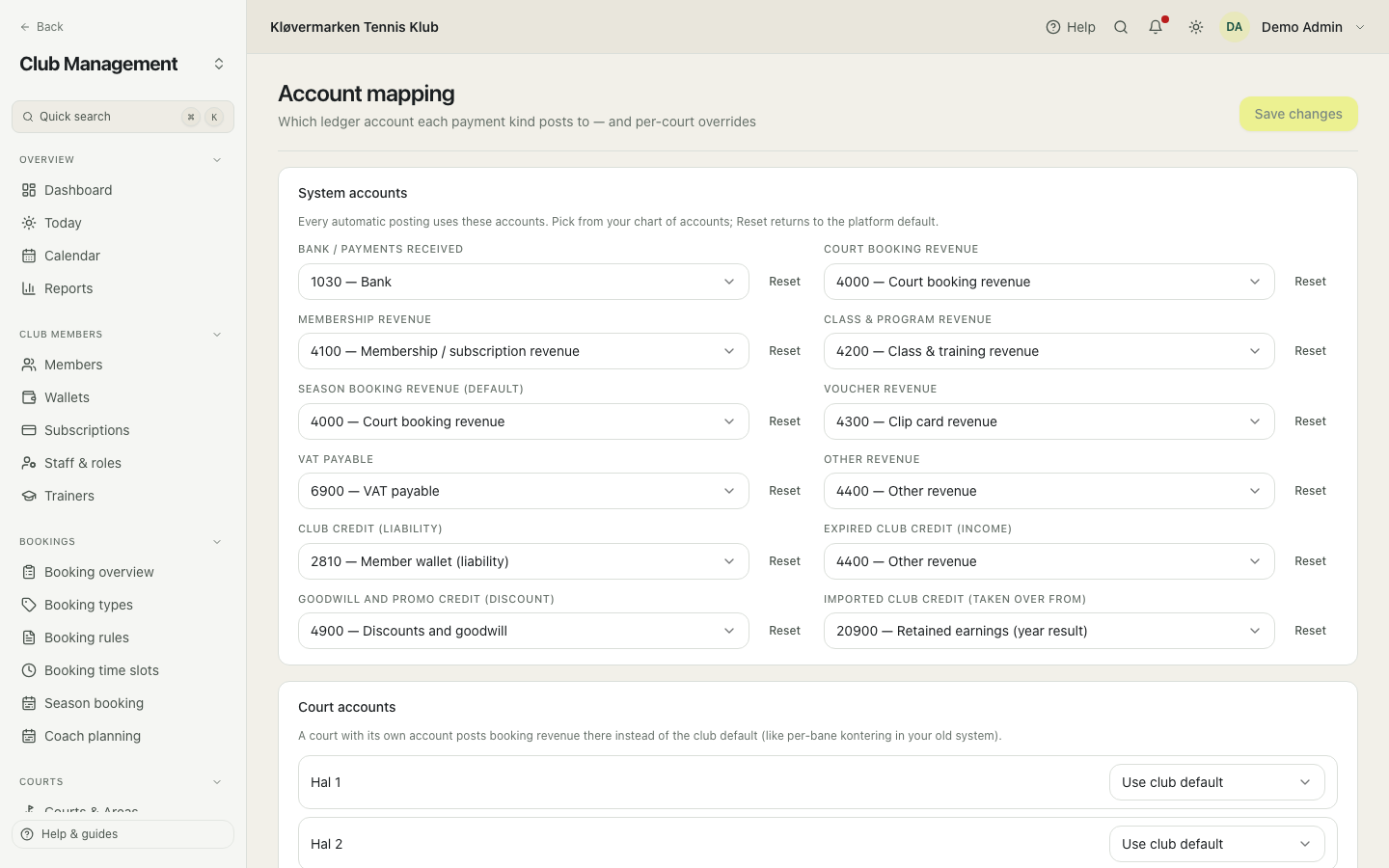
Do this before the club takes its first payment. Changing the mapping later does not move the postings that already exist, and cleaning that up by hand is an evening's work.
Kontering overview
The same question as the previous screen, seen from the other end: every single thing that can earn money, and which account it actually posts to. Memberships, booking types, courts, classes, shop products and season bookings, in one list. A row with no account of its own inherits the club default, and the list says so, so you can see at a glance what has been given its own account and what follows the general rule.
- Use the filter to show only the rows without their own account.
- Give a row its own account where the club wants it separated.
- Clear an account to let the row follow the club default again.
- Use club defaults to jump to the account mapping.
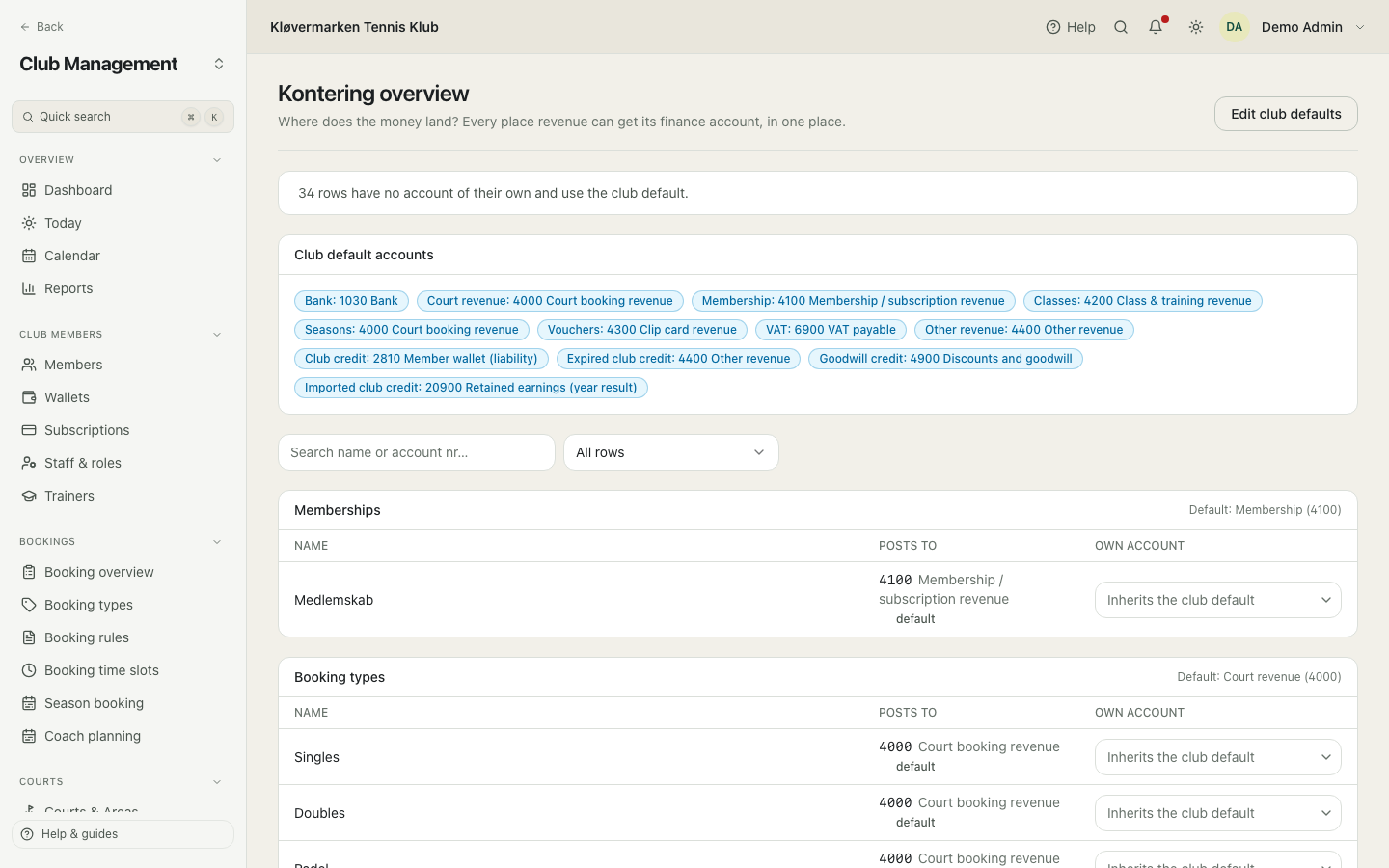
This is the page to open when the accountant asks why junior dues and senior dues sit on the same account. It answers it in one screen, without opening every membership type in turn.
Cash journal
Where you type postings by hand, and the only place you normally have to. Everything the system can see is already posted; the cash journal is for what it cannot: the electricity bill, wages, a bank fee, a correction. Lines stay unposted until you post the voucher, and the day's running total must reach zero, because a voucher with only one side is not a voucher.
- Check that the right fiscal year and period are chosen.
- Enter the date, the voucher number, the account, the text and the amount.
- Add the other line so the day's total reaches zero. A cost is typed positive on the cost account and negative on the bank.
- Check that it says balanced, then post.
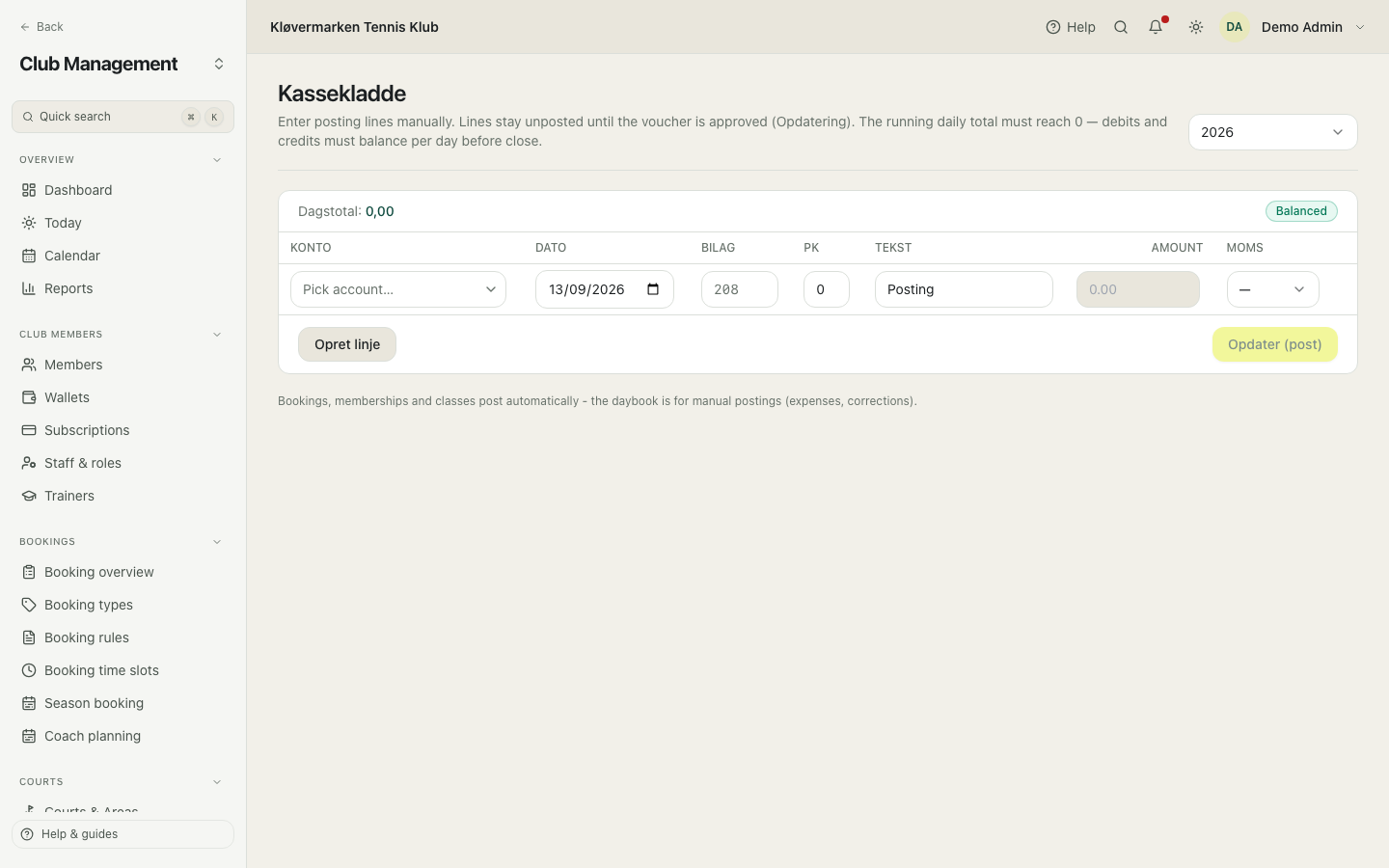
Posting texts work as autocomplete, so recurring entries can be typed the same way every month. Set them up once under Catalogs and the monthly job gets a good deal faster.
Posted journal
Every posted voucher in the fiscal year, newest first, with its number, its text, its date and where it came from. The source column is the useful one: a booking, an invoice, the cash journal, or an import from the old system. You can search and filter by source, and export in the format an accounting package can read.
- Pick the fiscal year.
- Search by voucher number or text.
- Filter by source to separate automatic postings from your own.
- Click a voucher to open it.
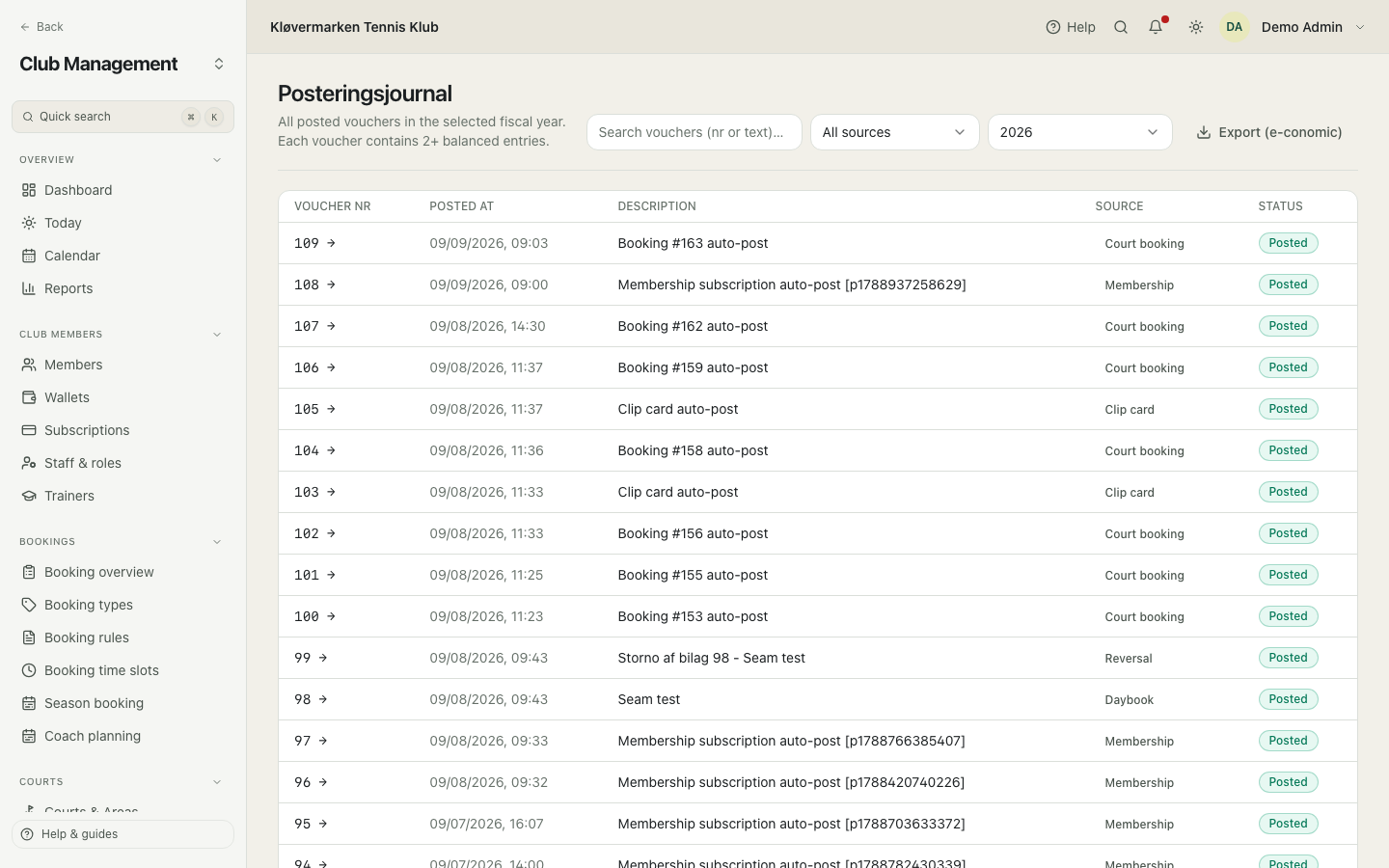
The journal is the club's audit trail. Nothing is deleted from it. A mistake is corrected with a reversal, which is a new voucher with the opposite amounts, so both are visible afterwards.
One voucher
The detail: every line on the voucher, debit on one side, credit on the other, and the net at the bottom, which is zero on a balanced voucher. Here you attach the receipt as a PDF or a photo, which is what an auditor asks for, and here you reverse the voucher if it was wrong.
- Open the voucher from the journal or from a search result.
- Check that the debits and credits match.
- Attach the receipt or the invoice behind the voucher.
- Use reverse if the voucher is wrong.
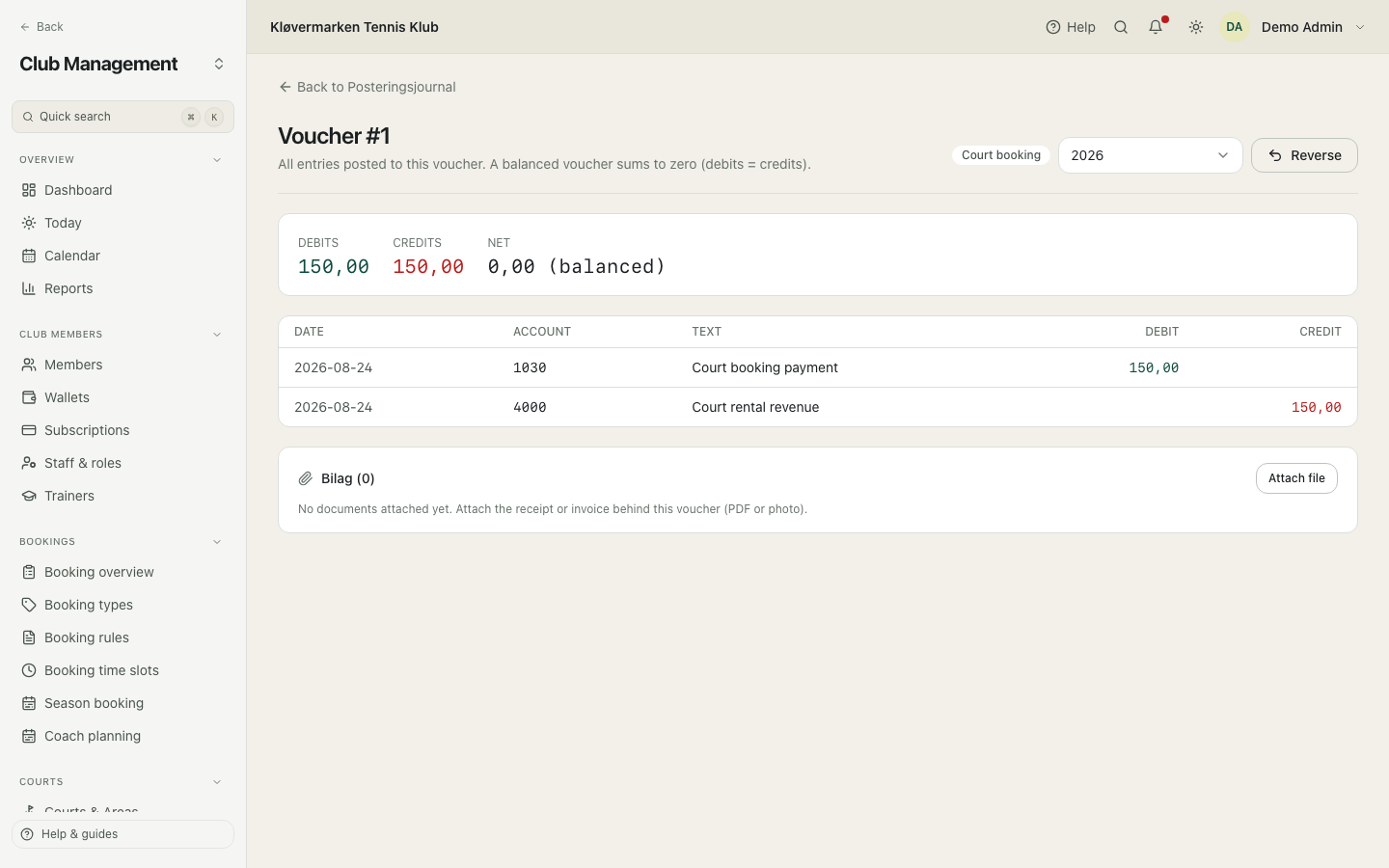
Reversing creates a counter-voucher with opposite amounts on the same dates, and leaves the original standing. That is the honest way to correct a posting, and it is the only one a closed period accepts.
Account ledger
One account, all its postings, with a running balance down the page: opening balance, every movement, closing balance. This is the Danish kontokort, and it is the screen you use when a number in a report looks wrong and you want to see what it is made of.
- Pick the account from the list.
- Set the period range if you only want part of the year.
- Read the running balance down the page.
- Export to CSV for the accountant, or click a line to open its voucher.
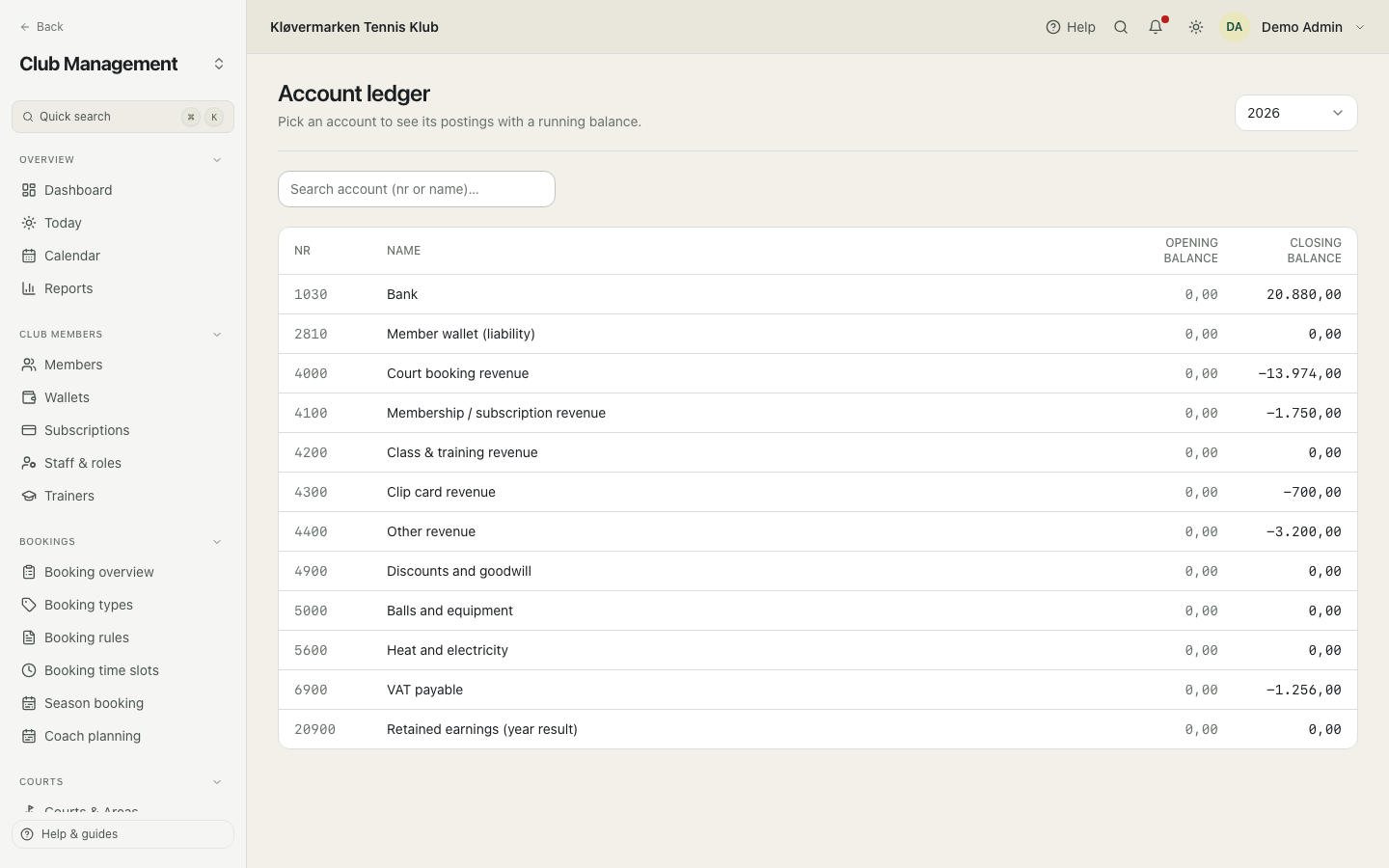
Start here rather than in the trial balance when something looks off. The trial balance says which account is wrong; the account ledger says which posting made it wrong.
Invoices
Every settled payment gets a numbered invoice, issued automatically, and the numbering has no gaps because that is what the rules require. The list shows date, buyer, description, amount, status and source. You can search, filter by paid and unpaid, send an invoice by email, mark one as paid, and issue a credit note. Credit notes have their own tab.
- Search by buyer, email or description.
- Open the invoice to see its lines and its PDF.
- Send it by email if the member asks for a copy.
- Use mark paid when the money came in outside the system, for example by bank transfer.
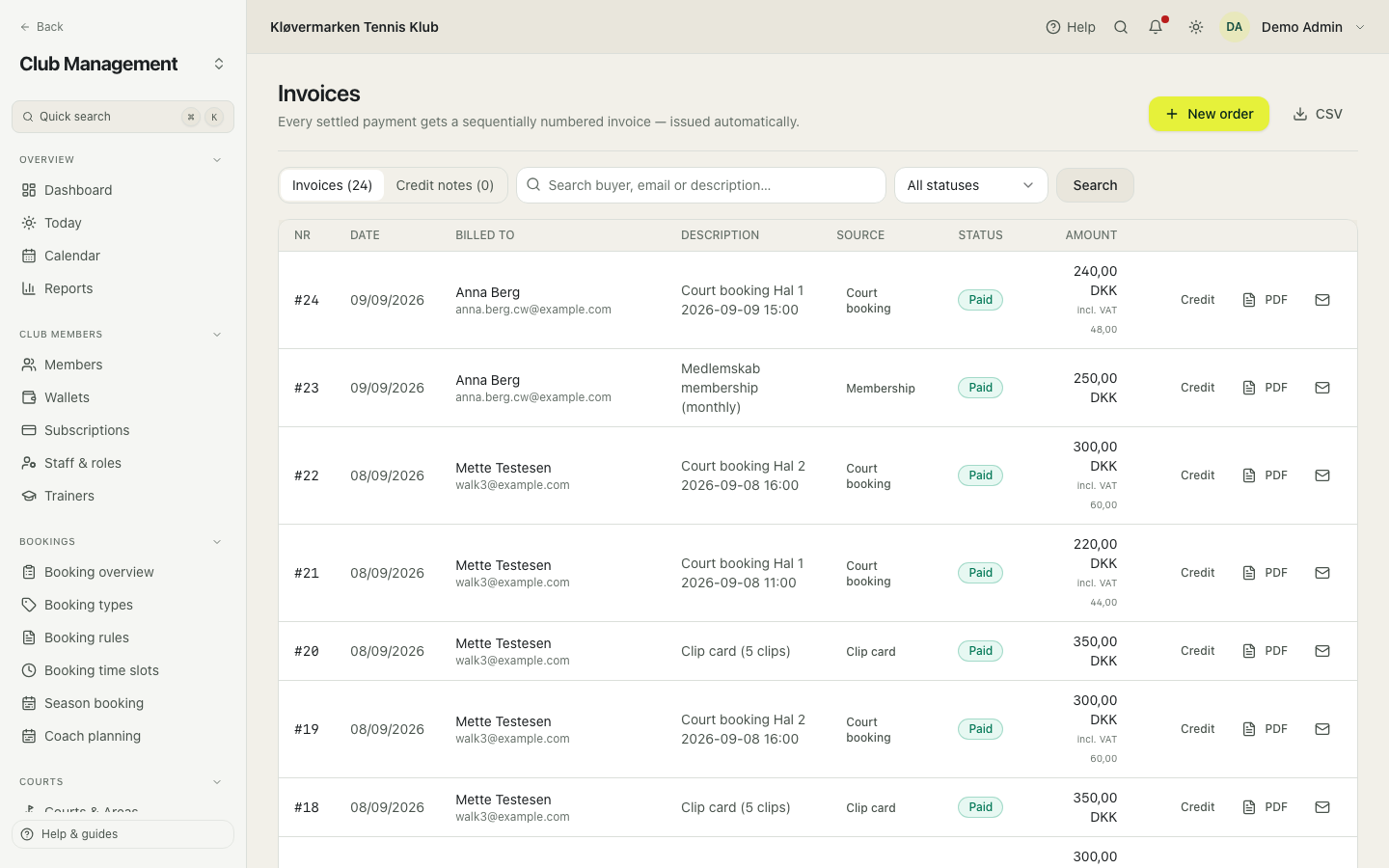
Never edit an amount on an invoice that has gone out. Issue a credit note and a new invoice instead. That way the member's copy and the club's books tell the same story.
Orders and desk payments
An order is an invoice you write yourself: a restring, a sponsorship, a hall rental to a company, a ball order. You add the lines with text, quantity, price and VAT, and you can point each line at its own revenue account. Then you either mark it paid at once, or leave it open so it shows up under Payments due until the member pays. Money taken at the desk is recorded the same way, and can be split across several open orders, with anything left over going to the member's club credit.
- On the invoice page, choose New order.
- Pick the member, or leave it empty for a walk-in.
- Add the lines, and a finance account per line if the club wants them separated.
- Choose whether it is paid now or stays open, then create it.
A negative amount on a desk payment pays money out of the member's club credit. The system asks you to confirm twice, because that one is hard to undo.
Credit notes
A credit note cancels all or part of an invoice, with its own number, and it is the only correct way to undo a payment in the books. You choose where the money goes: back as club credit, which is instant and needs no cash handling, or document only, when the desk hands back cash or the bank does the refund. The postings reverse the revenue and the VAT automatically.
- Open the invoice and choose credit.
- Pick the lines, or enter an amount if it is a partial credit.
- Choose the destination: club credit or document only.
- Tick notify the member if they should get the credit note by email, then issue it.
Crediting a clip card closes it, and the clips that are left can no longer be used. The screen says so before you confirm, so read that line rather than clicking past it.
Dunning
The reminder run for overdue invoices. Each run moves every eligible invoice one reminder level up, three at most, and can add a reminder fee, which becomes a line on the invoice. You always see the count and the amount before anything is sent. The club can leave it to run itself every morning at nine, with its own interval and fee.
- Read the list of overdue invoices.
- Set the fee, if the club charges one.
- Read the confirmation: how many members, how much outstanding, how much fee.
- Send. Members are notified immediately.
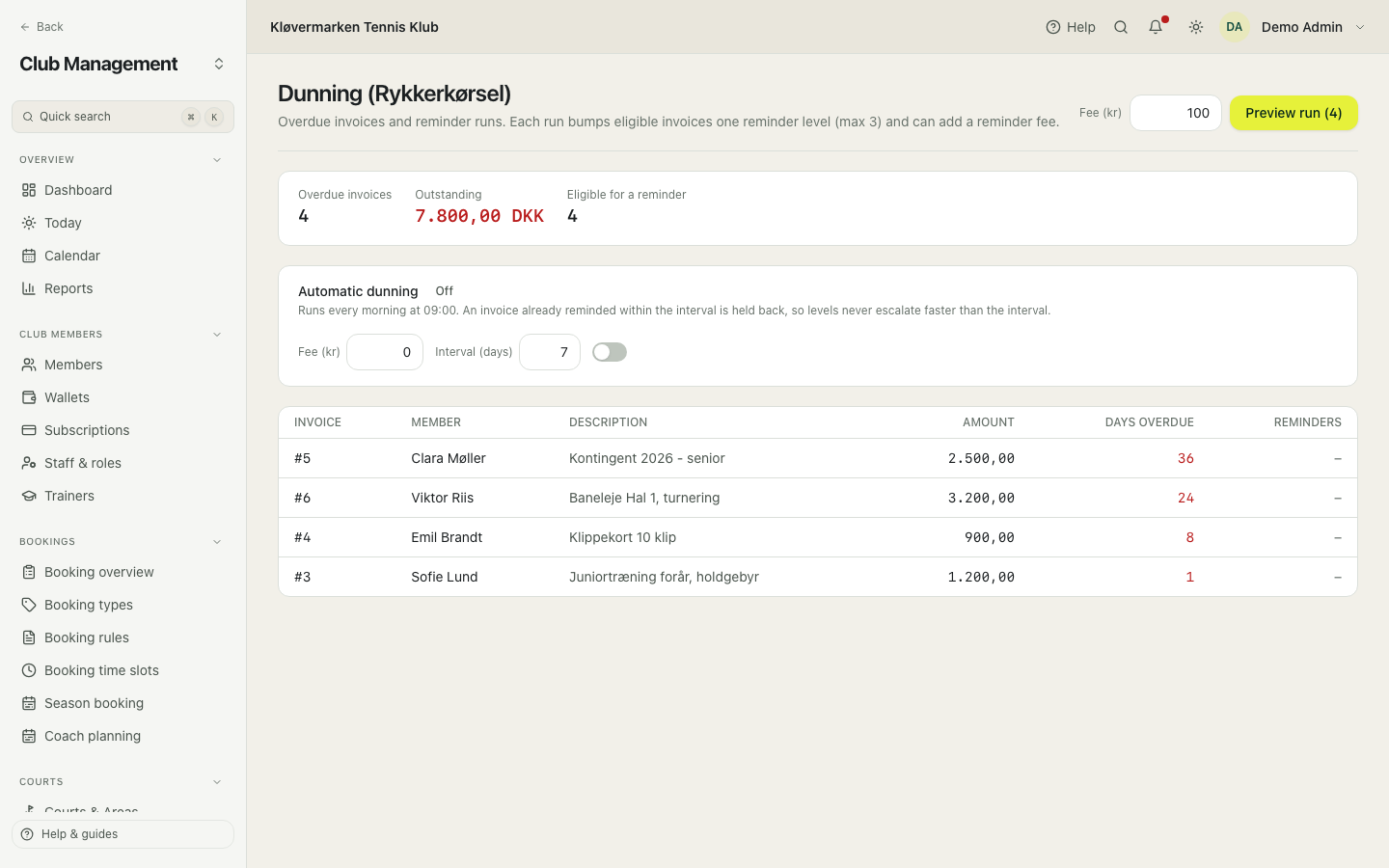
With automatic dunning on, an invoice that was reminded within the interval is held back, so levels never escalate faster than the club intended, no matter how often the run happens.
Reconciliation
Payments that arrived from the gateway and that no invoice claimed. It happens when a member pays twice, when a checkout is interrupted, or when money comes from somewhere the club did not expect. Each one can be matched to an unpaid invoice, refunded to the member as club credit, or dismissed with a note that says why.
- Open the unmatched payment and read the payer and the amount.
- Match it to the invoice it belongs to, using the suggestions.
- Or refund it as club credit to the member.
- Or dismiss it with a note explaining what it was.
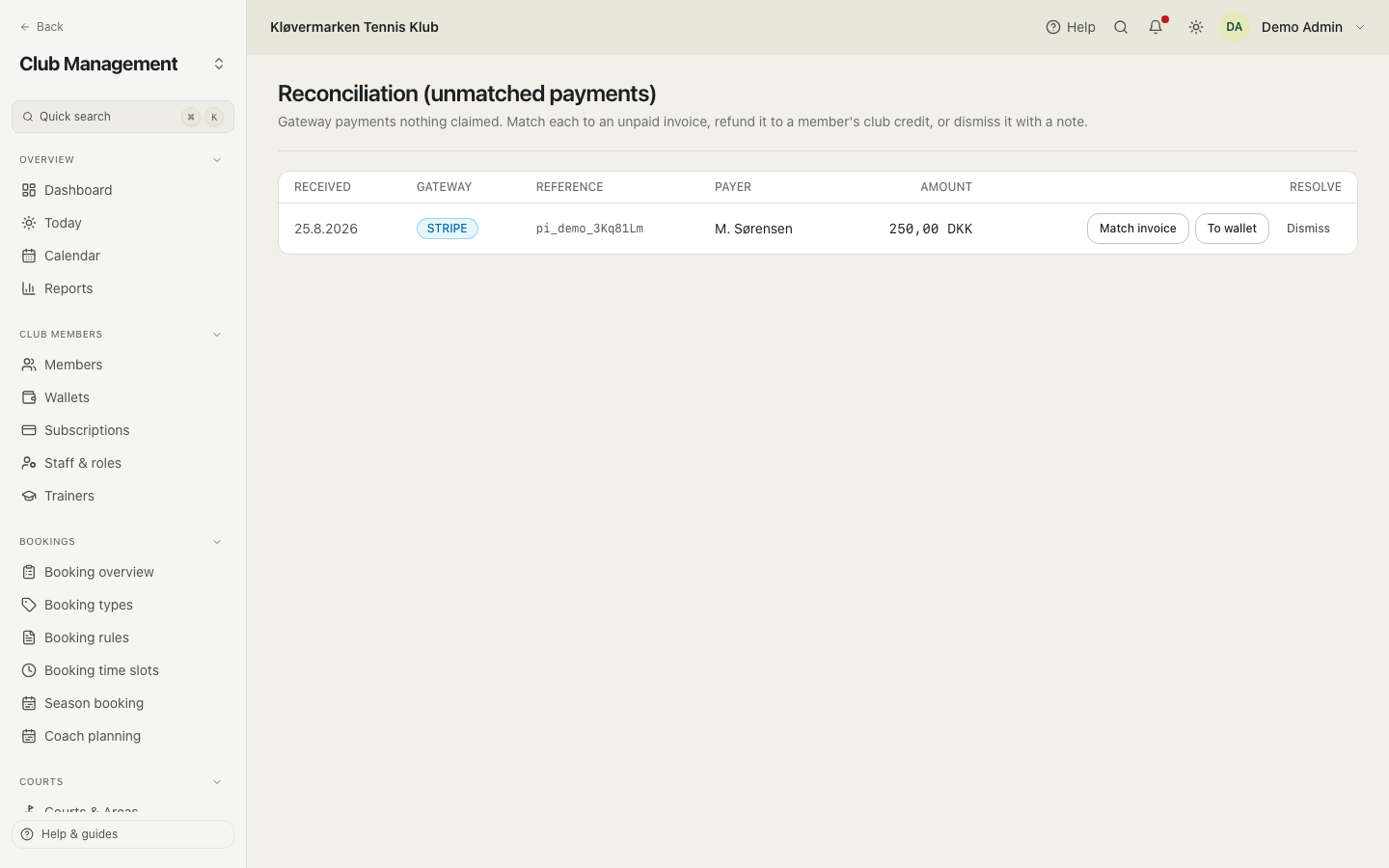
Deal with this weekly rather than yearly. The badges telling you that the amount or the payer matches are reliable for a few weeks, and much less so after six months.
Bank import
Upload or paste the bank's CSV export and every incoming payment is given a suggested invoice. One confirmed run settles the matches, sends the rest to reconciliation, and skips what you told it to skip. Danish formats are understood: semicolons, amounts written 1.234,56 and dates written dd-mm-yyyy. Importing the same file twice is safe, because a line that has already been imported is never settled again.
- Download the account statement from the bank as CSV.
- Upload the file or paste its contents.
- Go through the suggestions: settle, send to reconciliation, or skip.
- Read the summary and confirm the run.
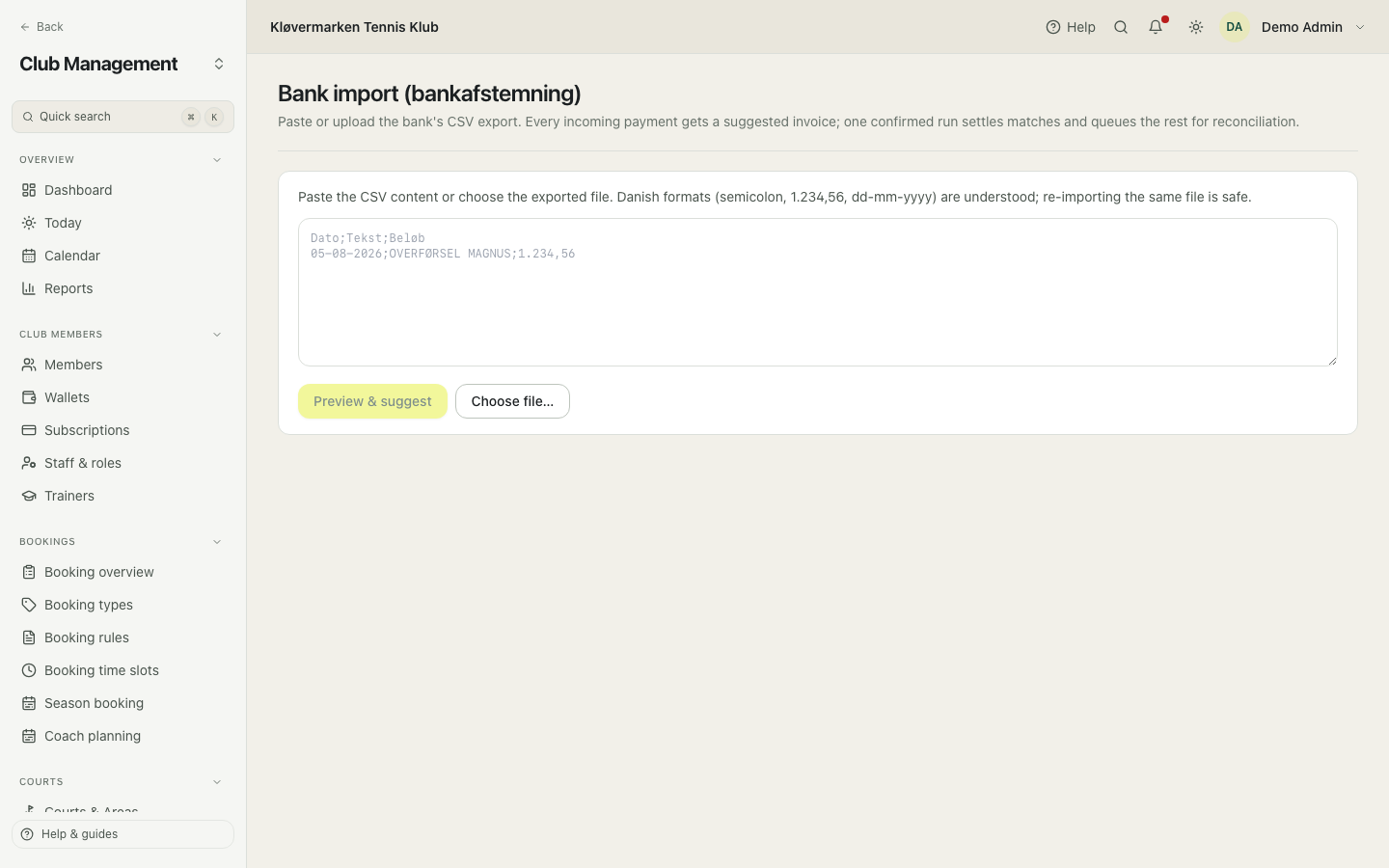
This is how the club's own bank account and the books come to agree. Card payments arrive from the provider as one daily lump sum, and the import is what ties that lump sum to the individual invoices behind it.
Statements
The two reports a board asks for: the income statement for the period you choose, and the balance sheet as of its end. Income minus costs gives the result; assets against liabilities and equity gives the balance sheet, and it has to balance. Both can be exported. A closed year still shows its income and costs here, while the trial balance shows those accounts at zero after the year-end result transfer.
- Pick the period.
- Read the income statement: income, costs, result.
- Switch to the balance sheet to see what the club owns and owes.
- Export to CSV for the board pack.
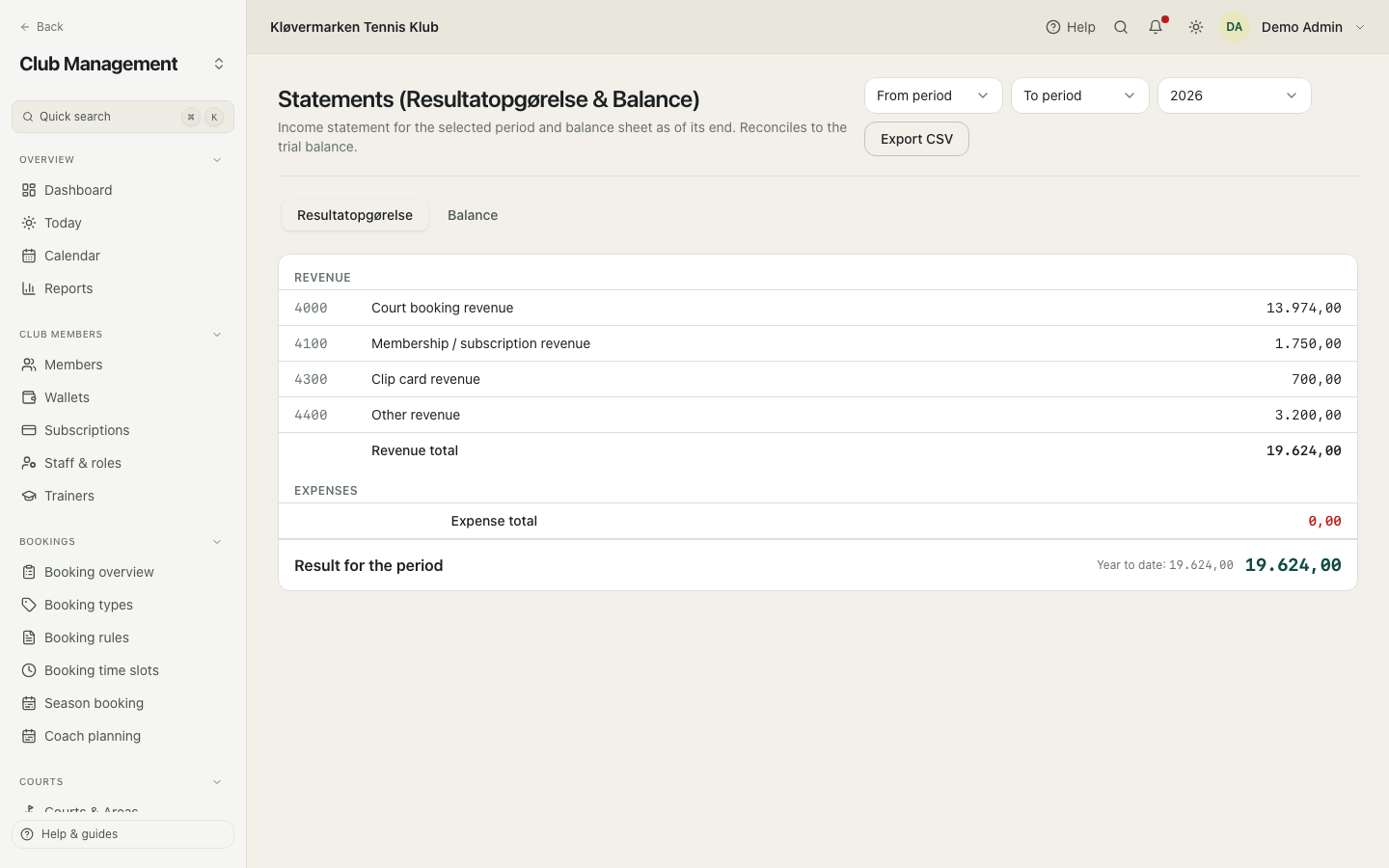
If the balance sheet says it does not balance, it is not the report that is wrong. There is a voucher that does not add up to zero, and the trial balance will point at the account.
Trial balance
Every account with its total debit, total credit and balance for the fiscal year. The sum at the bottom has to be zero. This is the club's health check, and it is also the first thing the year-end close looks at.
- Pick the fiscal year and the period range.
- Check that the total at the bottom is zero.
- Look for accounts with an amount that surprises you.
- Click through to the account ledger to see the postings behind it.
Check it once a month. A difference found in the month it arose takes ten minutes to find; the same difference in December takes an evening.
Budget
A grid of accounts and their names down the side and months across the top: income first, costs below, the result at the bottom. In each field you type the amount you expect, and income and costs are both typed as positive numbers. Under the field is the amount actually posted: green when it is better than the budget, red when it is worse, grey when there is no budget or the month has not started. It is what turns the monthly result from a number into a question: is this what we expected.
- Type the budget per account and month, or use the menu next to the account to spread a yearly amount or copy last year's actual.
- Follow the colours under the fields through the year; hover an amount to see the difference from the budget.
- Use the totals on the right and the result line at the bottom for the annual picture.
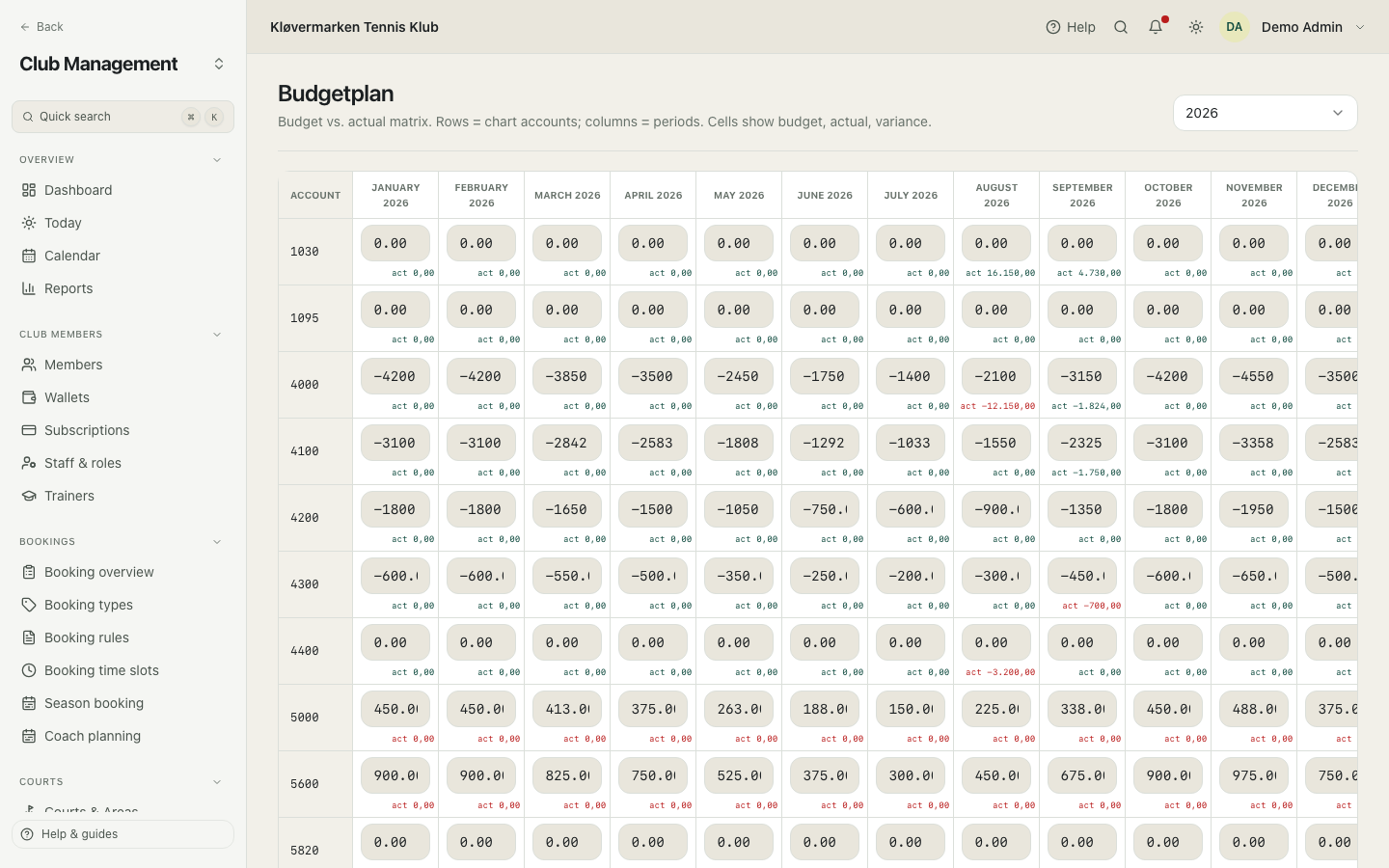
Budget the ten accounts that actually move. A budget on forty accounts is not more accurate, it just takes longer to maintain and gets abandoned in March.
VAT report
The VAT per code for the period, which is what the club files its VAT return from. When the return is filed, you settle from the same screen, and that posts one voucher moving the VAT from its own account to the bank. The report keeps showing the period's entries afterwards; what changes is that the club no longer owes the amount on the balance sheet.
- Pick the period.
- Read the VAT per code and the total.
- File the return with the tax authority.
- Press settle and read what will be posted, then confirm.
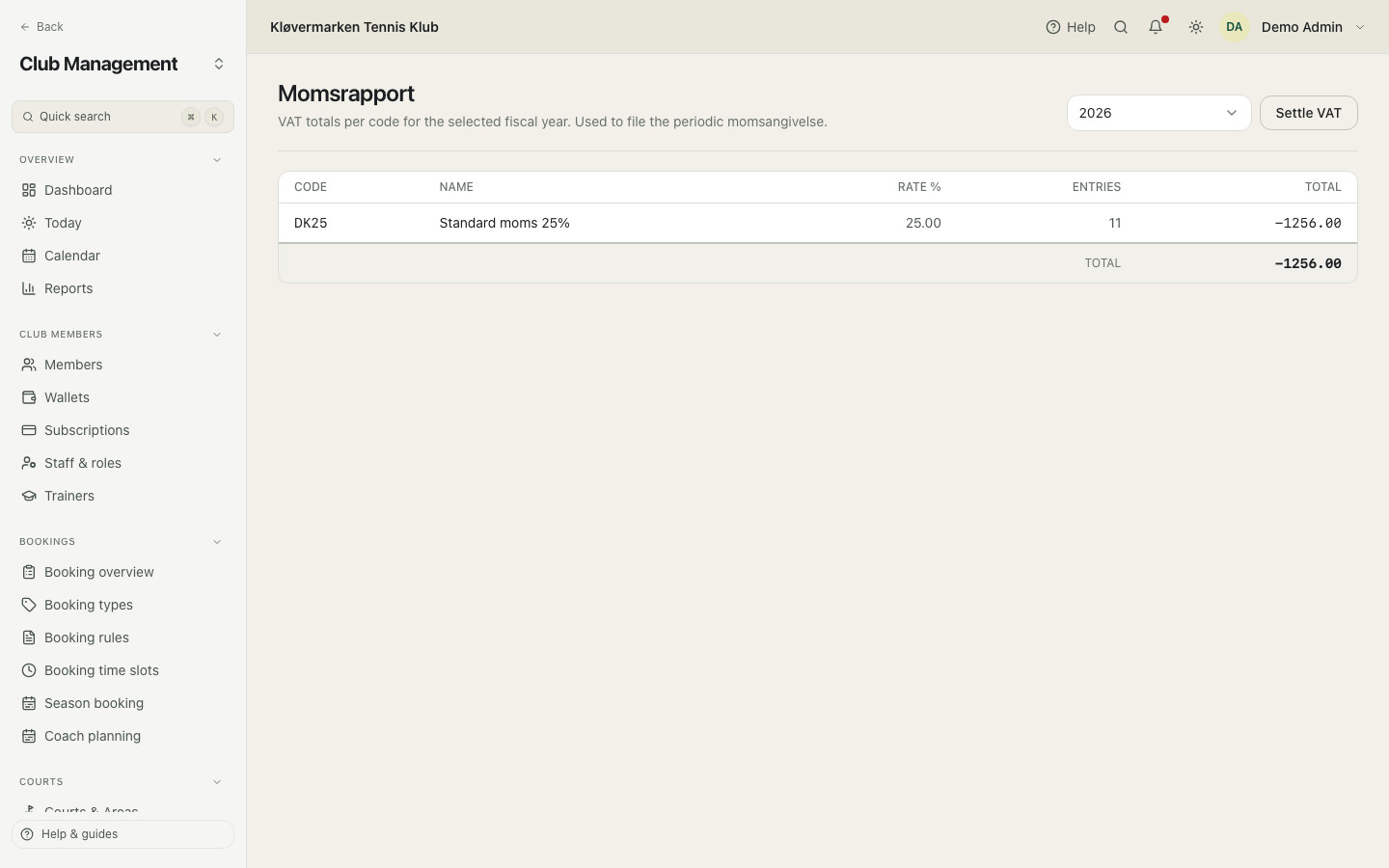
Settle in the same period as the return. Settling two months later moves the amount out of the bank in a month it was not owed in, and then the bank reconciliation goes looking for it.
VAT codes
The club's VAT rates. A Danish club normally has a 25 percent code and a zero-rate code for VAT-free activity, and both are set up when the club is activated. The codes are used on postings and invoice lines, and they are what the VAT report groups by.
- Check that the codes match what the club is registered for.
- Add a code if the club has an activity at a different rate.
- Save.
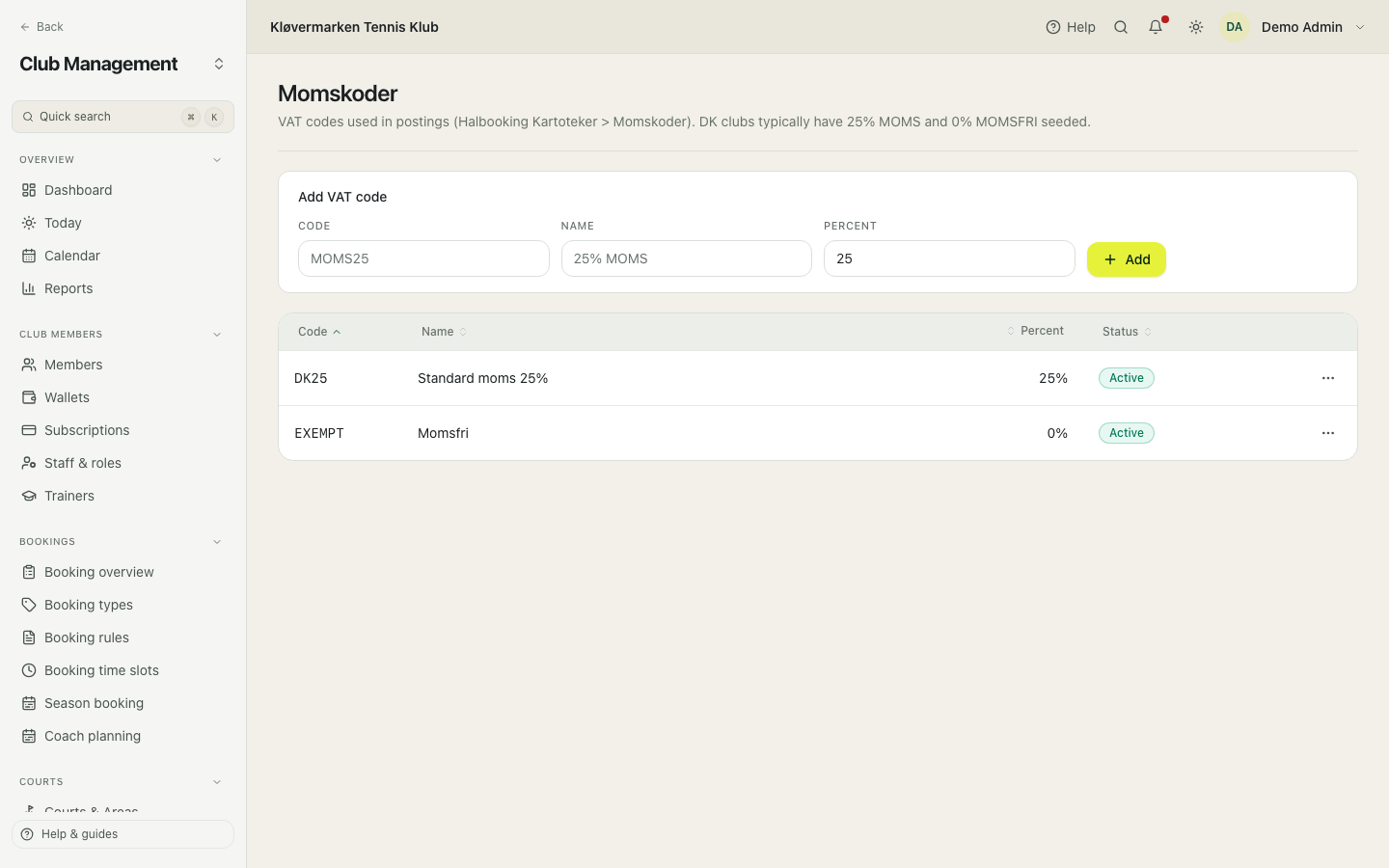
A VAT-free club keeps the zero-rate code and nothing else. Do not delete the codes to make VAT go away: the codes are how the books record that there was none.
Posting texts
Short codes with a fixed text, used as autocomplete in the cash journal. Type the code and the text is filled in. It is a small thing that keeps the journal readable, because the same kind of posting gets the same wording every month.
- Add a code and the text it should produce.
- Save. It appears as a suggestion in the cash journal.
- Delete the ones the club no longer uses.
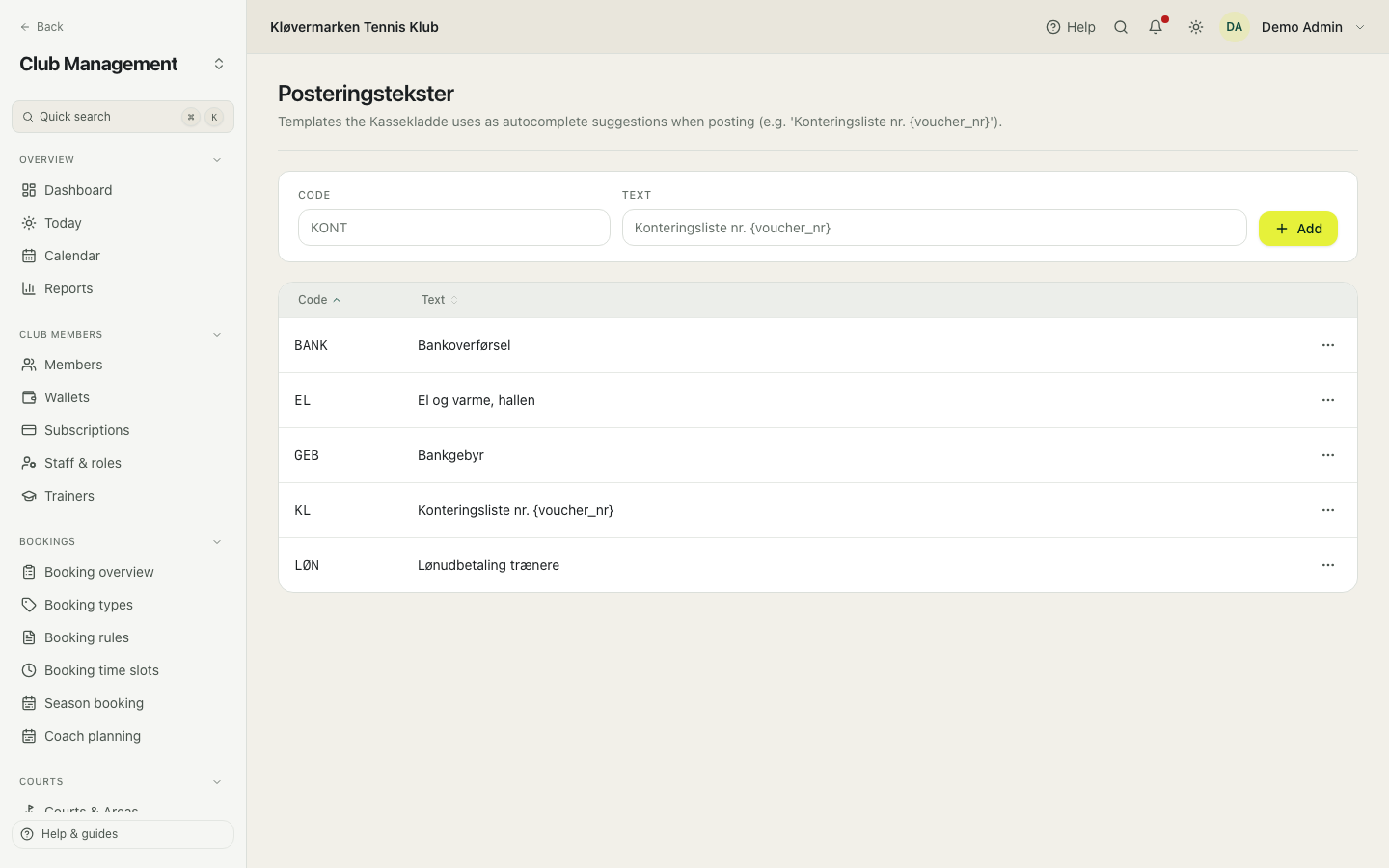
Postings already made keep their text if you delete or change a template. Nothing rewrites history.
Fiscal years
Each fiscal year stands on its own and has its own vouchers, periods and reports. A club usually runs the calendar year, but any period works. The year also carries the account the result is moved to at year-end, and the periods are created for you.
- Click New fiscal year.
- Enter the name, the start and end dates and the result account.
- Save. The periods are created automatically.
- Set the year as the default so new postings land in it.
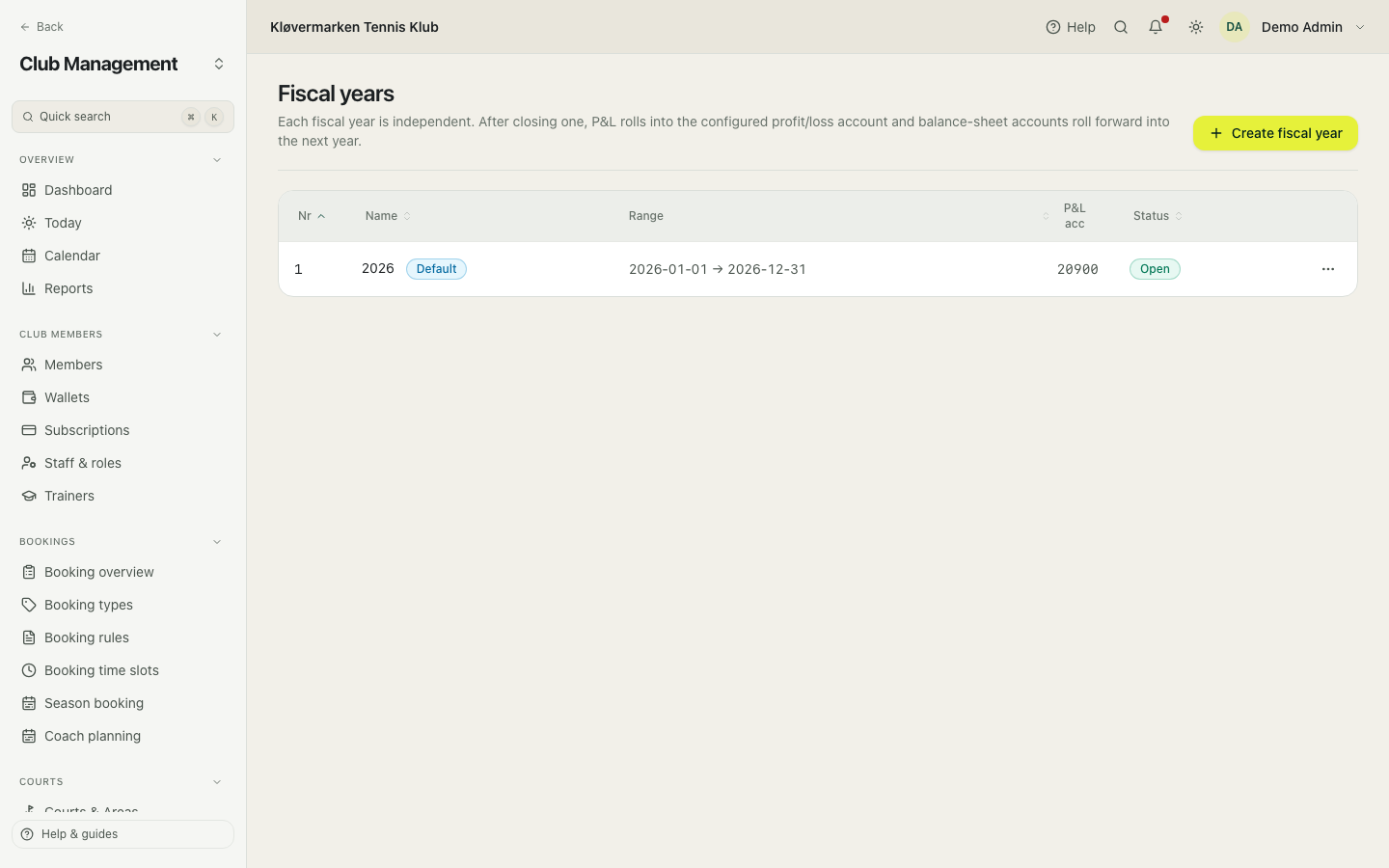
Create next year before the first booking of January is made. A payment with no fiscal year to land in cannot be posted, and the desk finds out at the worst moment.
Period close
A period is normally a month. Closing it locks it: no new vouchers, no edits. Before closing, the system checks that every voucher in the period is posted and that the postings balance, and it tells you what is blocking if something is. A closed period can be reopened when a correction really is necessary, and that is logged.
- Check the period's status: open, has unposted entries, or closed.
- Post or delete anything unposted.
- Read the checks, then close.
- Reopen only when a correction cannot wait for the next period.
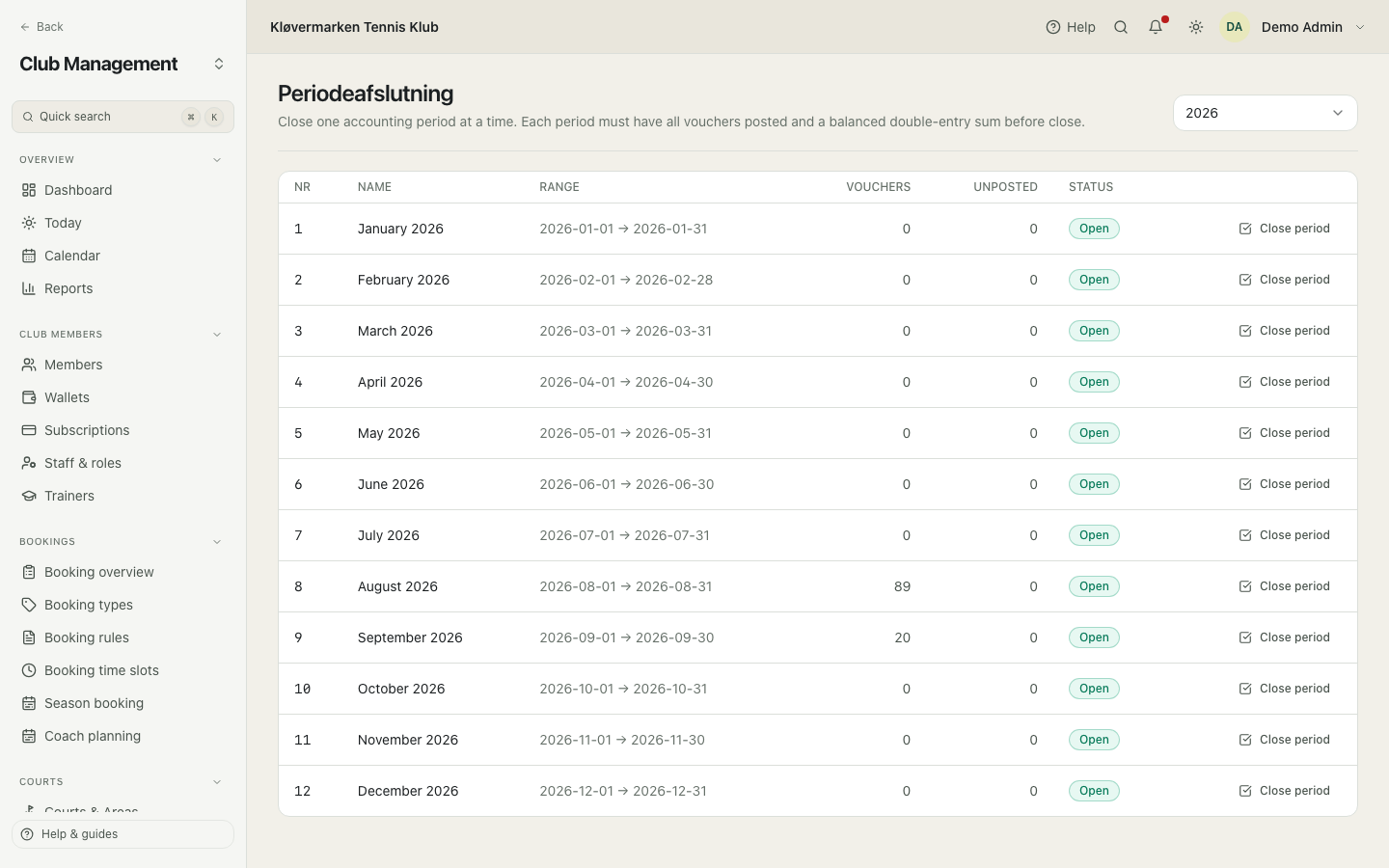
Closing monthly is what keeps the club's reporting trustworthy. Once the board has seen a result, a late posting should not be able to change it quietly.
Year-end close
The last step of the year. The checklist is the same one an auditor would apply: every period closed, every voucher posted, trial balance at zero. When it closes, the revenue and cost accounts are emptied into the result account the club chose, and the balance sheet accounts carry into the new year as its opening balances. If a reopened year is closed again after a correction, only the difference is carried, as one more opening voucher, so the new year always opens with the old year's closing balances; when the new year is closed as well, reopen it first and close it again afterwards. The screen shows exactly what will be posted before you confirm.
- Go through the checklist and fix whatever is red.
- Close the last periods from here if any are still open.
- Read the impact summary.
- Close the year.
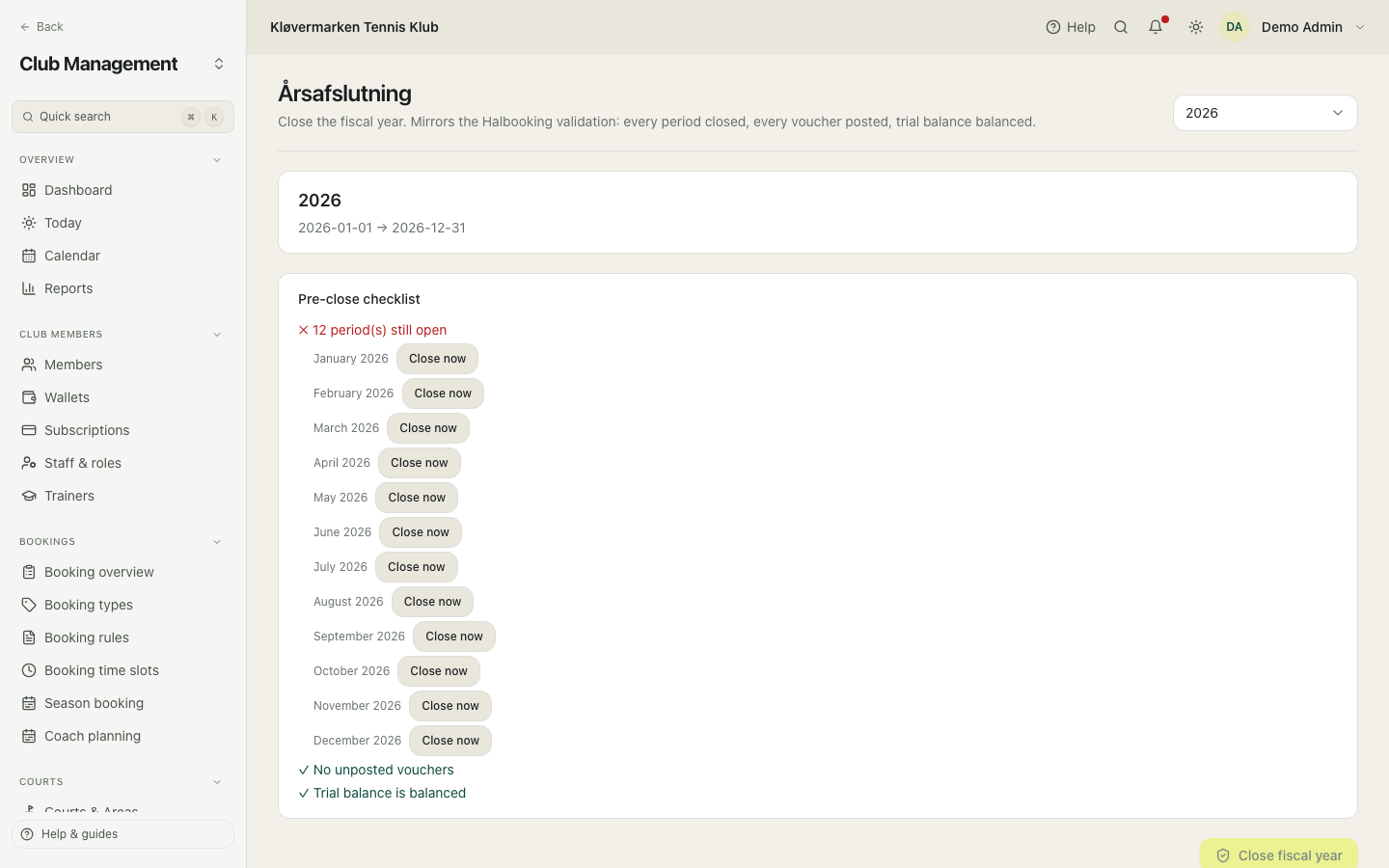
Reopening a closed year is an administrator job, not a click. Take the extra half hour on the checks rather than the extra week afterwards.
Posting search
Search across every posting in the club: by text, by account, by voucher number, by amount, by date range and by source. This is the screen for the questions that start with 'find that one entry', which is most of what an auditor asks for.
- Enter the text or the account number.
- Narrow it with the date range or the amount.
- Click a result to open the voucher behind it.
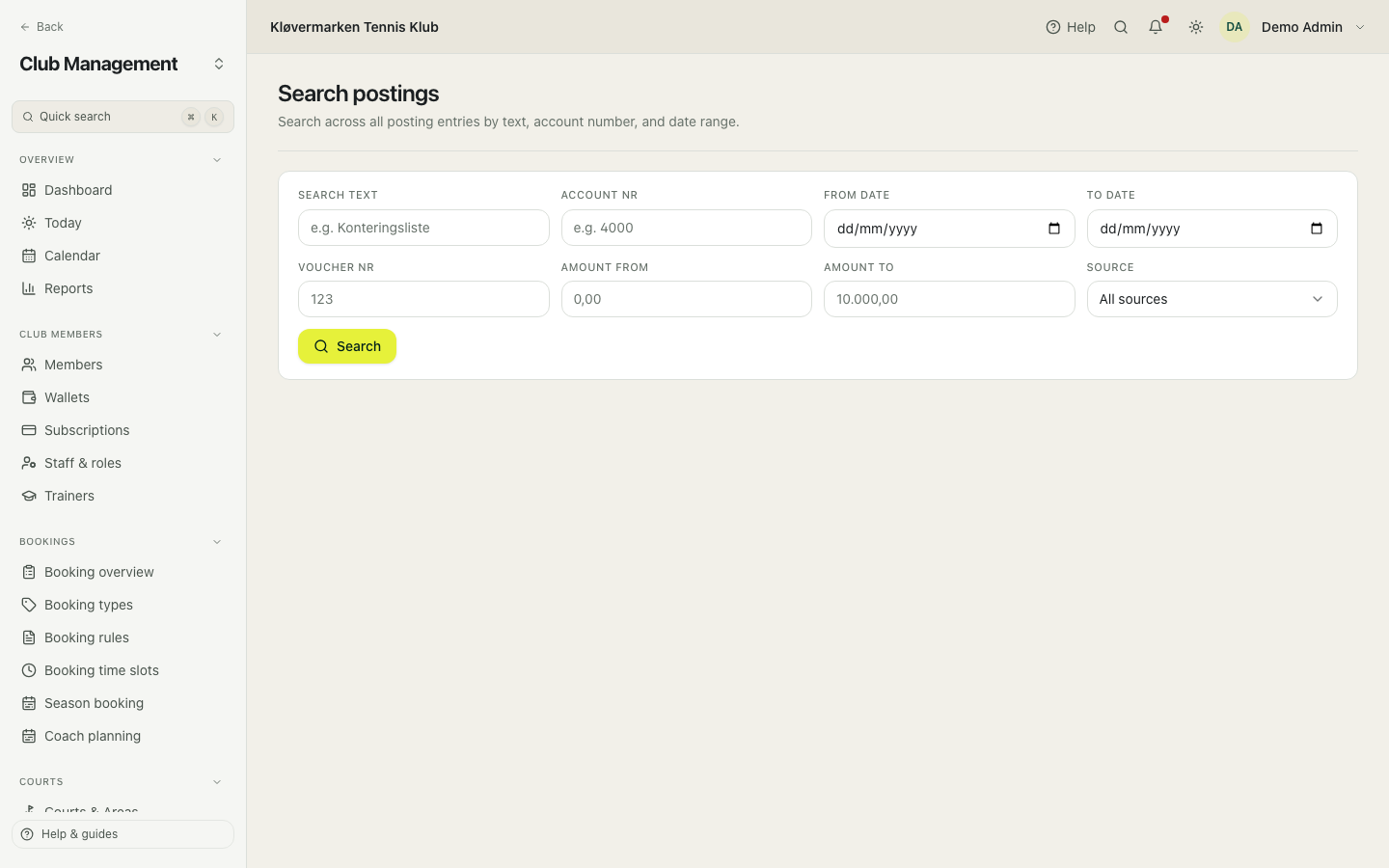
Search by amount when you know what it was but not what it was called. Two clubs out of three find the missing posting that way.
Data import
The tool for taking a club's accounting history over from its old system. It runs an import file, shows what it would do, and only writes when you tell it to. It is used during a migration, with files prepared for the club, and it is not part of the daily routine.
- Pick the type of import and the data file.
- Enter the fiscal year the data belongs to.
- Run a dry run first: it writes nothing and shows what would happen.
- Read the result, including whether the trial balance still comes to zero, then run it for real.
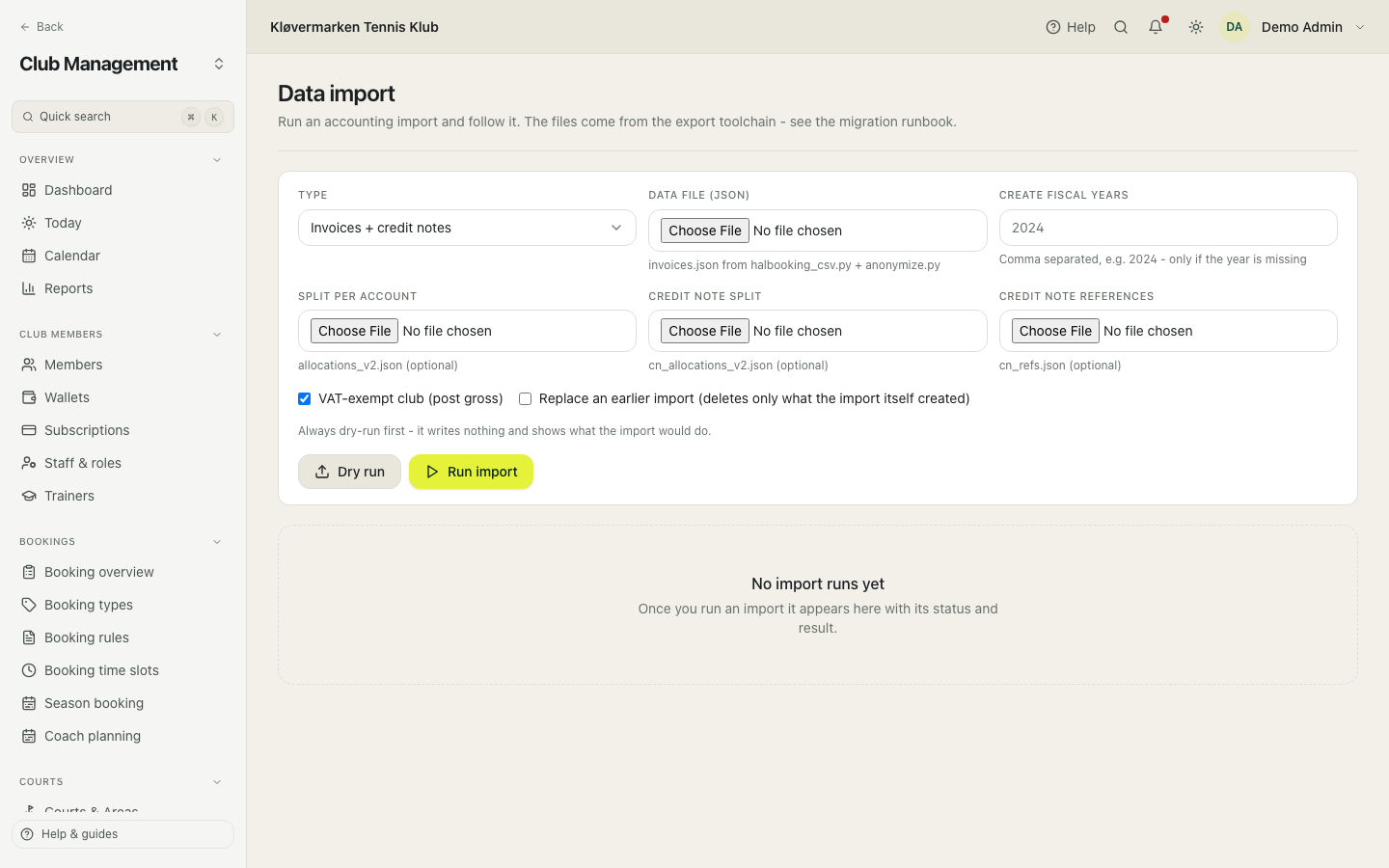
Always dry run first, and read the trial balance line in the result. An import that leaves the trial balance broken is telling you the source data is incomplete, not that the club's books are.
16.Communication, shop, website and settings
The last group: talking to members, selling things, putting the club on its own website, and the club-wide settings everything else inherits.
Announcements and news
Two things on one page. An announcement is a message that needs attention now, and it can go out in the app, by email and as a push notification. News is ordinary club content that sits in the news tab in the app. You choose the audience: everyone, one membership type, members with future bookings, or members who owe money. Before sending, you see how many people it reaches.
- Write the title and the message.
- Pick the audience and the channels.
- Read the reach shown in the preview.
- Send, or publish as news if it is not urgent.
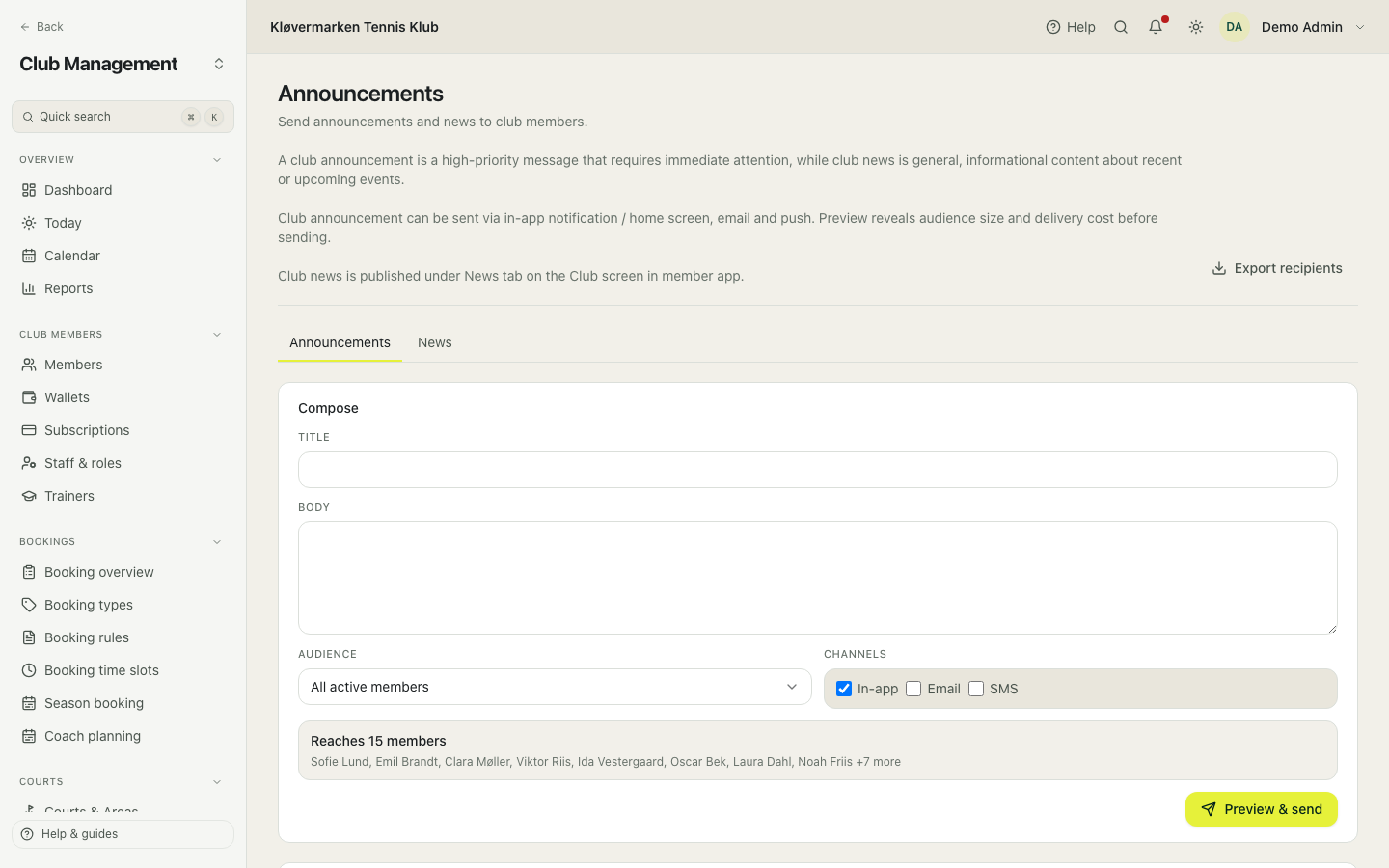
Push and email reach people who are not looking at the app. Use them for what genuinely cannot wait, and put the rest in news, or members stop reading the club entirely.
Shop
Products members can order in the app: strings, balls, club shirts. An order becomes an invoice and is paid at the desk. Each product can point at its own revenue account, so shop sales do not disappear into other revenue.
- Add the product with name, description, price and picture.
- Set the stock if the club keeps count, or leave it untracked.
- Point it at a finance account if the club wants shop sales kept separate.
- Activate it. Members can now order it.
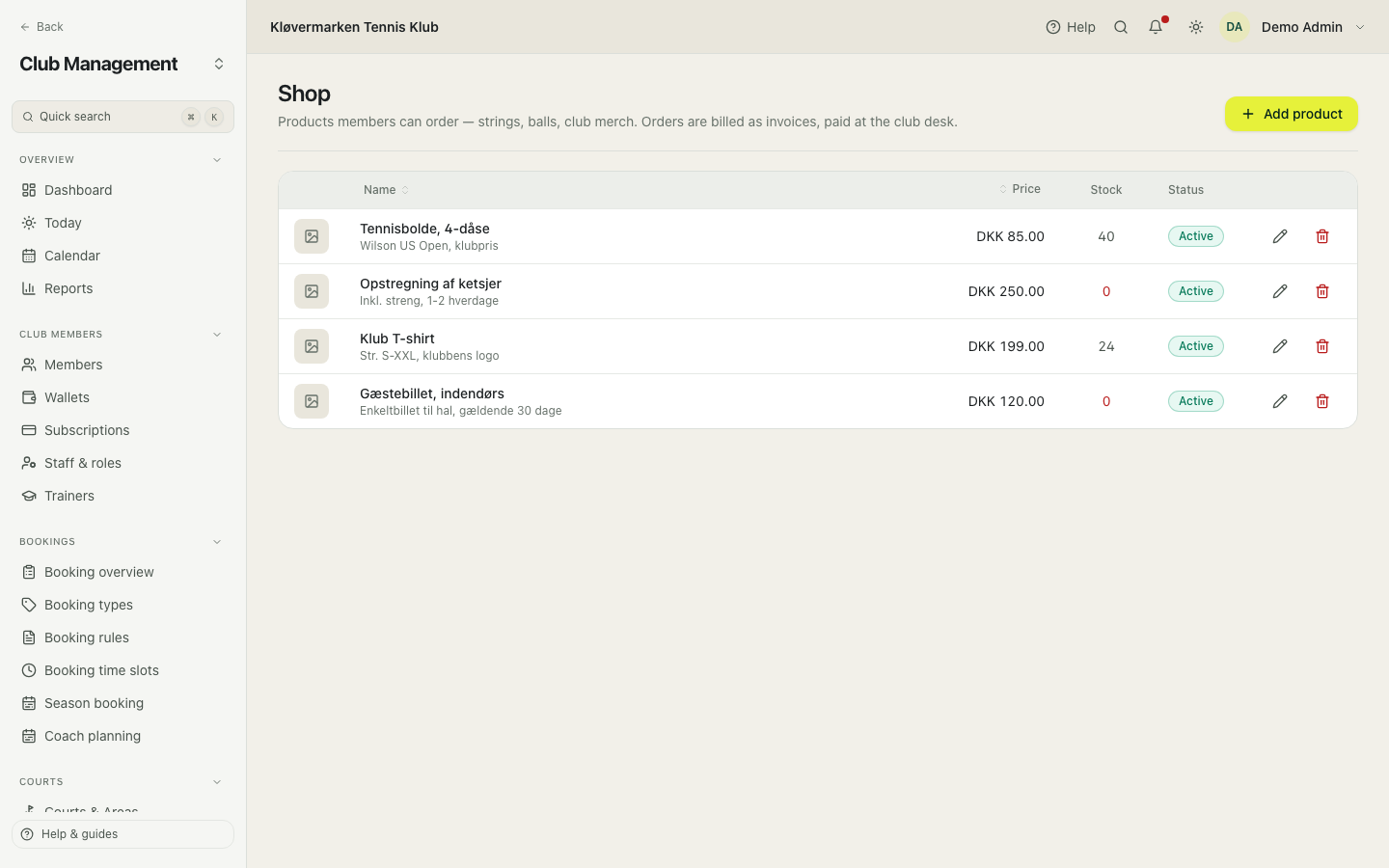
Hiding a product does not touch orders already placed. They keep the price they were ordered at.
Website widget
A small block of code that puts live court availability on the club's own website. It works on WordPress, Squarespace, Wix and plain HTML. Visitors pick a slot in the widget and finish the booking in the member app, where they log in or register, with the chosen slot still selected.
- Pick the language.
- Copy the code snippet.
- Paste it into the club's website where the calendar should appear.
- Open the page and check that the slots are showing.
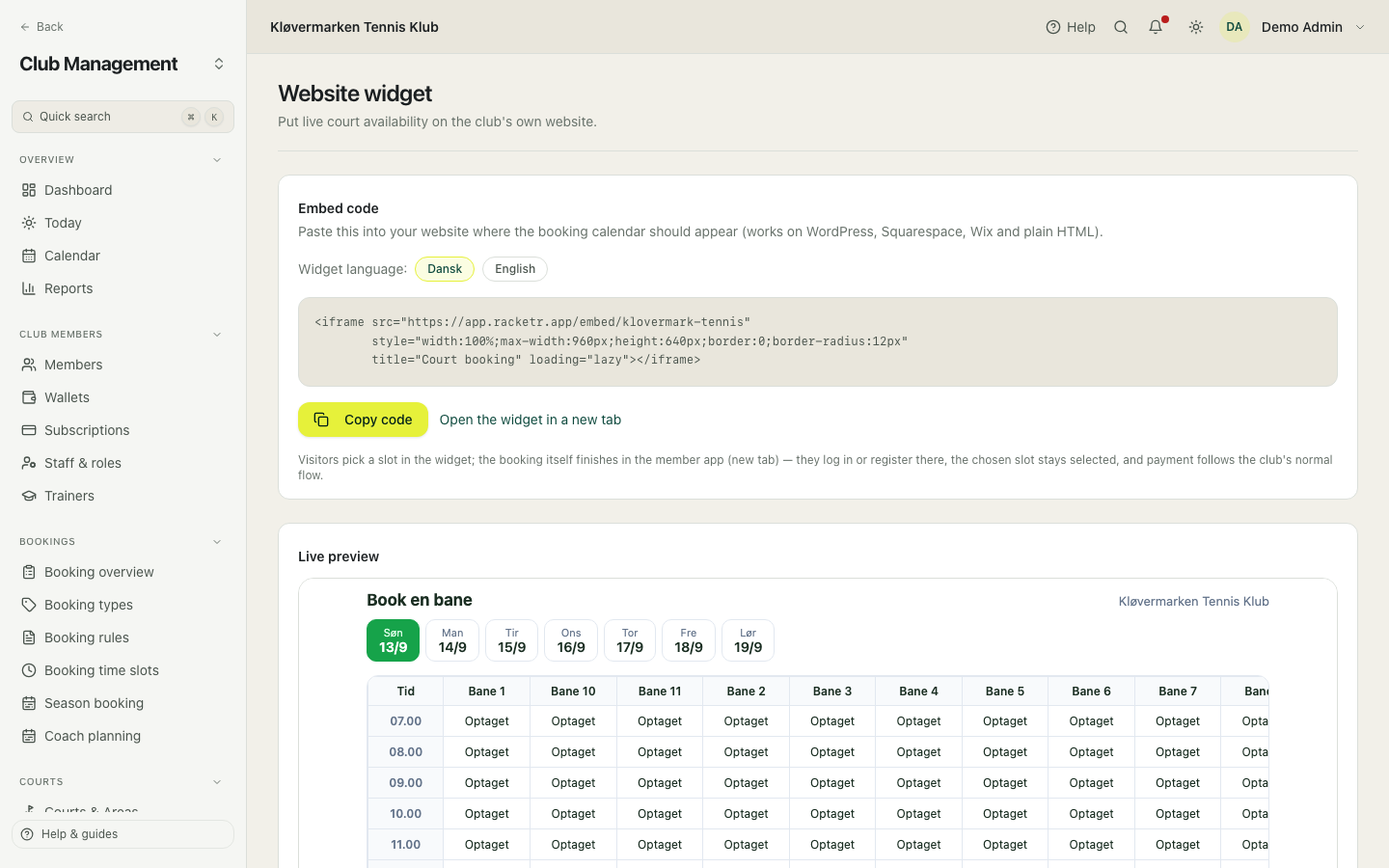
This is the cheapest advertising the club has: people who are already on the website can see there is a free court tonight without asking anybody.
Hall kiosk
A touch screen in the hall where members find a free court and book it with their own phone. The screen shows today's and the coming week's free courts. A member taps a time, scans the QR code with their phone, signs in, books and pays there, with club credit, a clip card or online payment as usual. The screen then says the court is booked. Nobody signs in on the screen and nobody types a card on it: it never shows a name, it holds no session, and a QR code works for five minutes and only for the first phone that opens it.
- Click New kiosk and give the screen a name, for example where it hangs.
- On the touch screen, open app.racketr.app/kiosk.
- Type the code from the admin there and press Connect. The code works once and for ten minutes.
- The list shows when each screen was last online. New code connects a replaced screen; Remove switches a screen off at once.
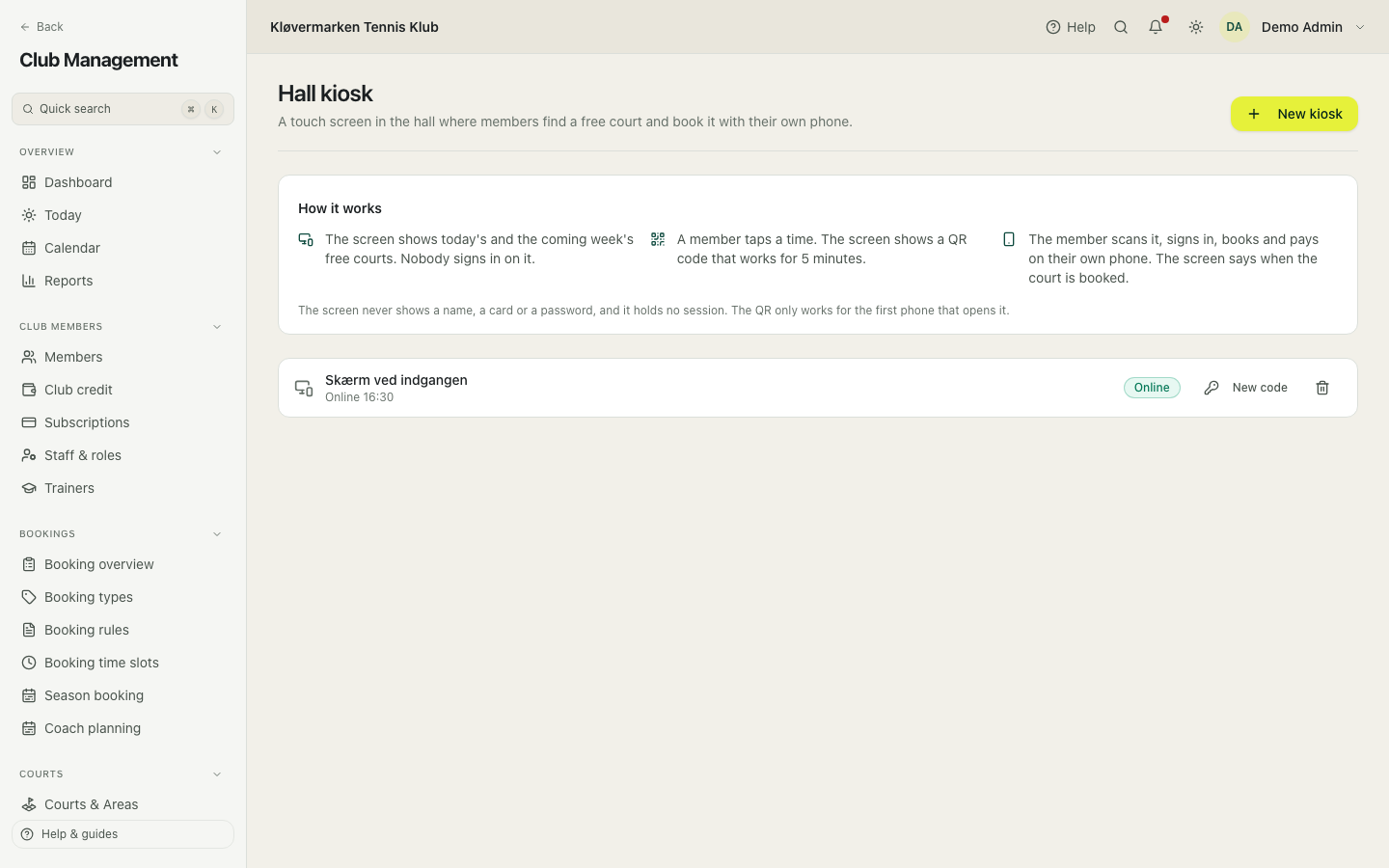
Run the screen in a kiosk browser (for example Fully Kiosk Browser on Android or Chrome in kiosk mode) so members cannot leave the page, and let it reload every night.
Club settings
The club-wide settings everything else inherits: currency, VAT number for invoices, sports the club offers, age groups, the default court price, the cancellation deadline, how long an unfinished checkout blocks a slot, whether members see who booked a slot, and whether member pricing requires a paid membership. Each sport can override the club defaults. Changes apply to new bookings; existing ones keep their price and their rules.
- Go through the sections one at a time.
- Read the explanation under each setting before changing it.
- Save. The impact of the bigger changes is shown before you confirm.
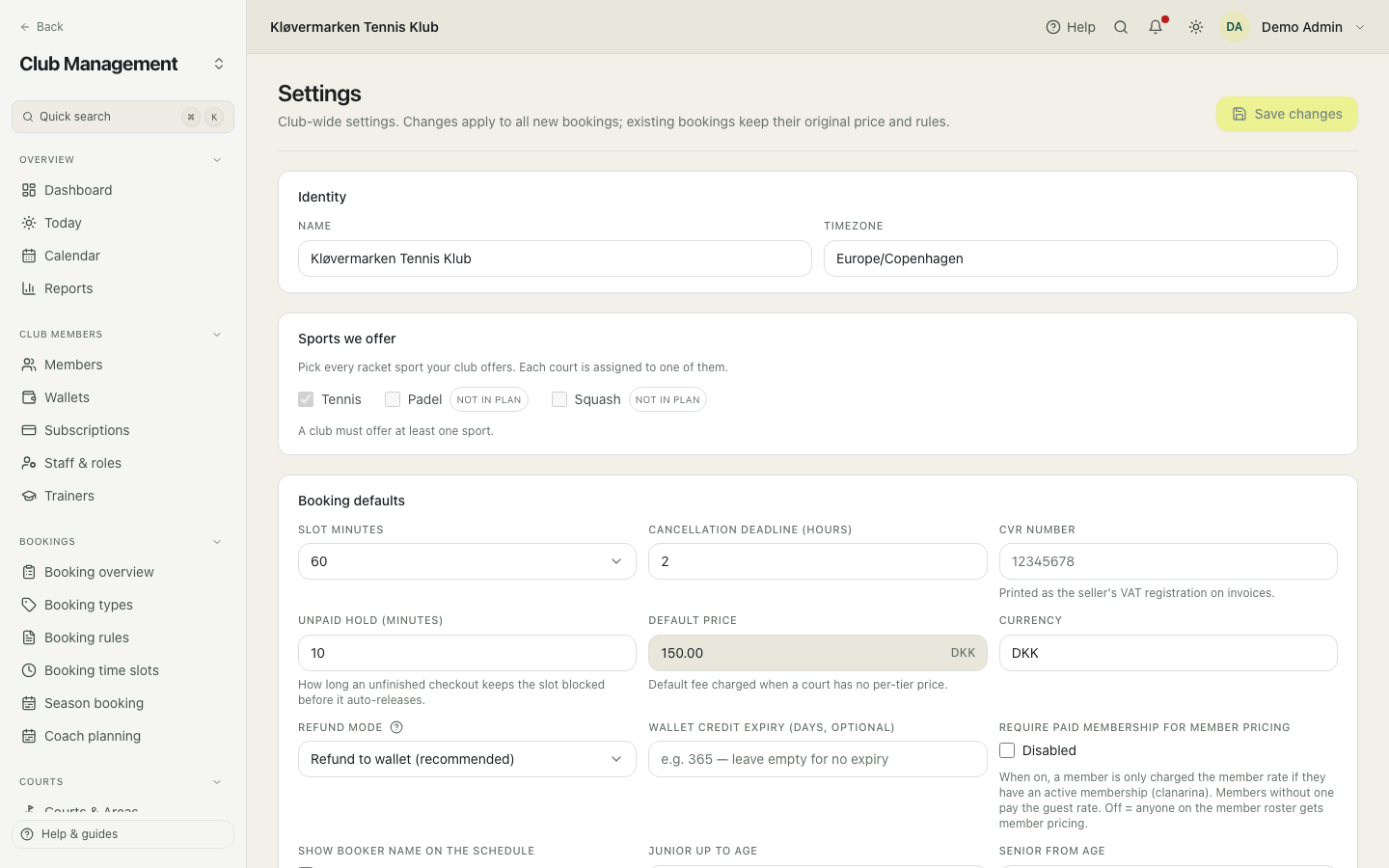
The setting worth reading twice is whether member pricing requires an active membership. With it on, a member without paid dues pays the guest price, which is what most clubs intend, and what most people are surprised by the first time.
Tiles on the club page
Members open the club through tiles: Book a court, Programs, Membership, Vouchers, Shop and the rest. Under Settings the club chooses which of them members see, in the iOS and Android apps and on the web alike. A tile with nothing behind it hides by itself: the Shop while no product is active, Vouchers while the club sells none (a member who holds one still sees it). The card says when a tile is hidden for that reason.
- Open Settings and find Tiles on the club page.
- Switch off the tiles members should not see.
- Check Pending changes at the bottom: it lists the hidden tiles before and after.
- Save. Members see the change the next time they open the club.
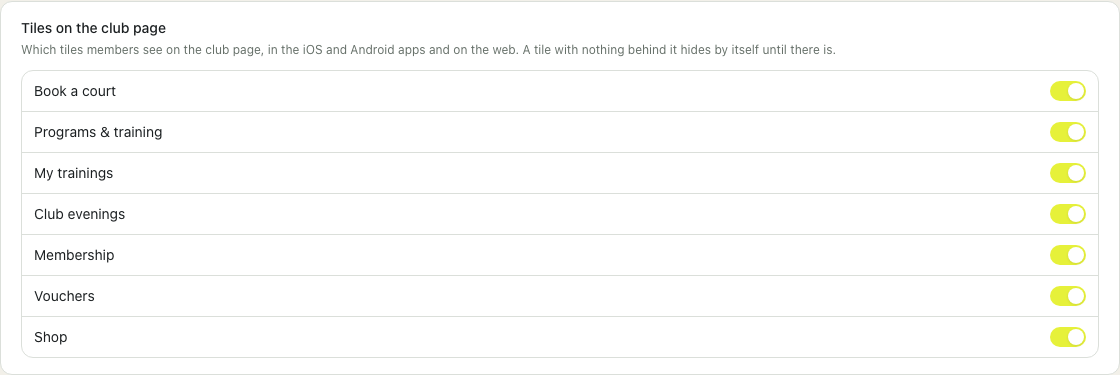
The Shop and Vouchers pages say it when their tile is switched off, so a product nobody can find is never a mystery.
Audit log
Every administrative change: who did it, what they did, when, and what the value was before and after. Use it when a booking has disappeared, a membership type has changed, or a refund is disputed. Nothing in it can be edited, which is the point.
- Filter by action or by the kind of thing that was changed.
- Find the event by time.
- Read the before and after values.
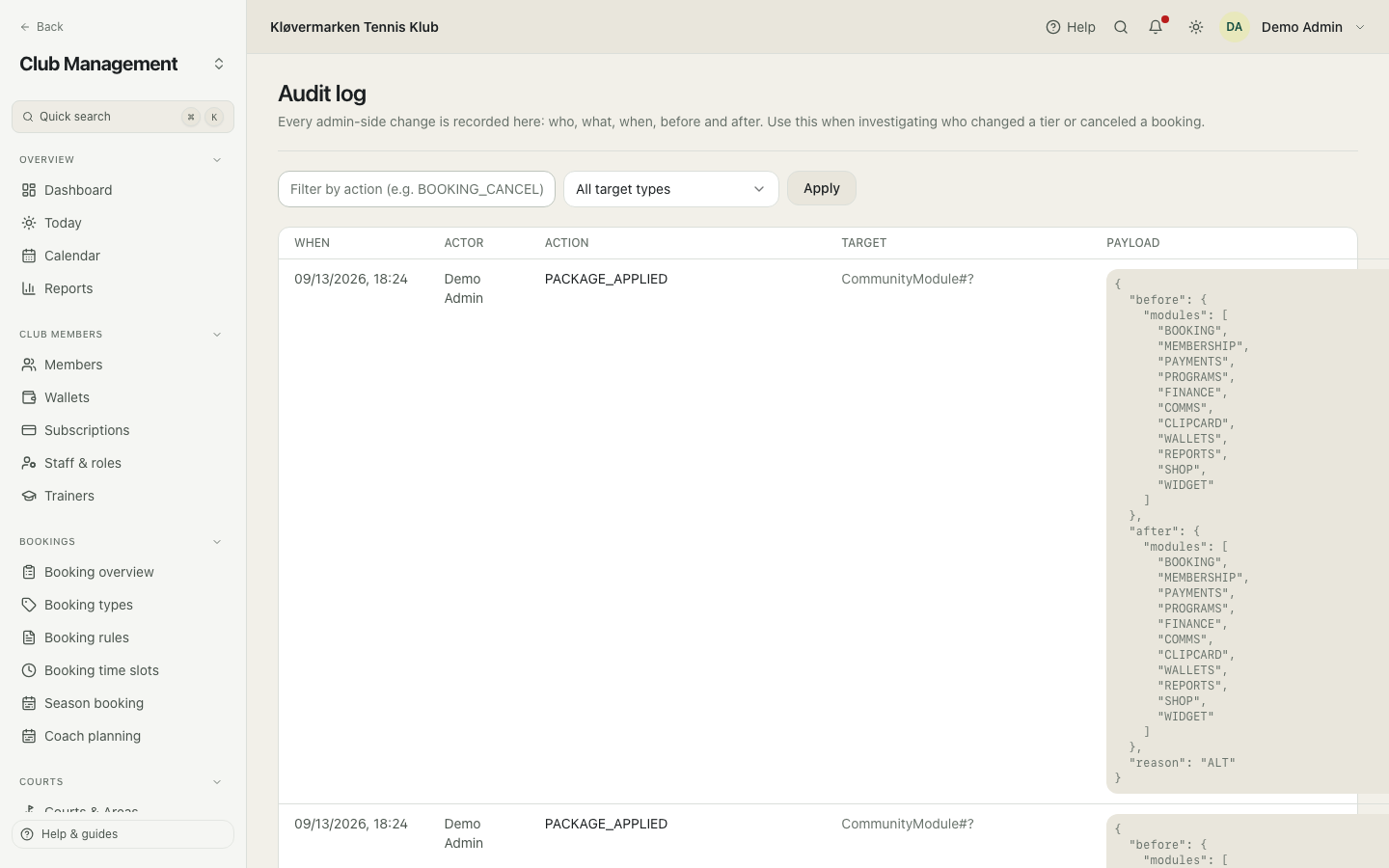
The log is the protection of whoever is on duty. When somebody says nobody touched that booking, the log has already answered without anyone having to argue.